Google Play Store
Difficulty:IntermediateIf you prefer to watch this walkthrough instead, I’ve prepared a video for you. Scroll down for the written instructions, along with screenshots to help you through the process.
You almost certainly have a Google account - if you don’t use their email, YouTube, maps, document editor or one of their confusingly named chat apps, then I’ll be very surprised.
If not, set one up. Use your real name again, pen names come later.
Then head to https://play.google.com/books/publish/
You will most likely have to enter a lot of information about yourself, your address, banking details for payouts, tax information, etc. I can’t show you that since I already did it…
I get a ‘Book Catalog’ which shows me everything I’ve published so far. I can add a new book, with a button top right, or I can go to the series tab.
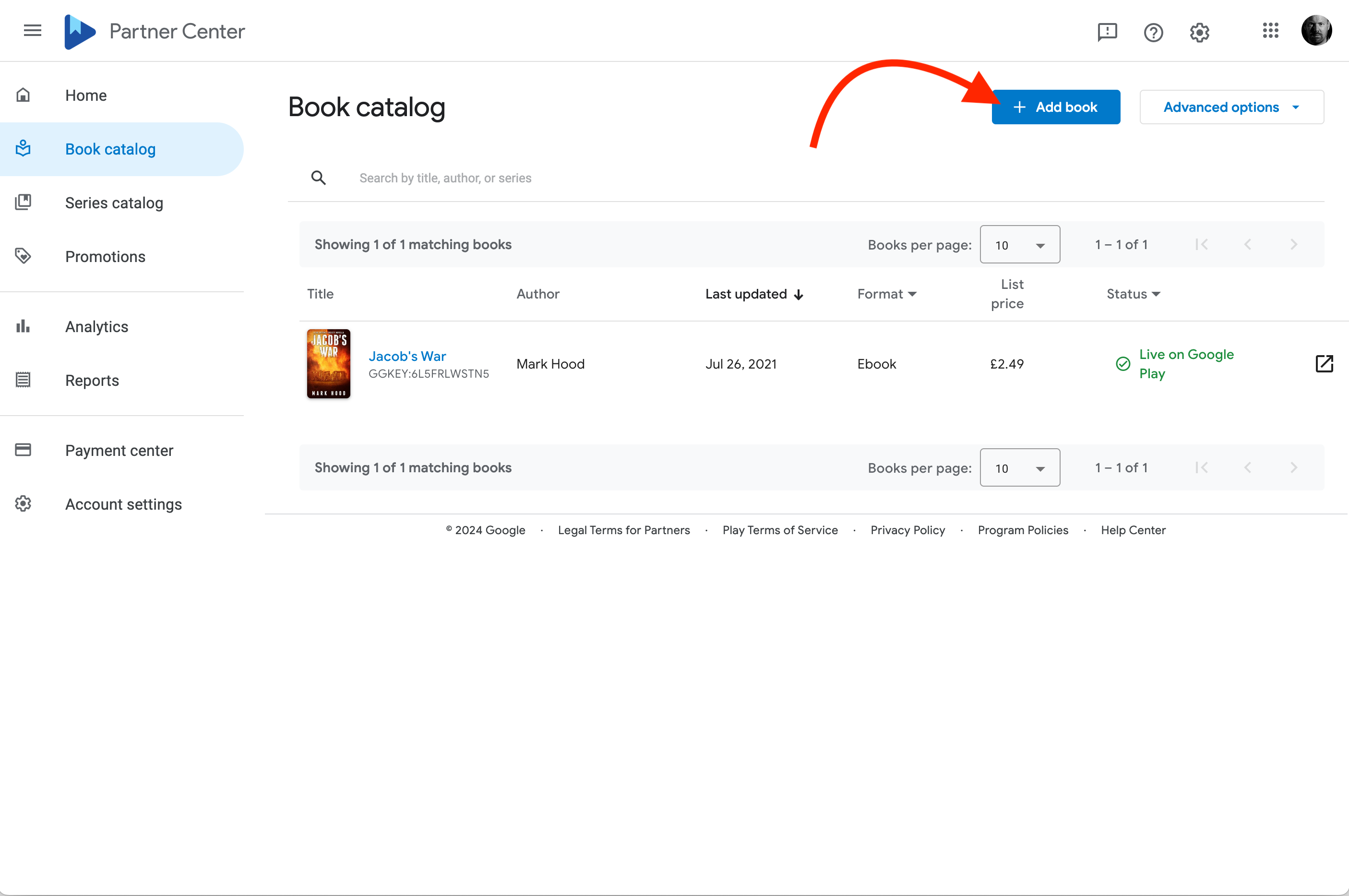
You can only add books to a series once they’re live in the store, so you want to get the books up first.
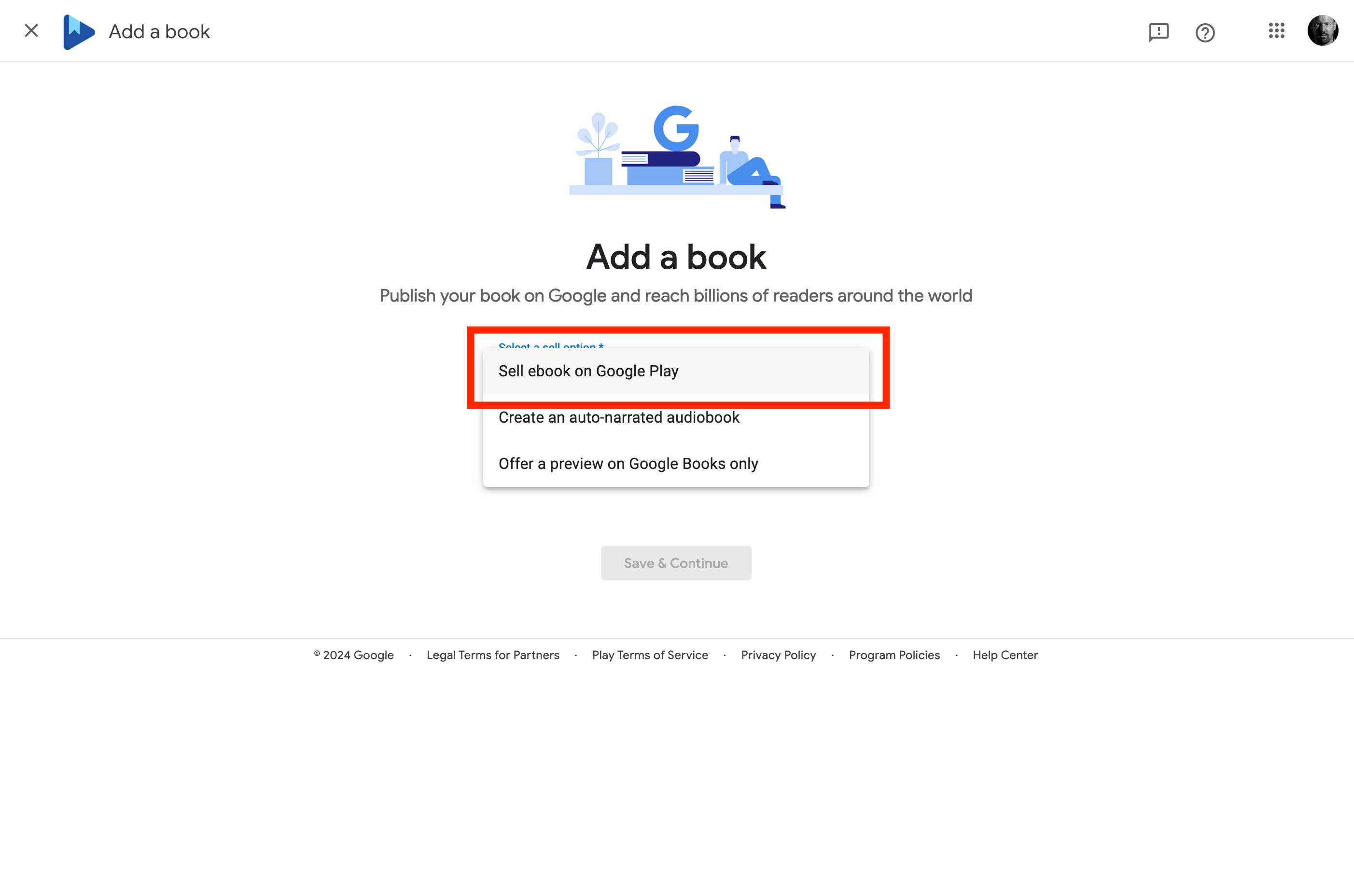
Hit ‘Add Book’ and then you almost certainly want to choose ‘Sell eBook on Google Play’:
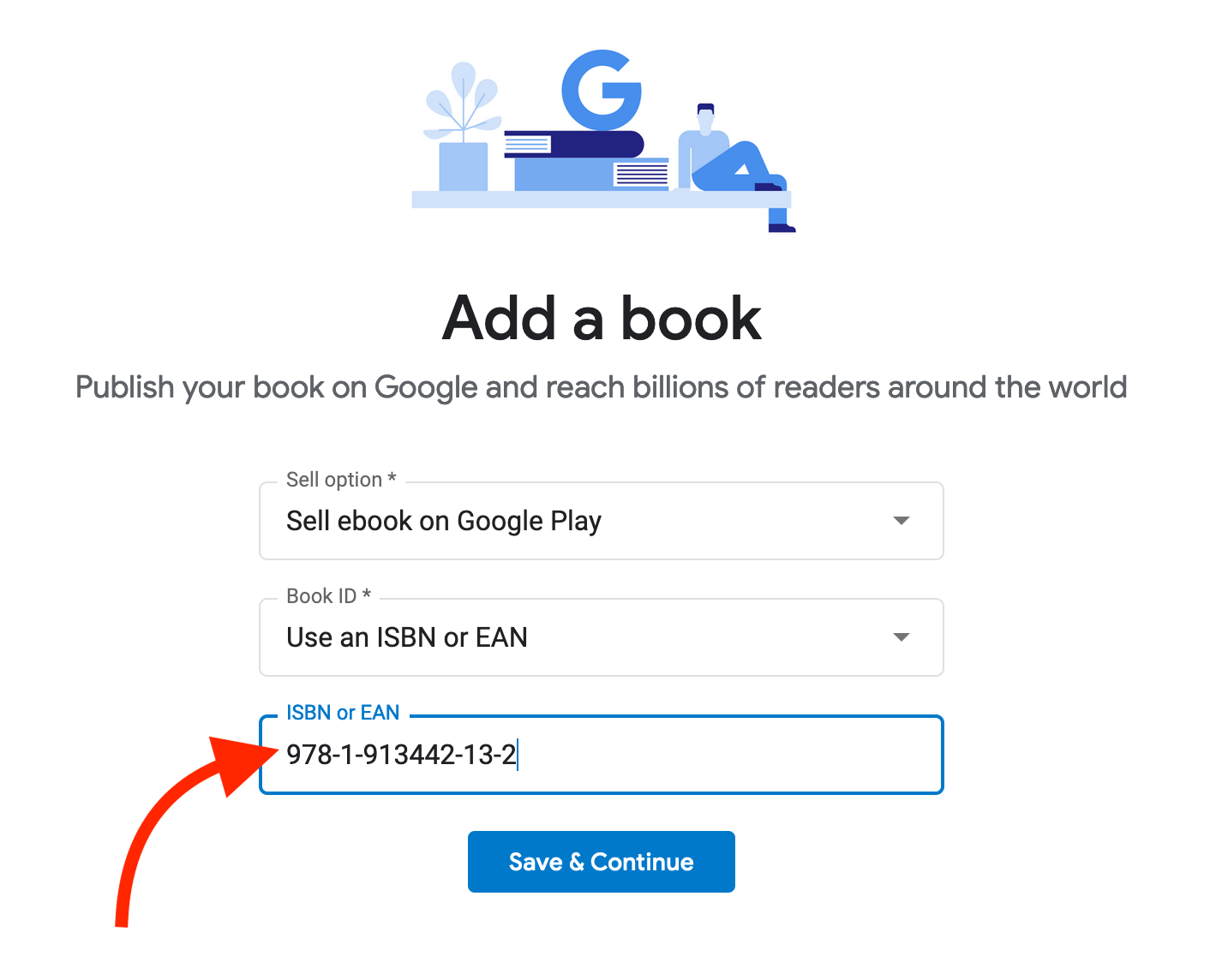
Here’s where you can choose to use your ISBN (or not) and allow Google to assign their own ID. I advise using your ISBN.
Now you’re going to add all that metadata. Title, blurb, language, etc:
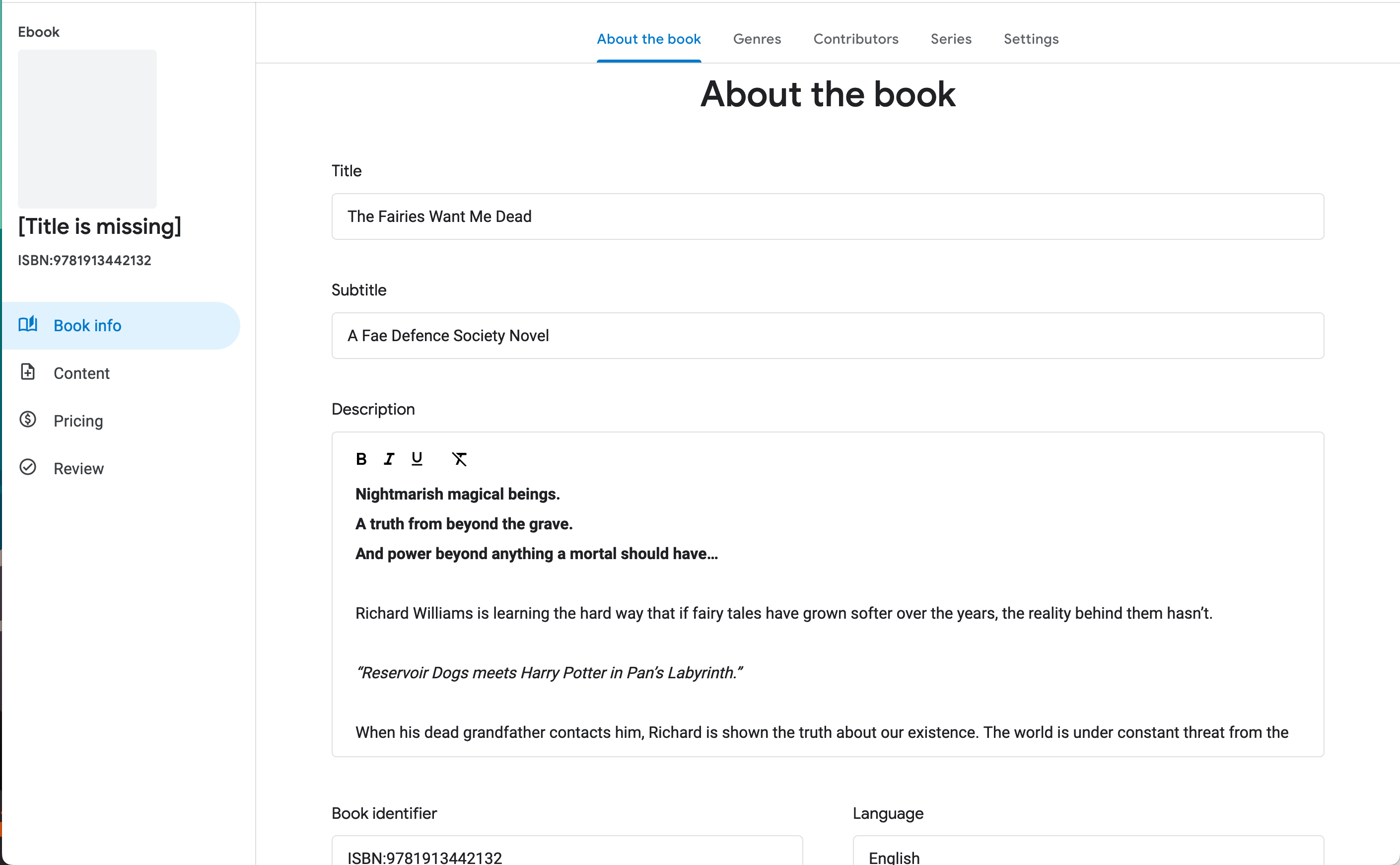
Scroll down and keep going:
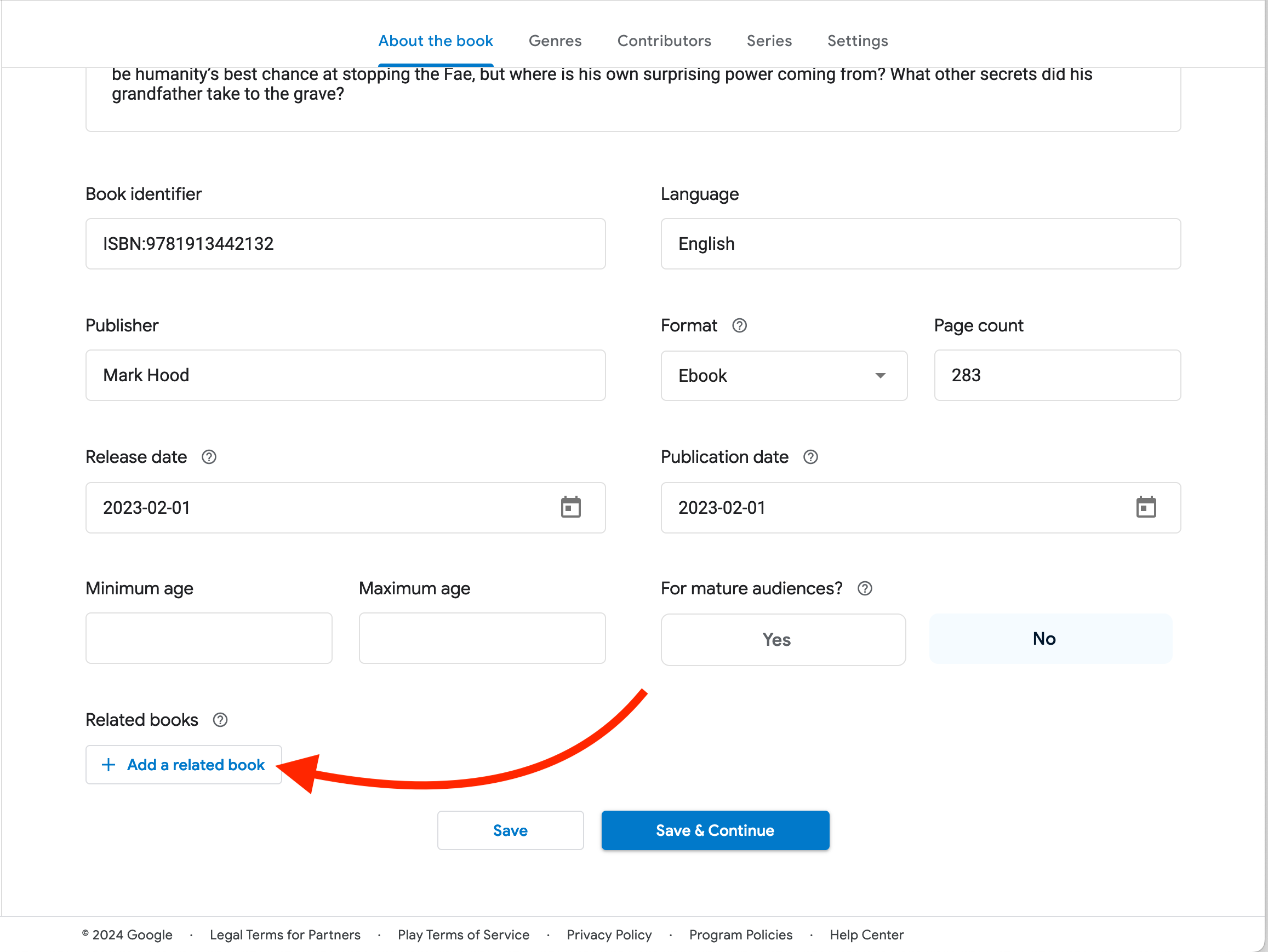
Important: If you want it released ASAP, leave the ‘Release Date’ blank. If you want it delayed until a certain date (e.g. for pre-orders), put that date in here. If you have already published it elsewhere, as I have, put that date in here. ‘Publication Date’ does not control whether or not your book is available, so you can put whatever you like in there. Normally it’s the release date.
Note that ‘related book’ doesn’t mean part of a series. It’s for when you’re publishing a translation or derivative work.
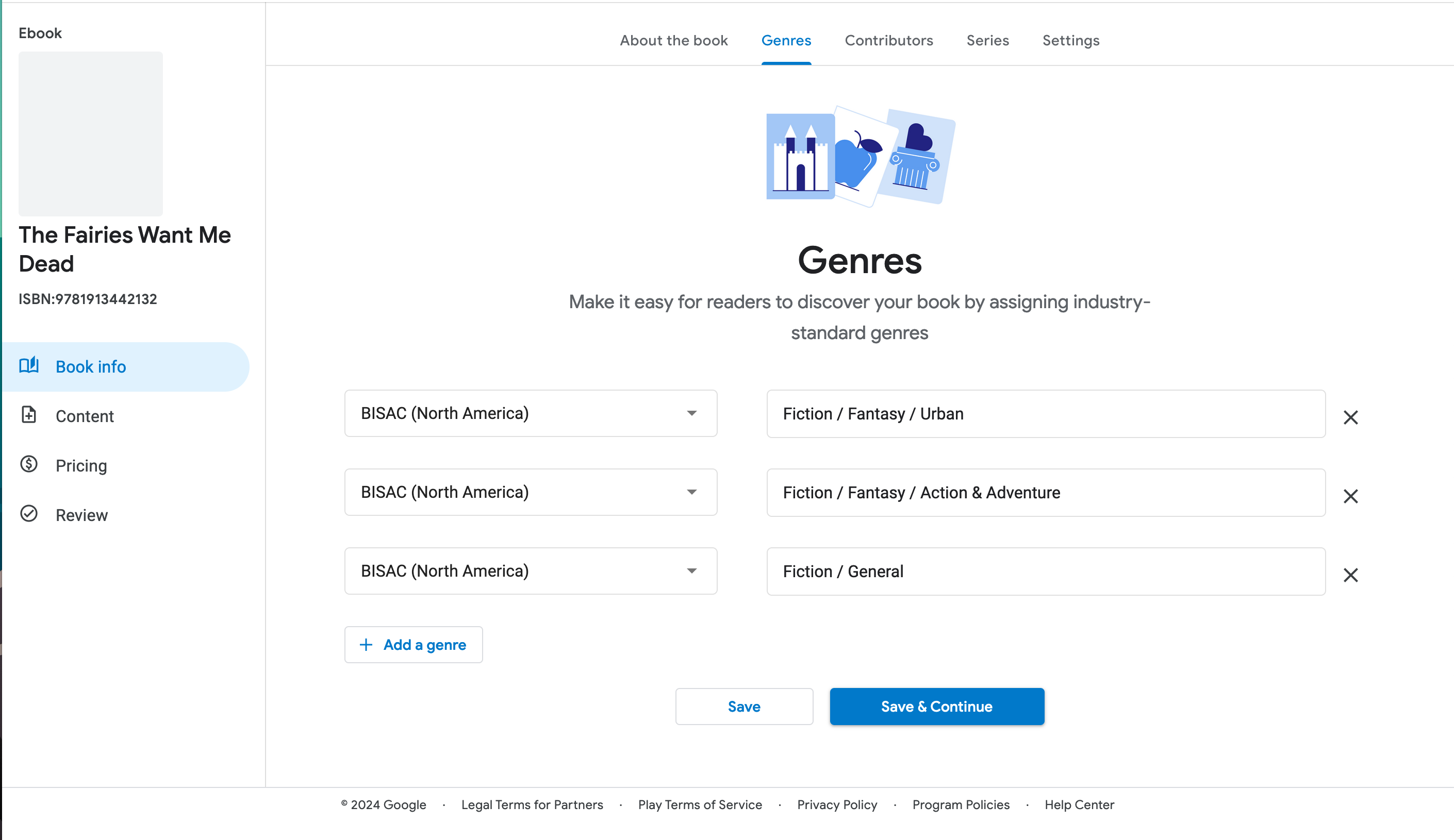
Save and continue, and we’ll do our BISAC codes. You can add as many as you like, but don’t add it to categories you’re not actually in.
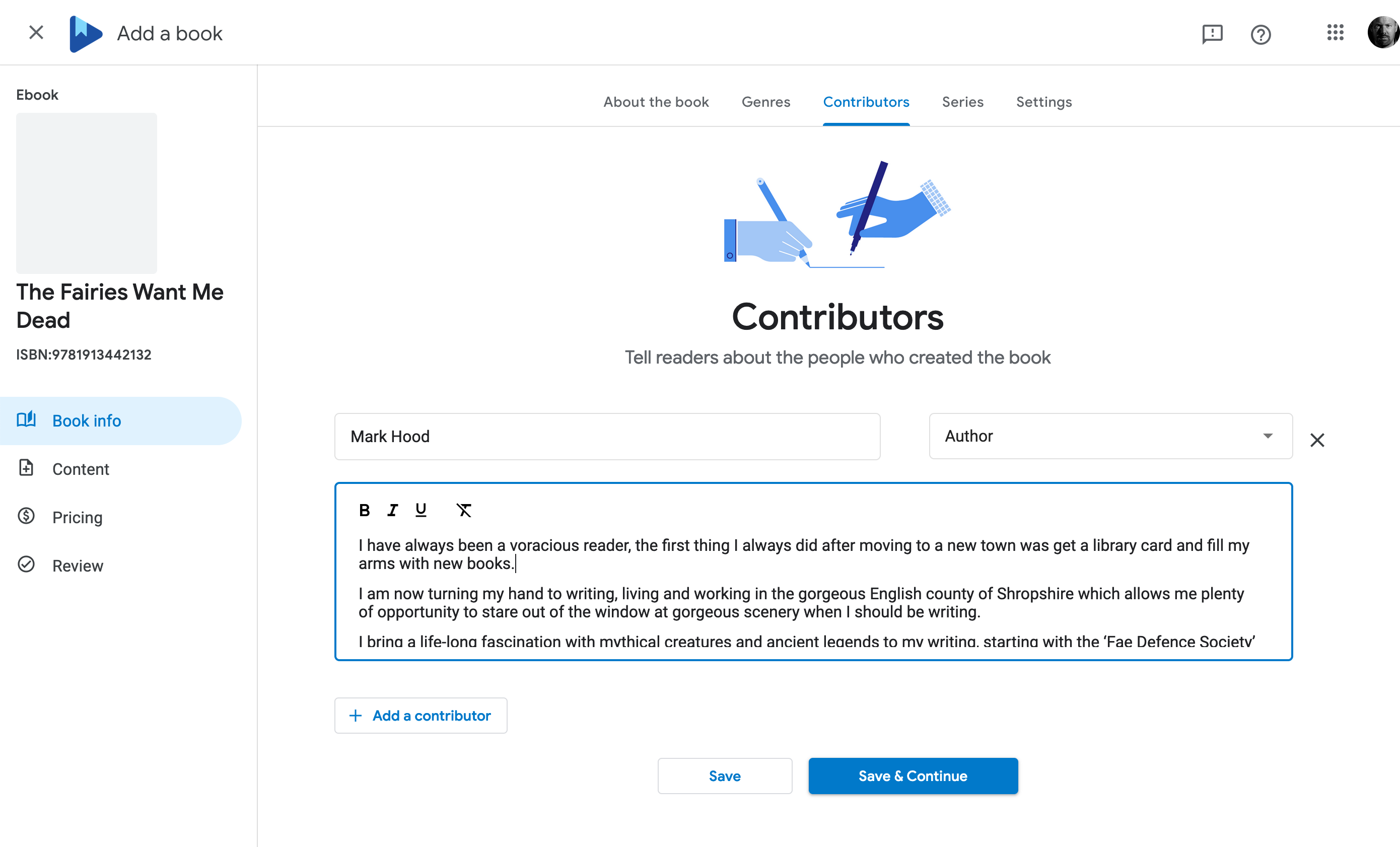
With that done, add the author(s) information:
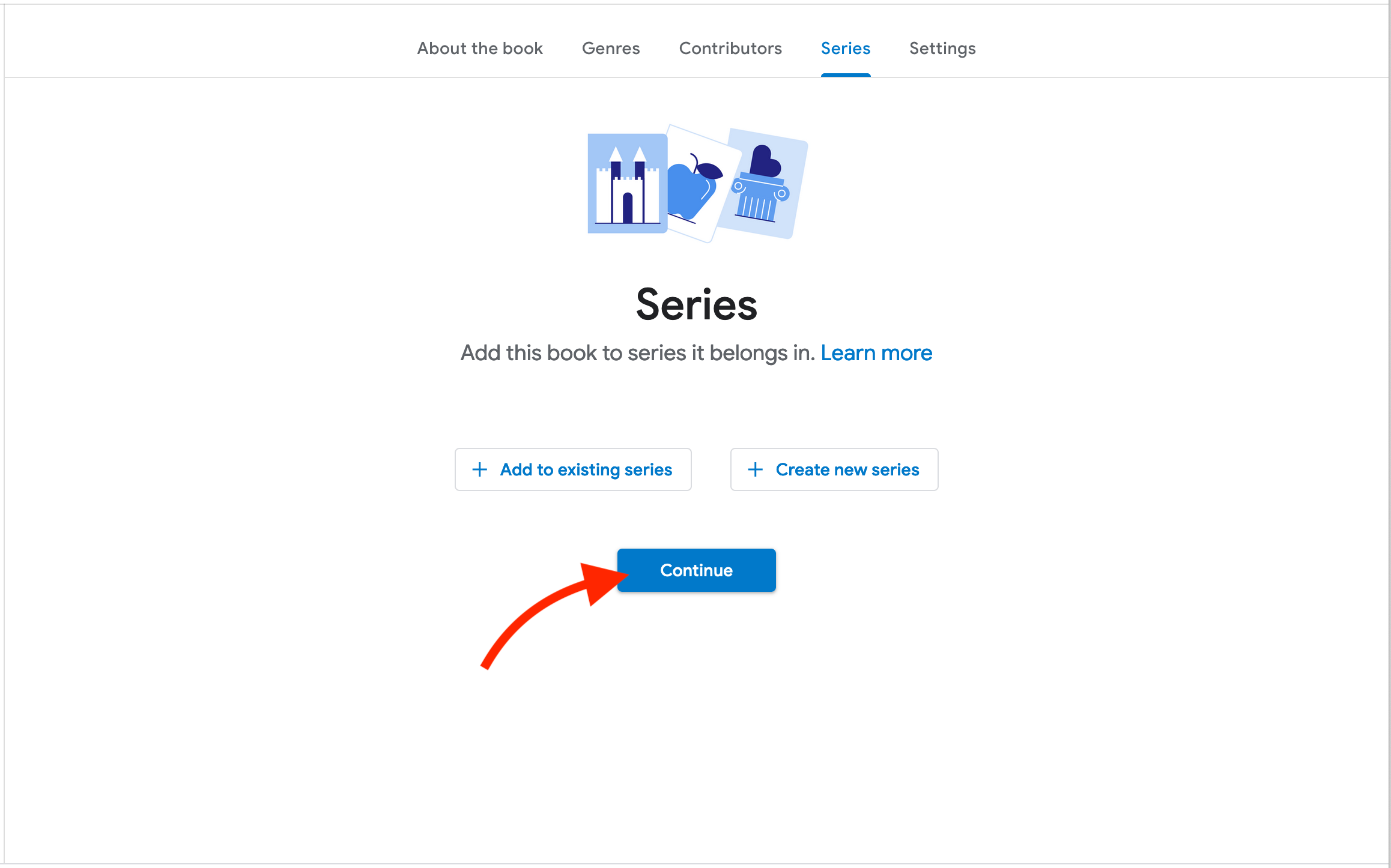
Now this is a part of a series, but I don’t want to get sidetracked. We’ll sort that out later. Continue on:
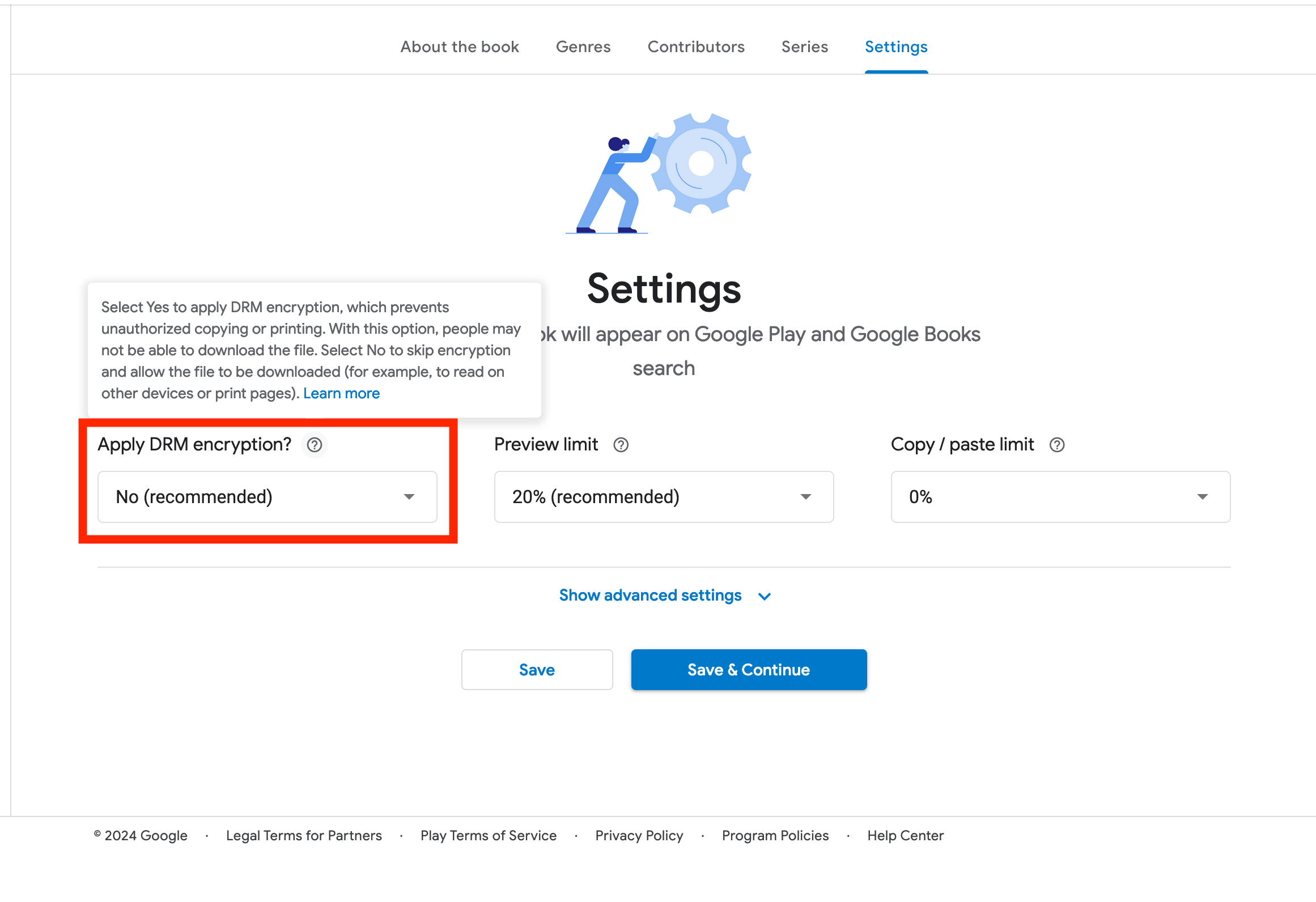
Settings. They recommend turning off DRM (as do I) but that’s up to you. It’s meant to prevent piracy, but in reality it doesn’t — and just makes life harder for your readers if they want to move the file to a new device in the future.
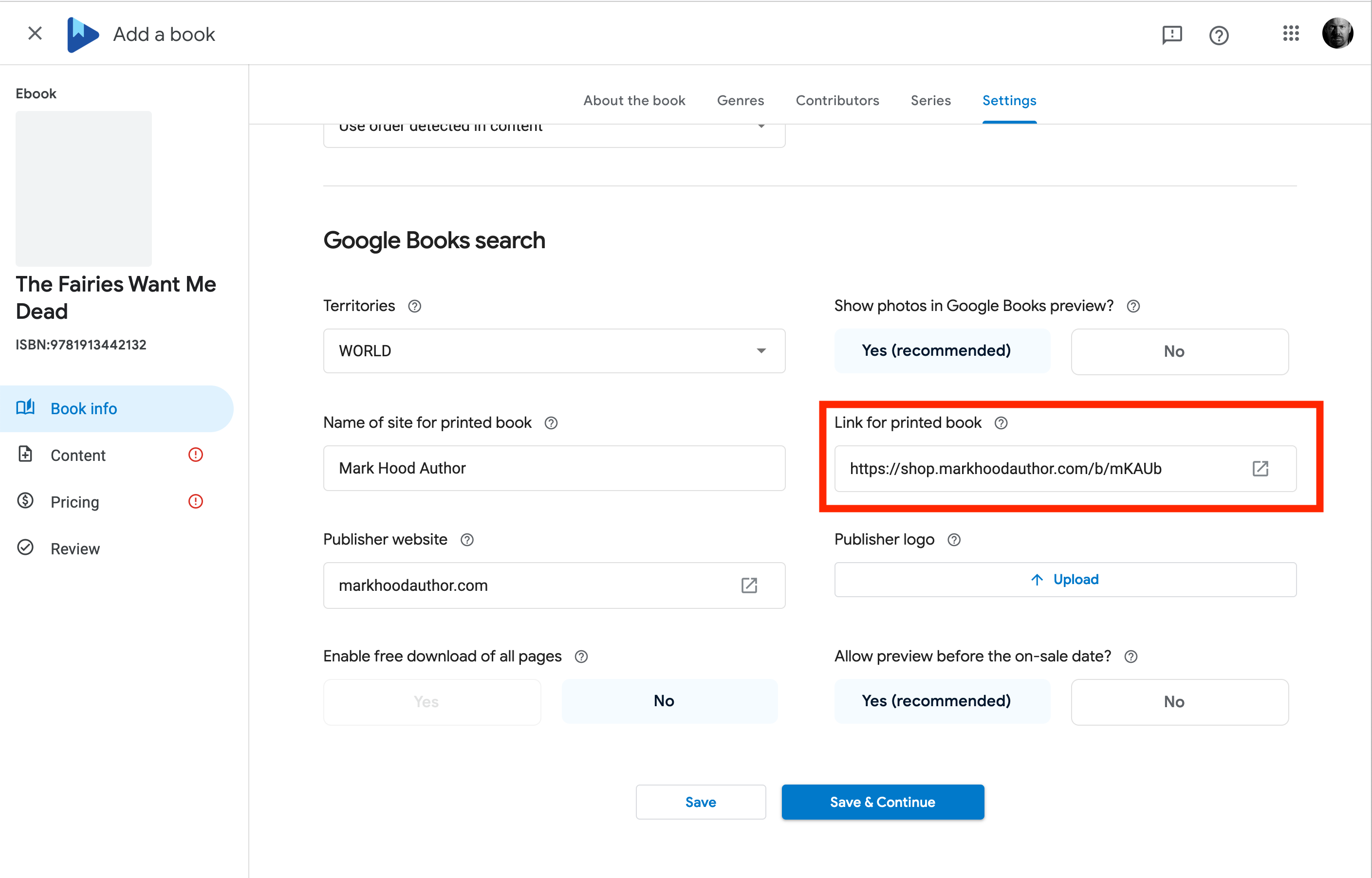
You can safely ignore ‘Advanced Settings’ for now, but you can take a look. If you have links to buy a paperback, you can add them here so Google Books will index it. I don’t believe they like Amazon links, though.
Save and Continue…
And finally we get to the actual book! Upload your ePub and your cover (yes, both in the same place, Google will figure out which is which):
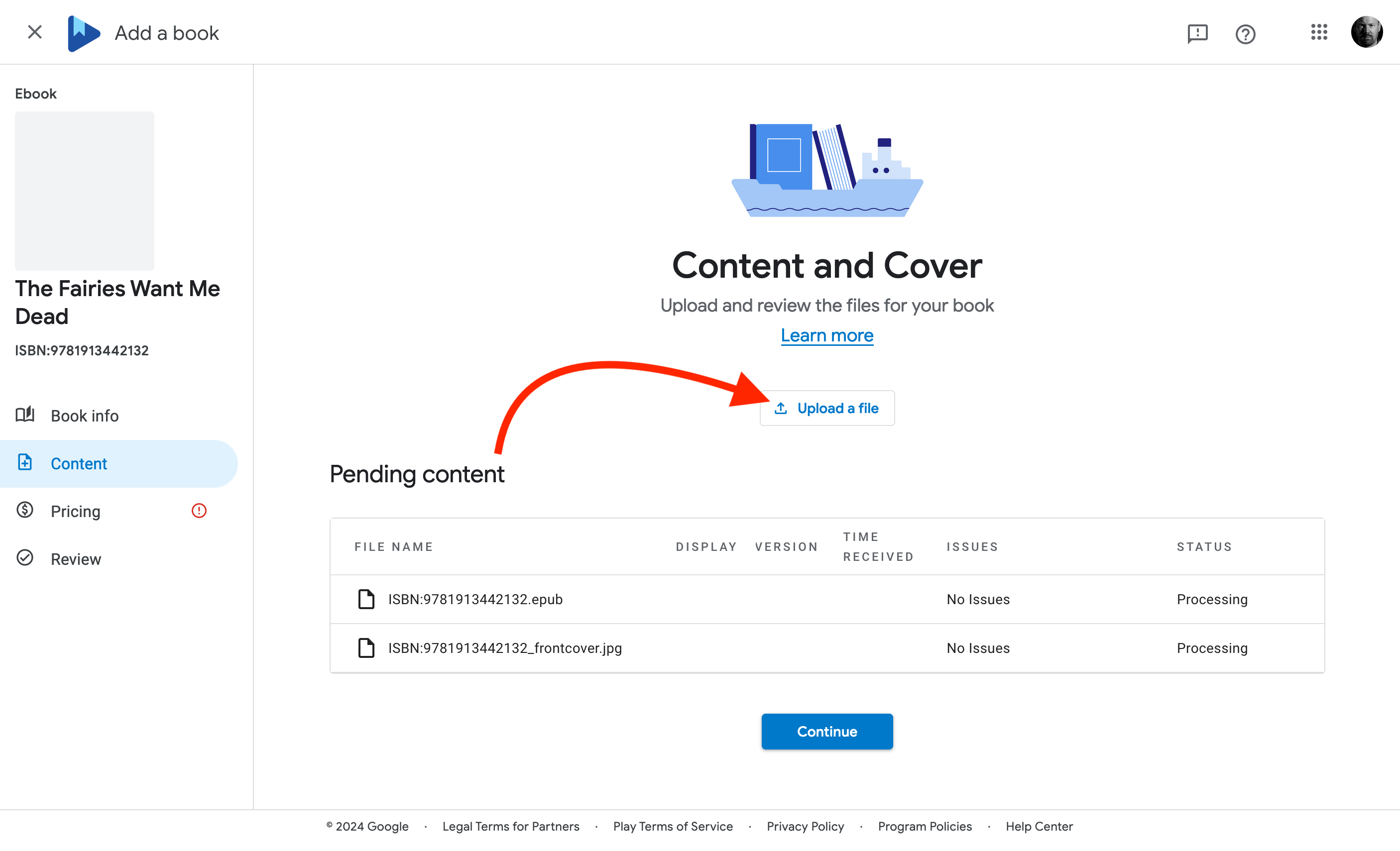
It might take a while to process, just carry on and they’ll do it behind the scenes.
Now set a price. I’m in the UK so it’s asking me to select my UK price:
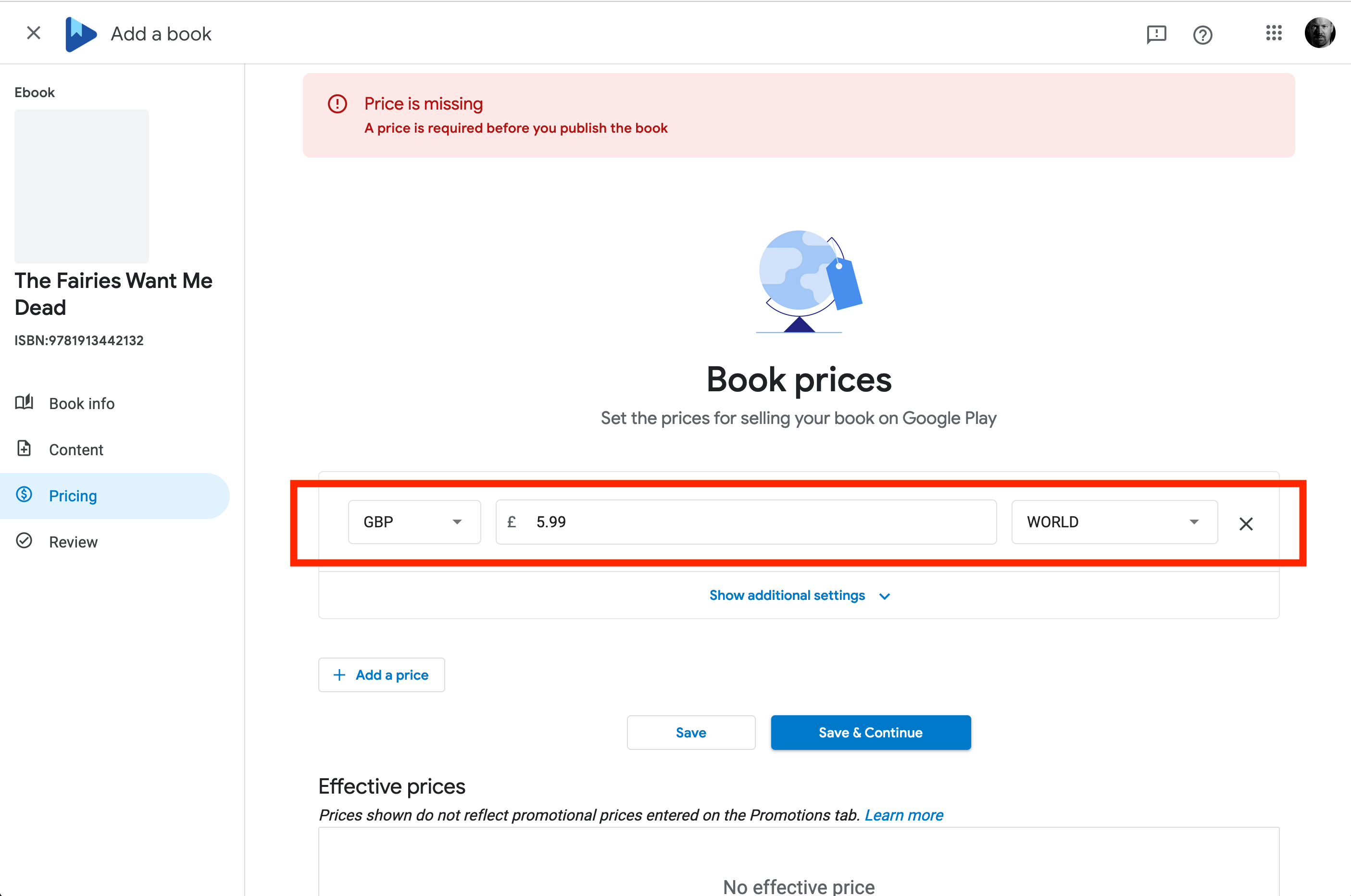
I can add one per country, but frankly that’s not necessary. I will do US and EU though, by selecting them in the right hand pull-down (selecting ‘Euro Area’ will change it to ‘ECZ’, don’t worry): I’m using US as the ‘world’ price, so everyone I didn’t select individually will see that.
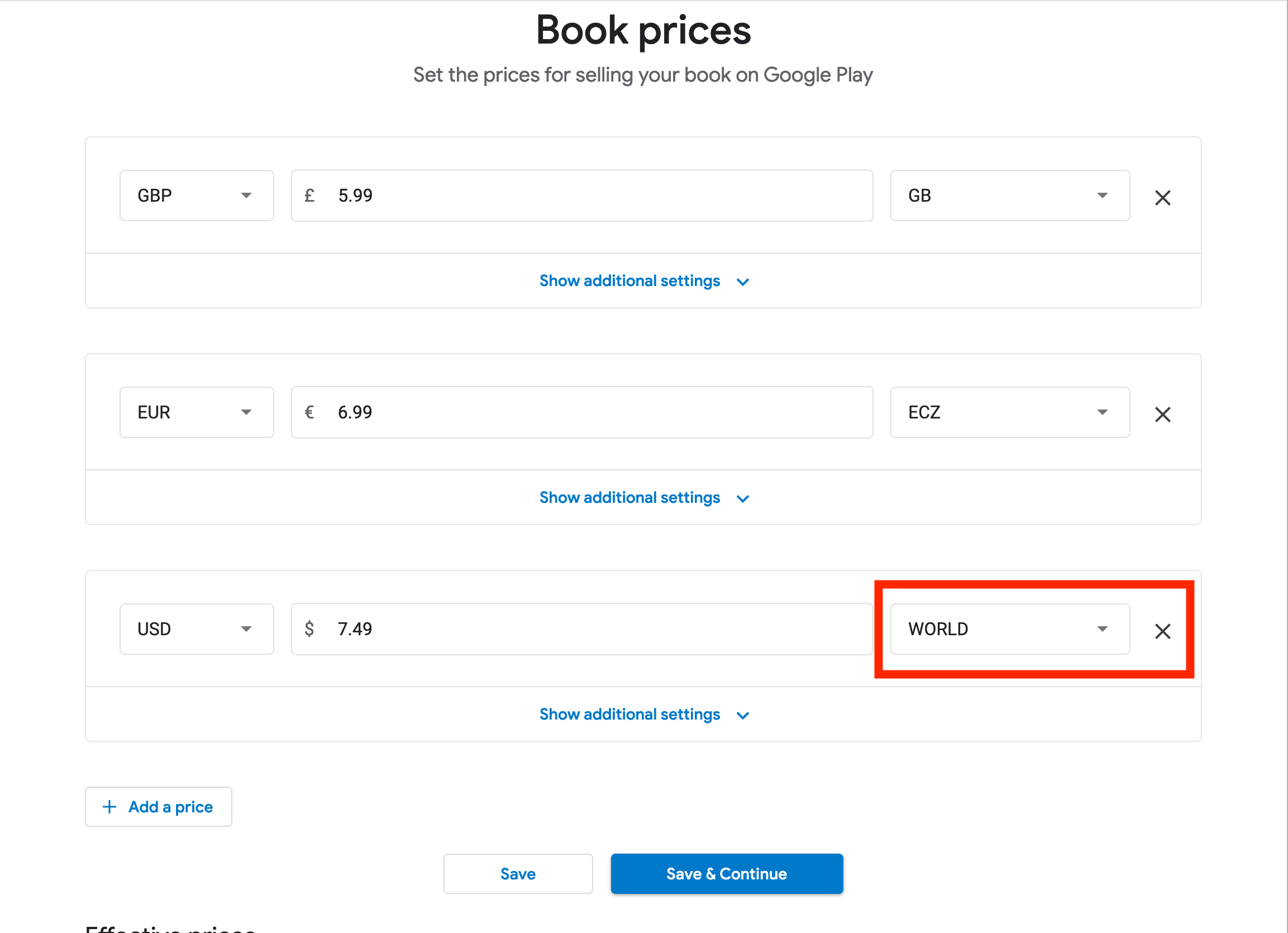
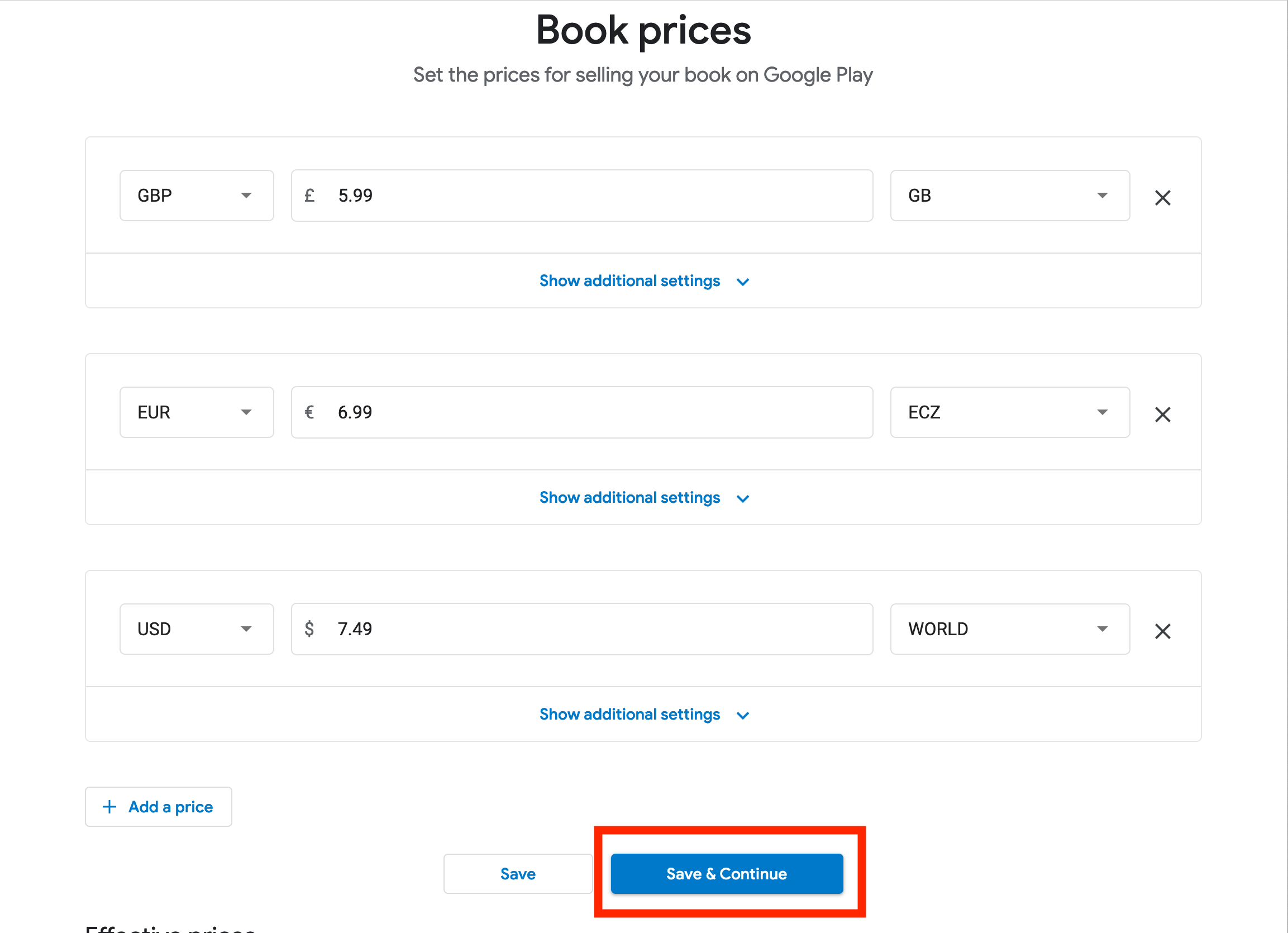
‘Effective Prices’ will be blank until you save. You can continue, or hit the ‘Save’ button (not ‘Save and Continue’) and wait for it to refresh. Then you have the option to check every price globally to see how much you make… Or trust that it’s OK and hit ‘Continue’.
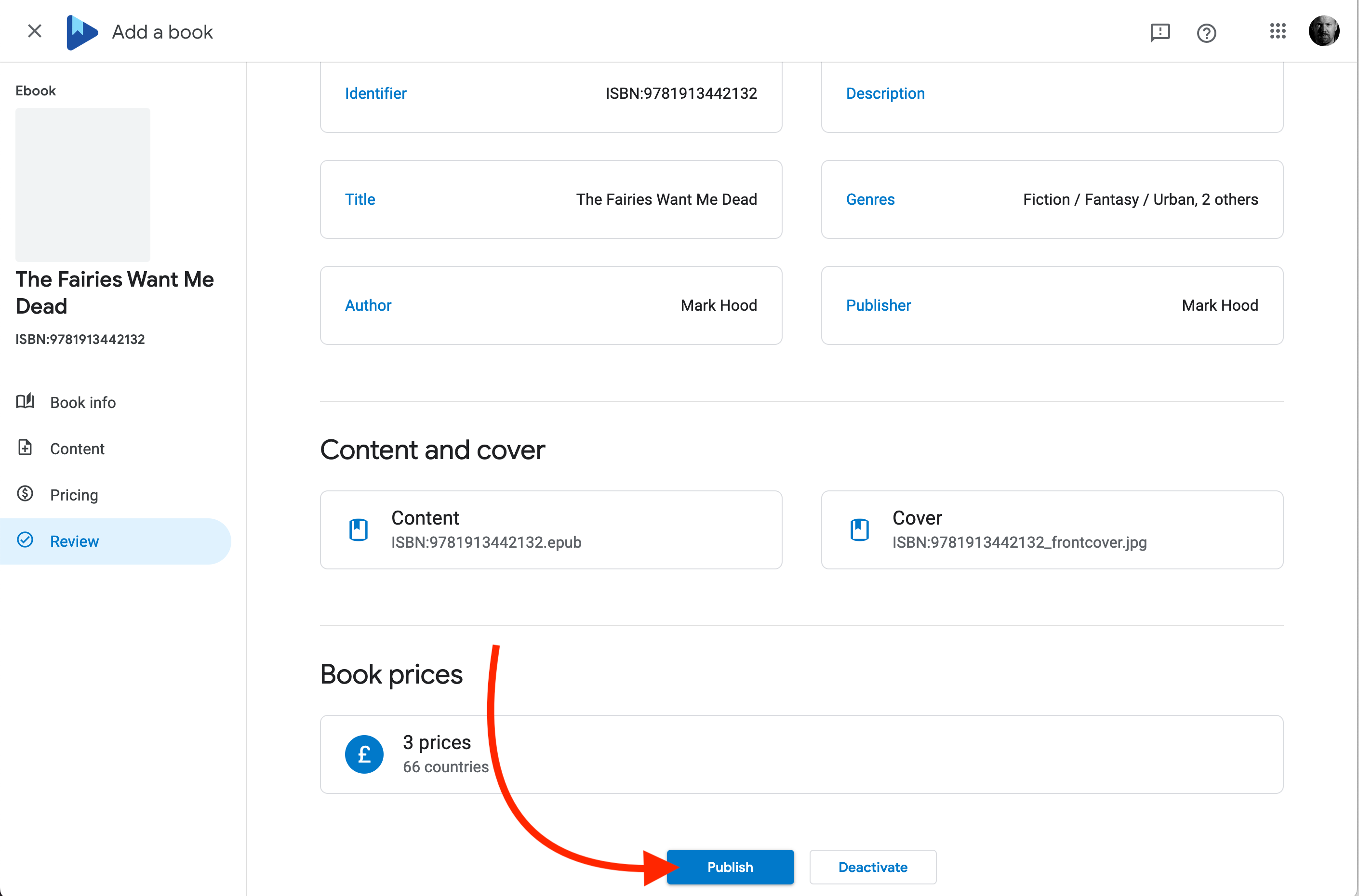
You’re done! Check and double-check the information on this screen, and if you’re happy, hit ‘Publish’.
Now have that drink, because…
Although you might not be done:
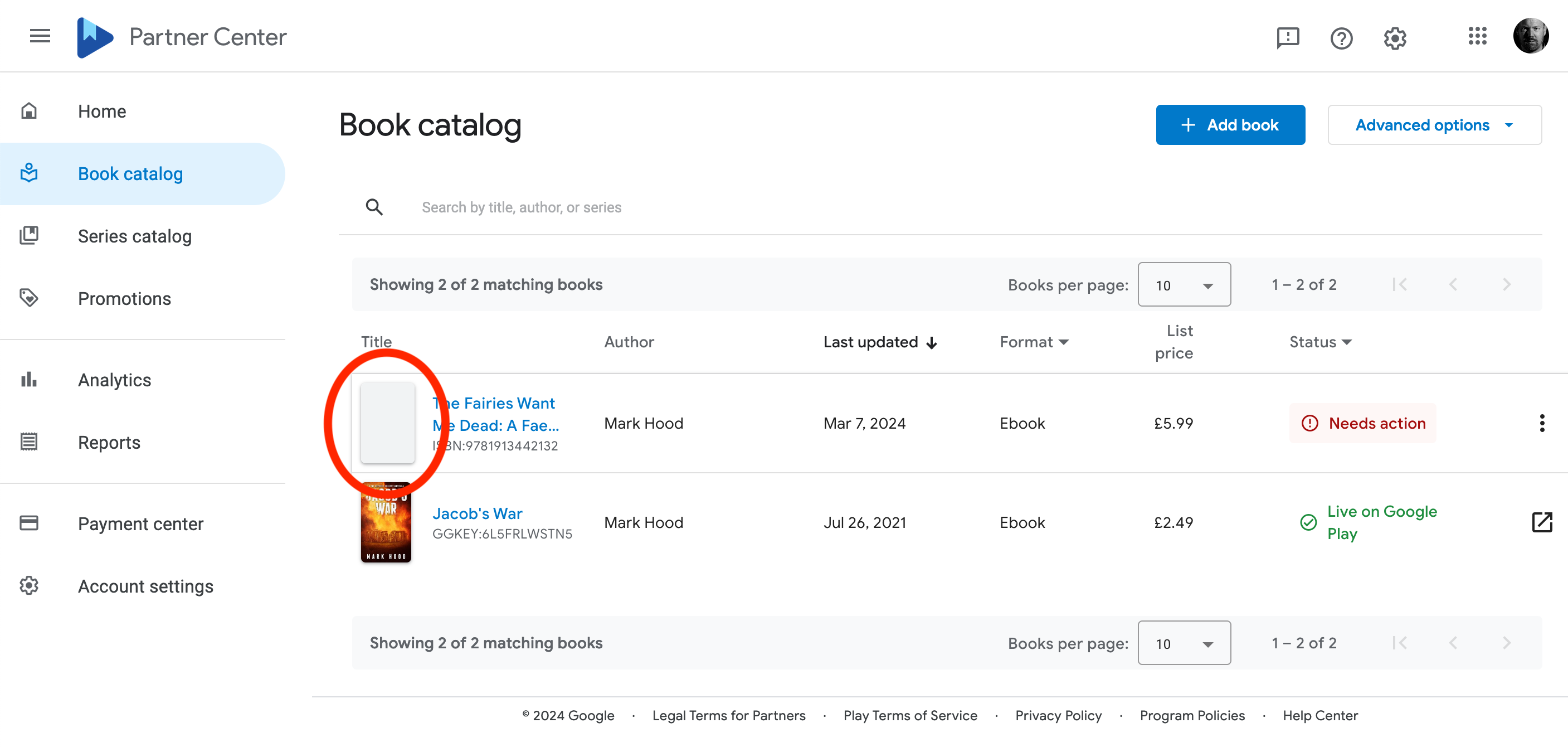
Note I have no cover image, and it’s saying I need to do something.
Hit ‘Needs Action’ and see if it really does. Mine’s just saying ‘not live’, but to only contact them after 24 hours. It takes a while, so don’t panic.
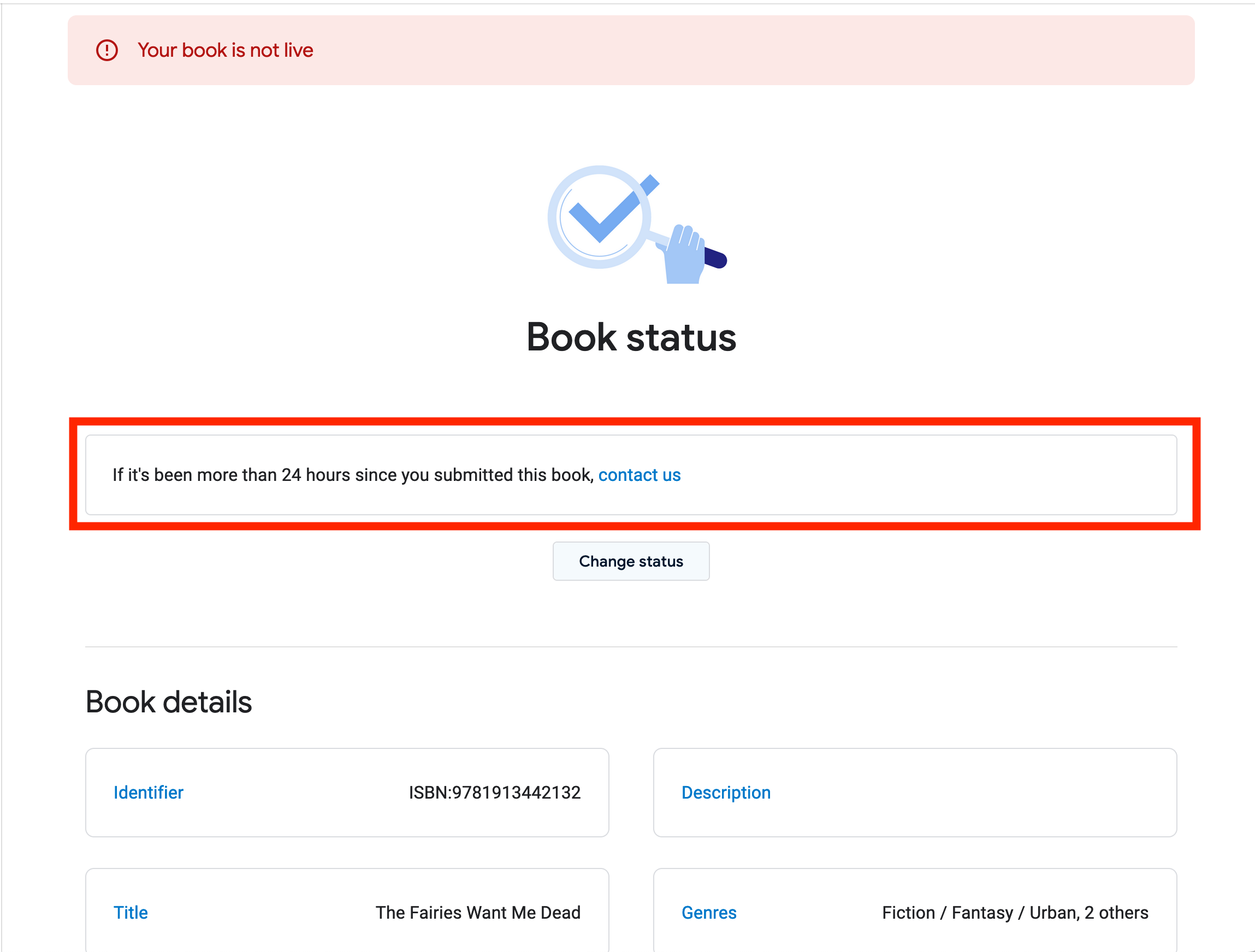
Let it be, try and avoid refreshing every two minutes, and come back later. I had problems with the ePub format not being precisely correct, and they helpfully didn’t email me at all. I came back after a while and saw the message, re-uploaded and all was well after another couple of hours.
They won’t email you when the book goes live, so you will have to keep checking.
You can upload another book, move to a new retailer, or just go and pet the dog until your blood pressure returns to normal.
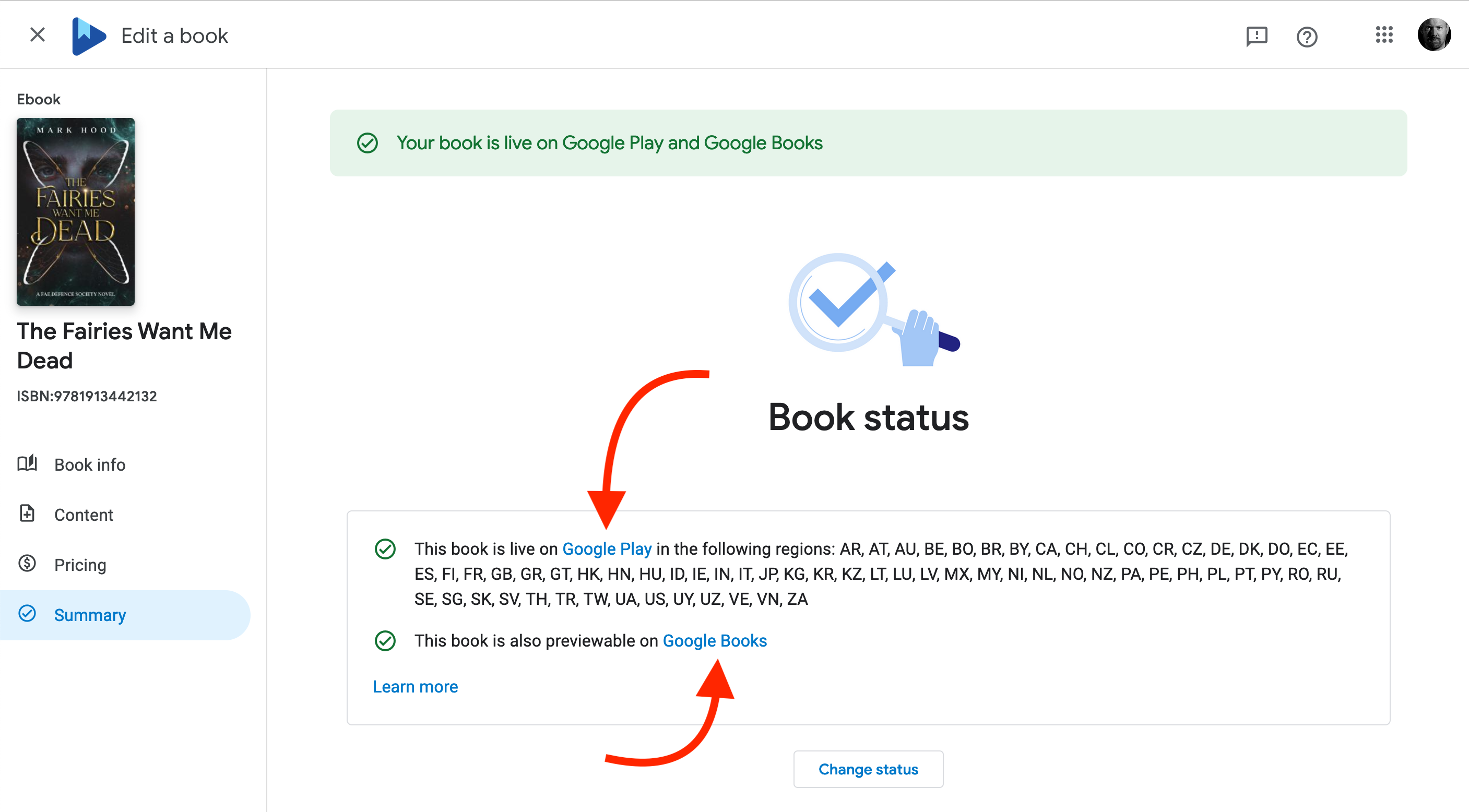
Once it’s ready, grab the links by clicking on the book, selecting ‘Summary’ and looking for the link to Google Play: