Apple Books
Difficulty:IntermediateGetting your book into Apple Books
Note: I’ve heard reports that this is tricky on PCs, as Apple expect you to use a Mac. I certainly couldn’t get it to work on Firefox, even on a Mac, so I’d recommend using Safari.
If you prefer to watch this walkthrough instead, I’ve prepared a video for you. Scroll down for the written instructions, along with screenshots to help you through the process.
It doesn’t look as though you lose much (and might even gain) by going via another distributor, but if you’re into doing everything yourself, here’s how.
Help is available at https://itunespartner.apple.com/books/
You will need an Apple ID, and you have to turn on two-factor authentication. If you don’t already have one, sign up here https://authors.apple.com/epub-upload by selecting ‘Create iTunes Connect Account’. Yes, iTunes. Even though it’s been called ‘Music’ since 2019, and even though you don’t buy books through it.
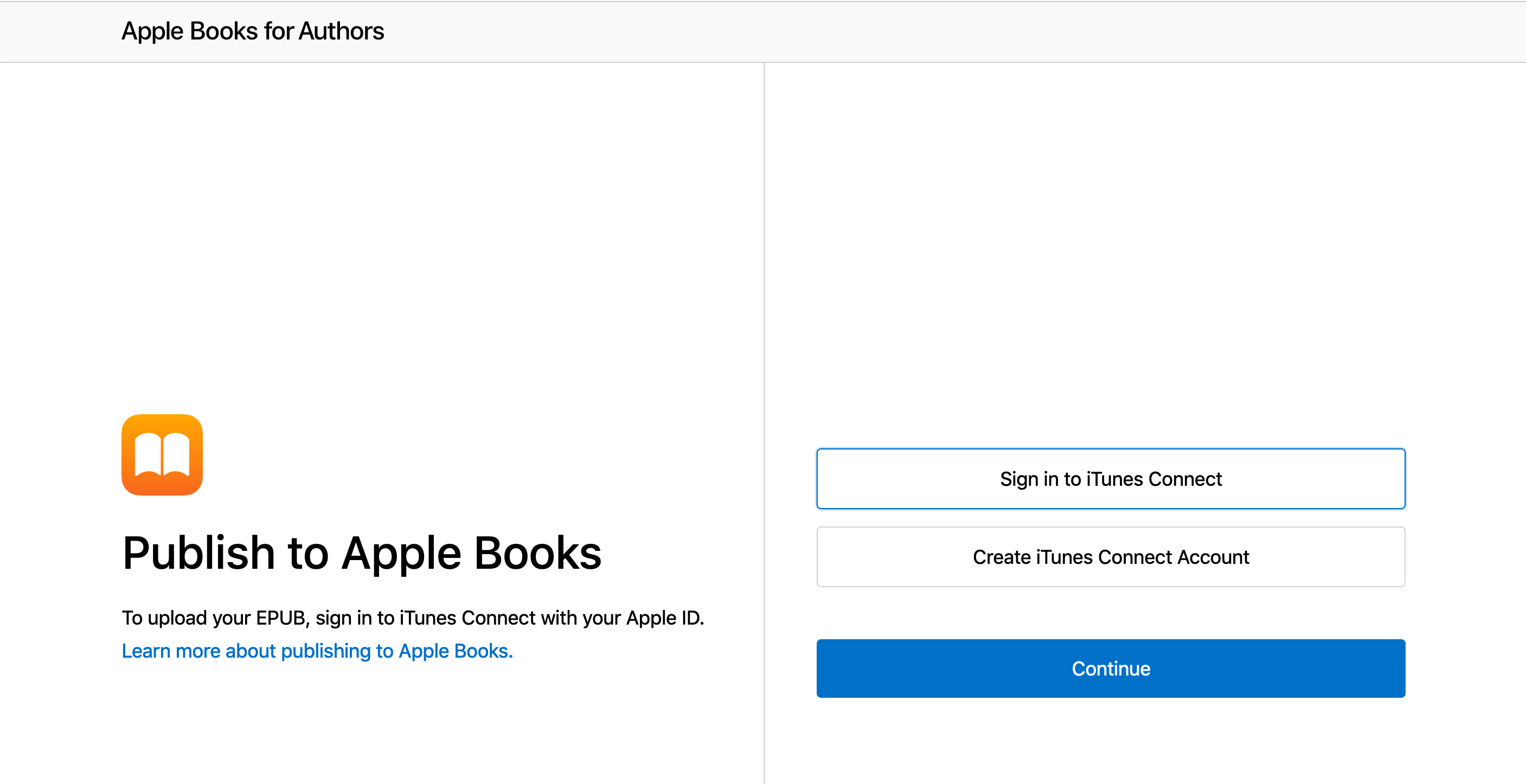
If you do, you can log in directly by choosing ‘Sign in to iTunes Connect’ instead.
Now set up your business information (if it’s just you, that’s fine also) and the usual tax and bank account information.
We can then select to ‘Submit a new book’, and hit continue.
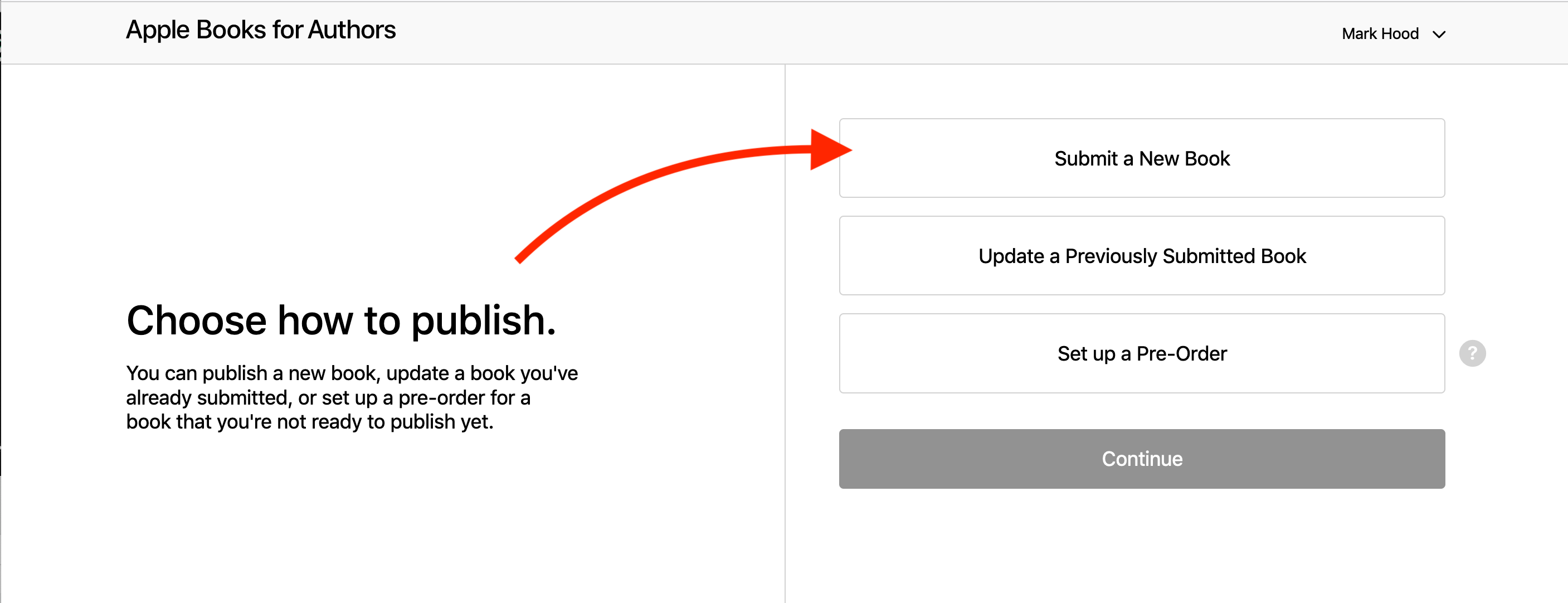
In contrast to Google which makes you do everything else first, Apple wants the files right away:
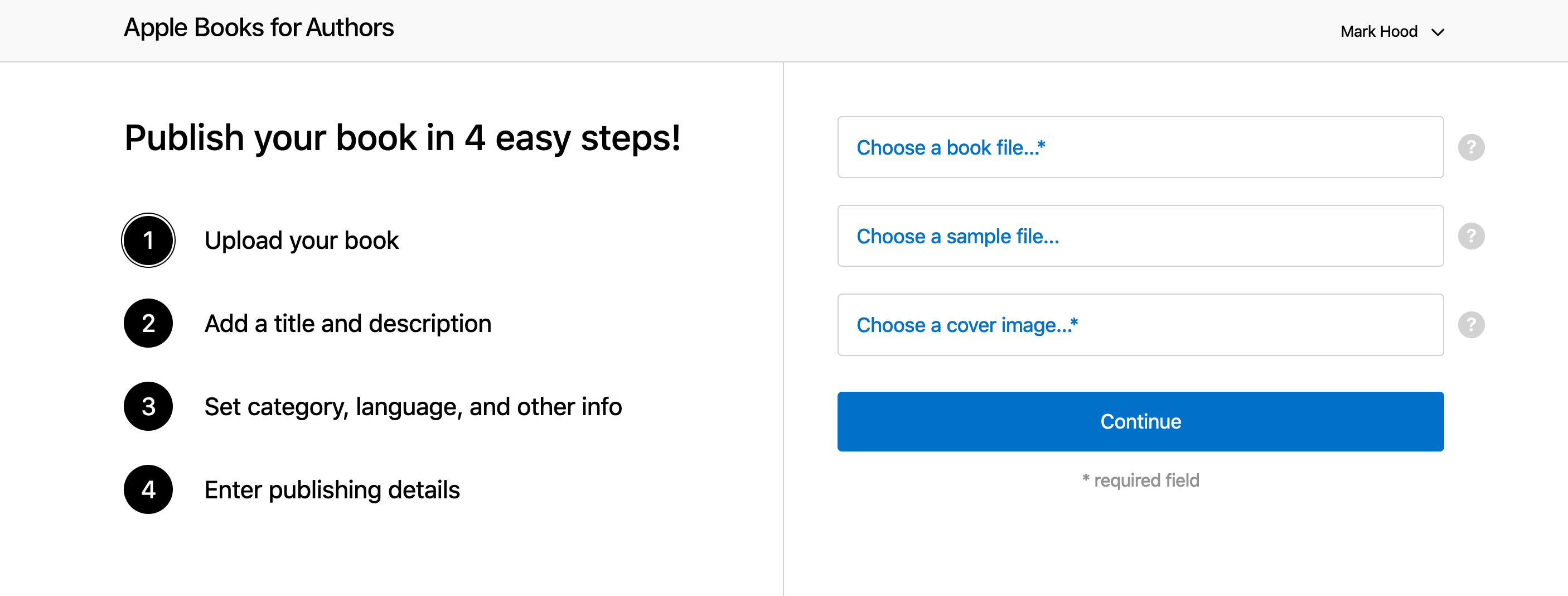
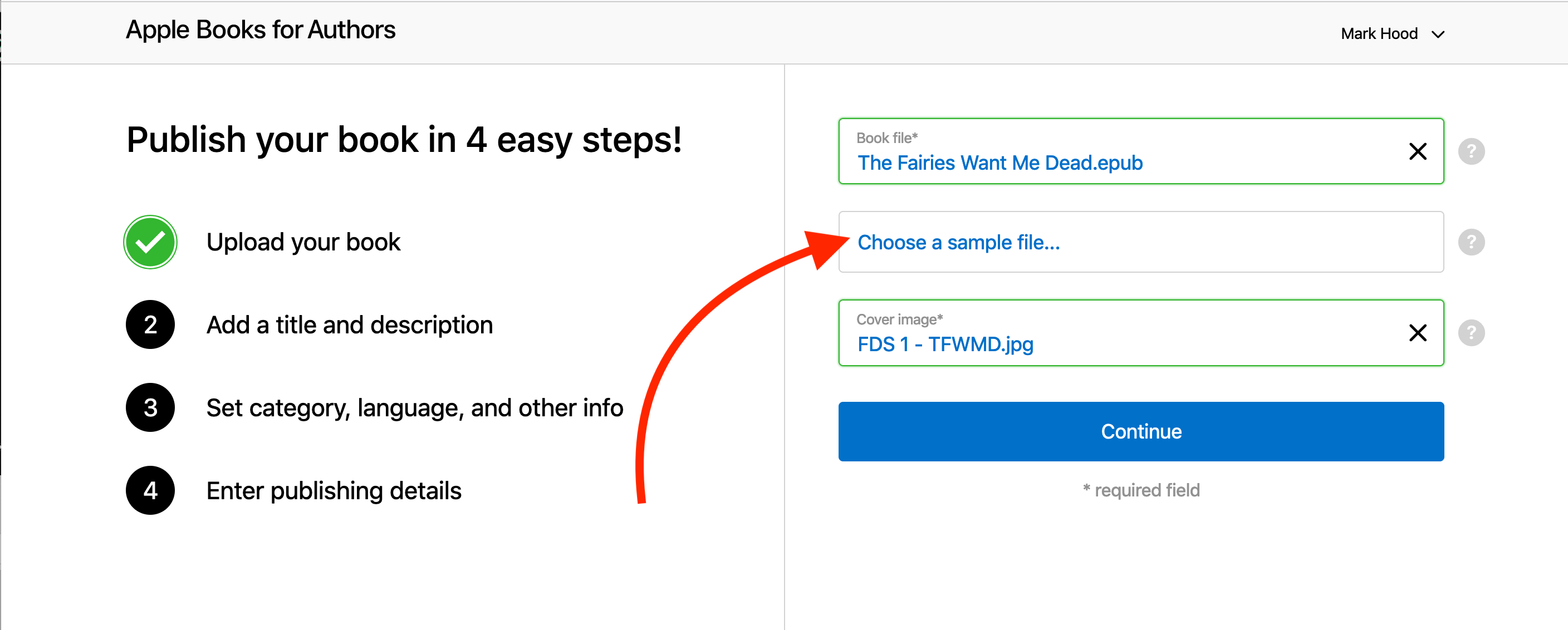
Even better, it validates them immediately, so you know if there’s a problem. If all is green, carry on. I chose not to include a sample, since Apple will create one themselves, even though it doesn’t mention it. If you have a specific portion you wish to share, perhaps ending on a cliffhanger, then you can choose to do so here.
You can’t use formatting in the description, so bear that in mind.
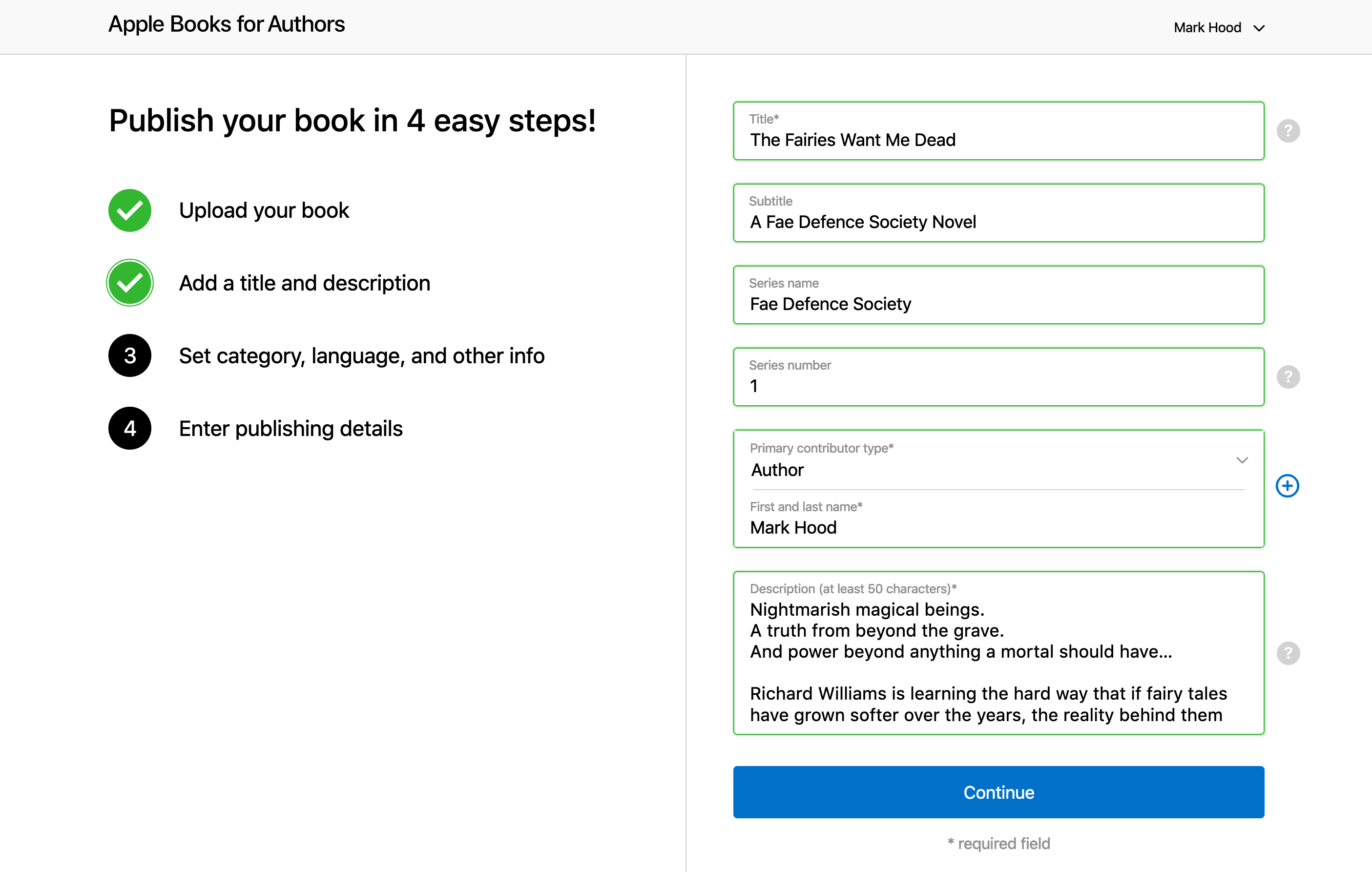
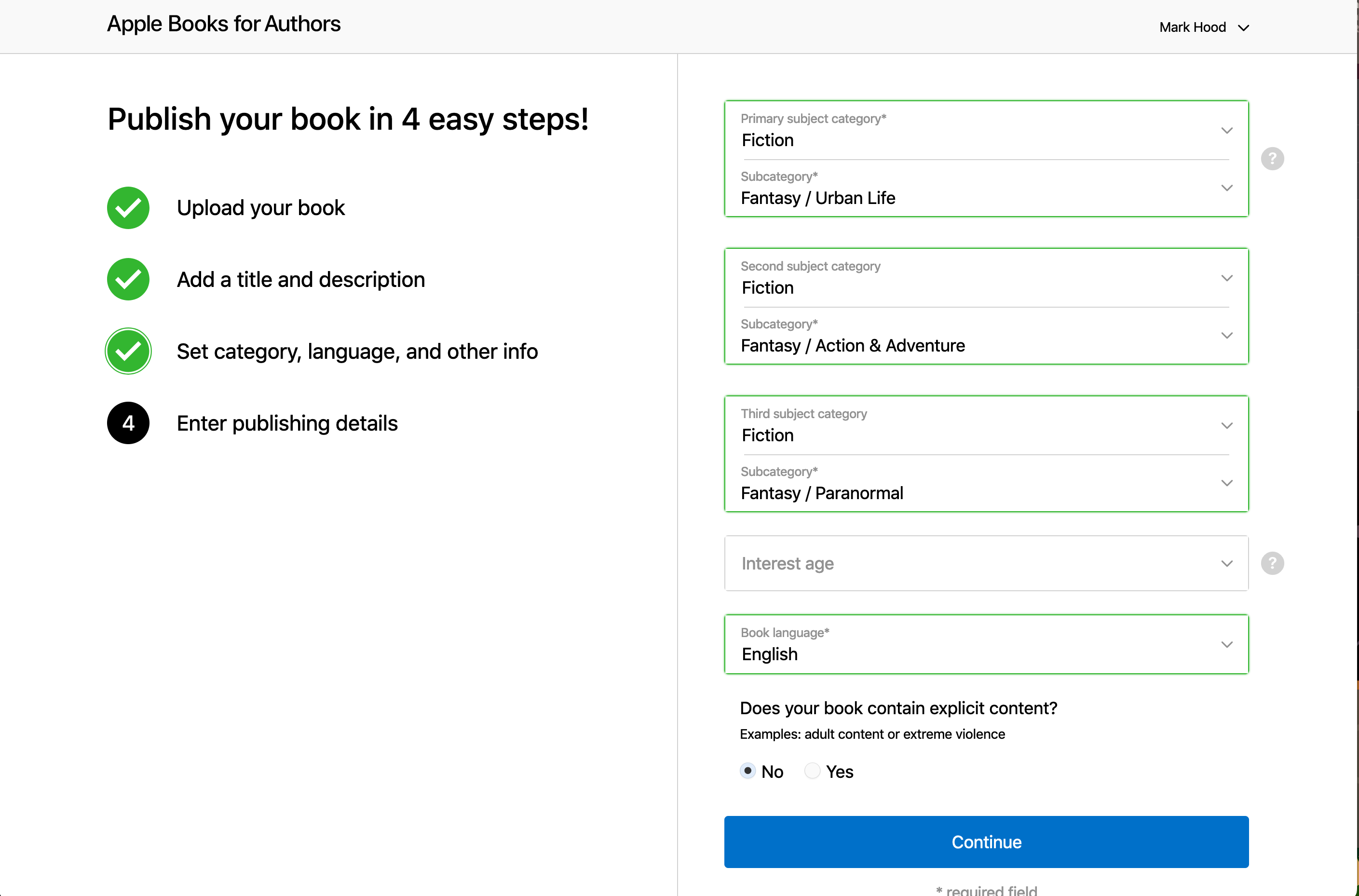
Now you pick your categories, language and whether it’s for children or not:
And then your publishing info. If you don’t have a publisher name, you can use your own name. Mine isn’t set up as a company, by the way - I just picked a name to use that wasn’t already taken.
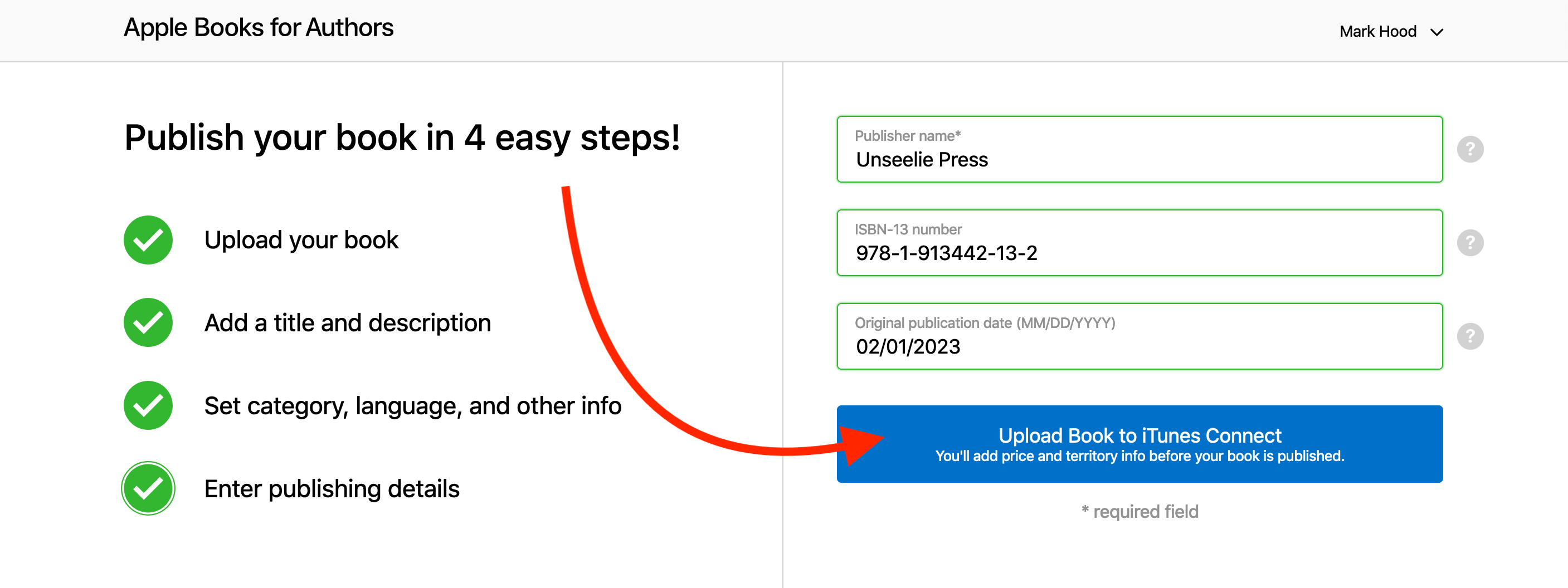
Hit upload, and wait a minute or seven for it to process.
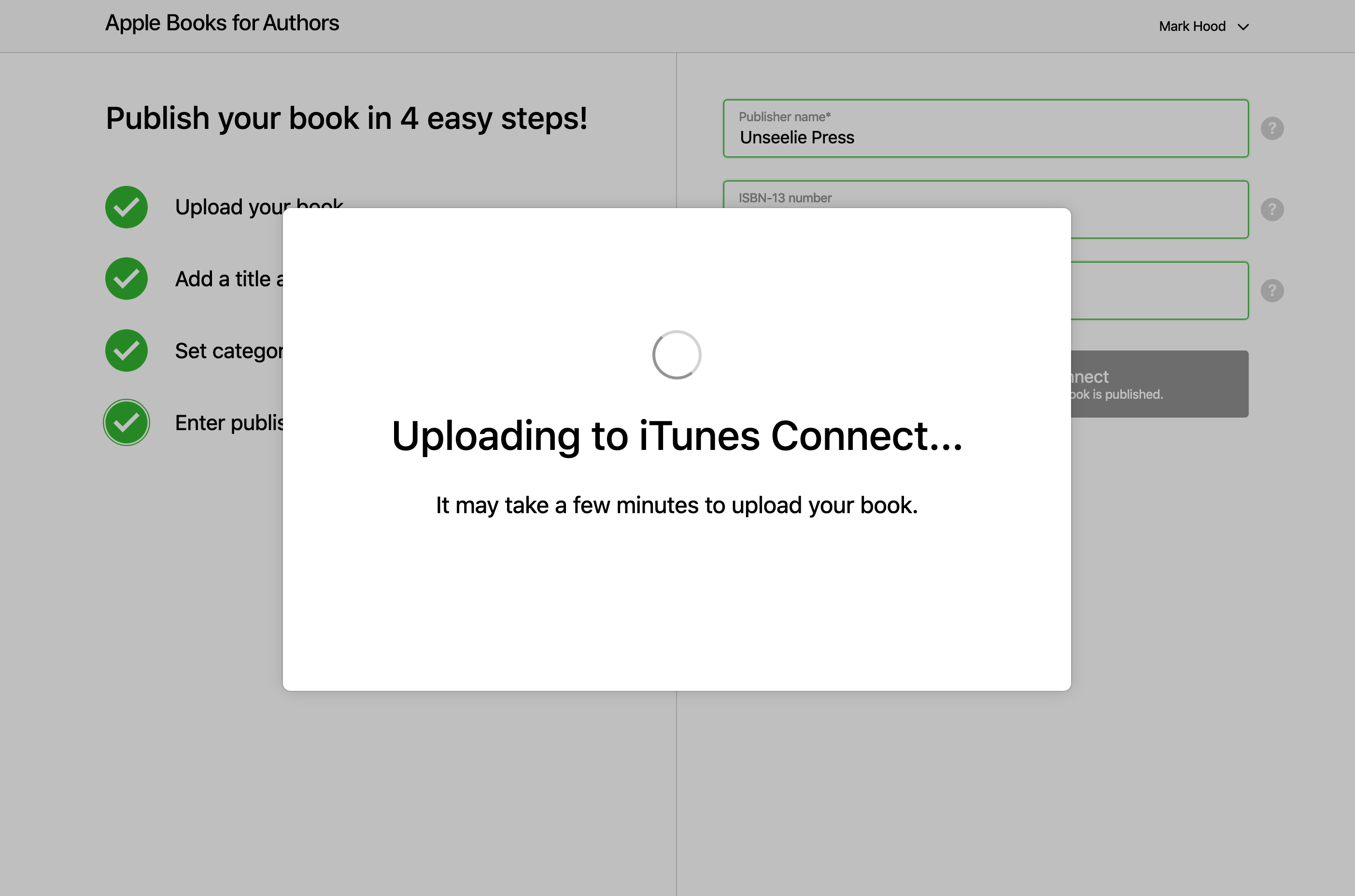
Then you need to go somewhere else entirely to finish the job, luckily it can send you straight there:
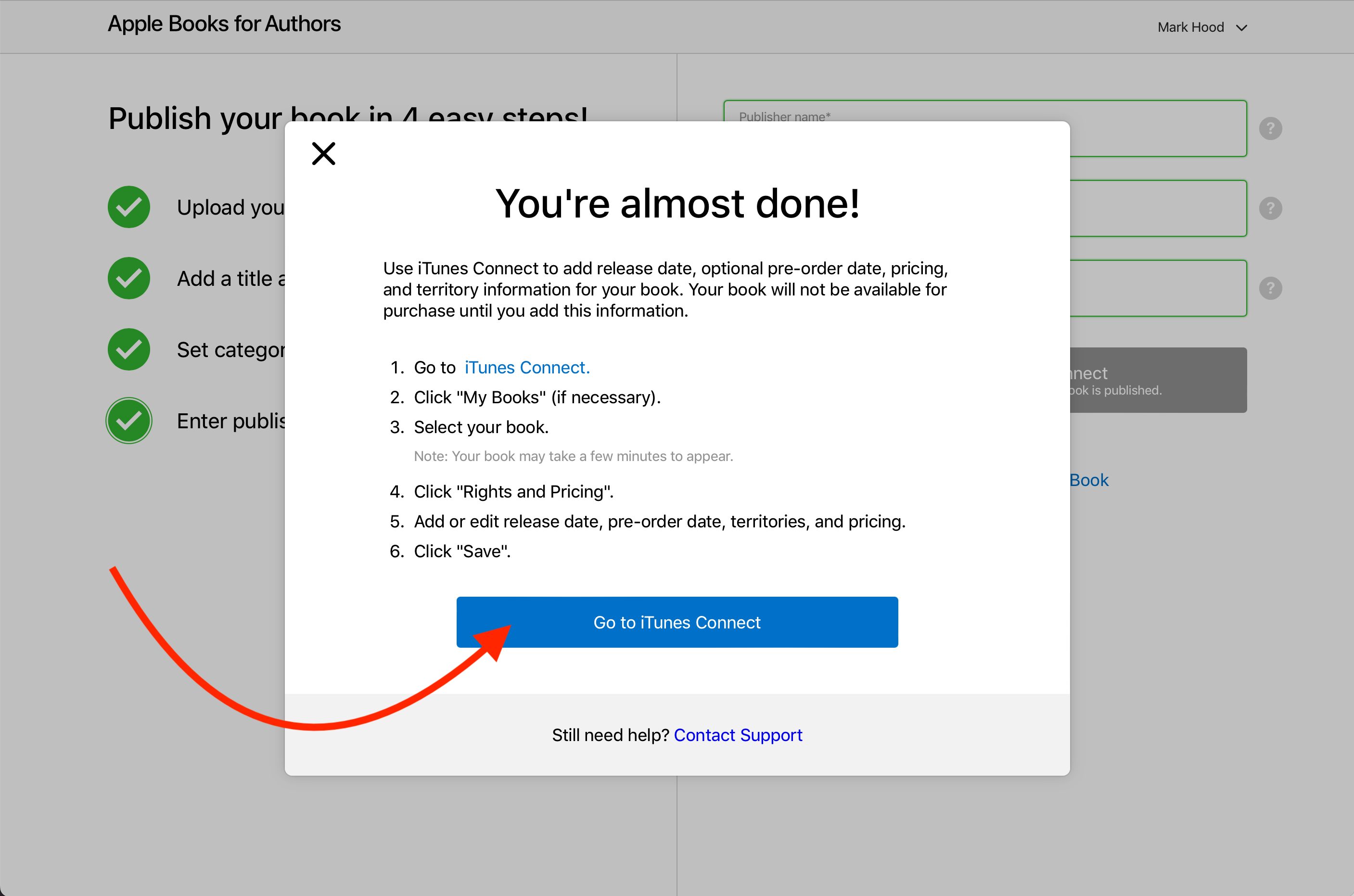
My new book didn’t show up right away, so you might need to wait (as it says) a few minutes.
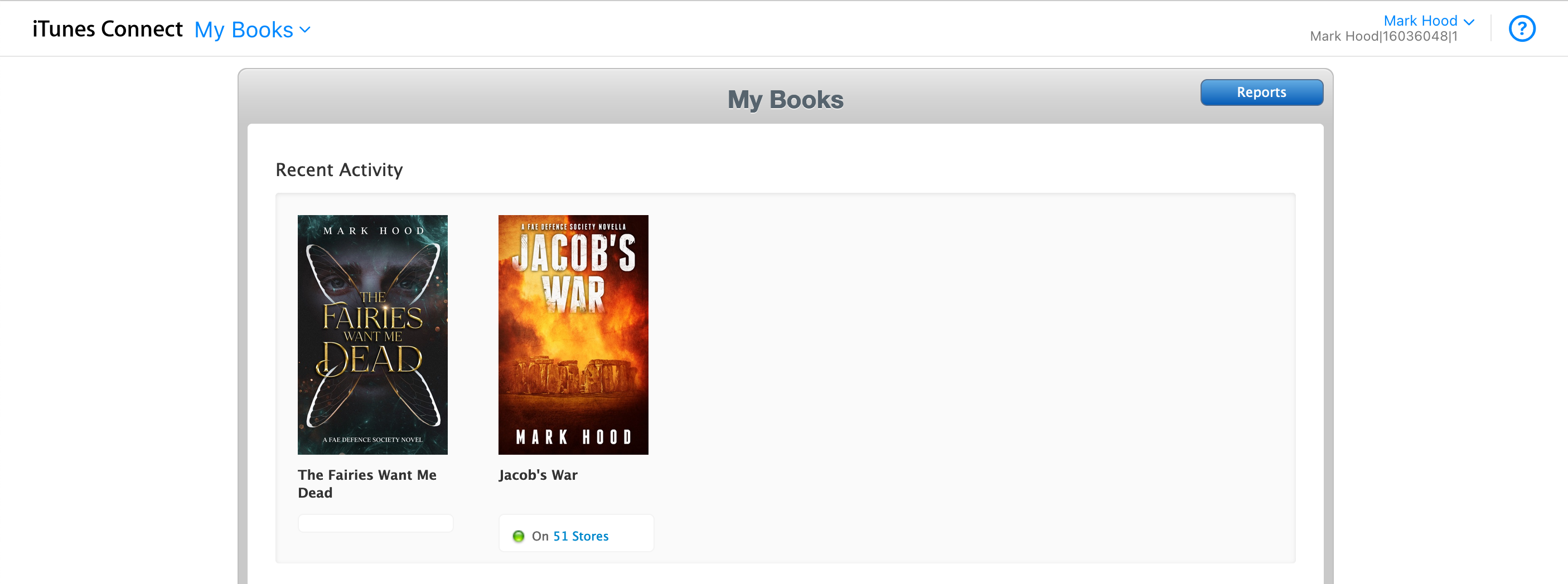
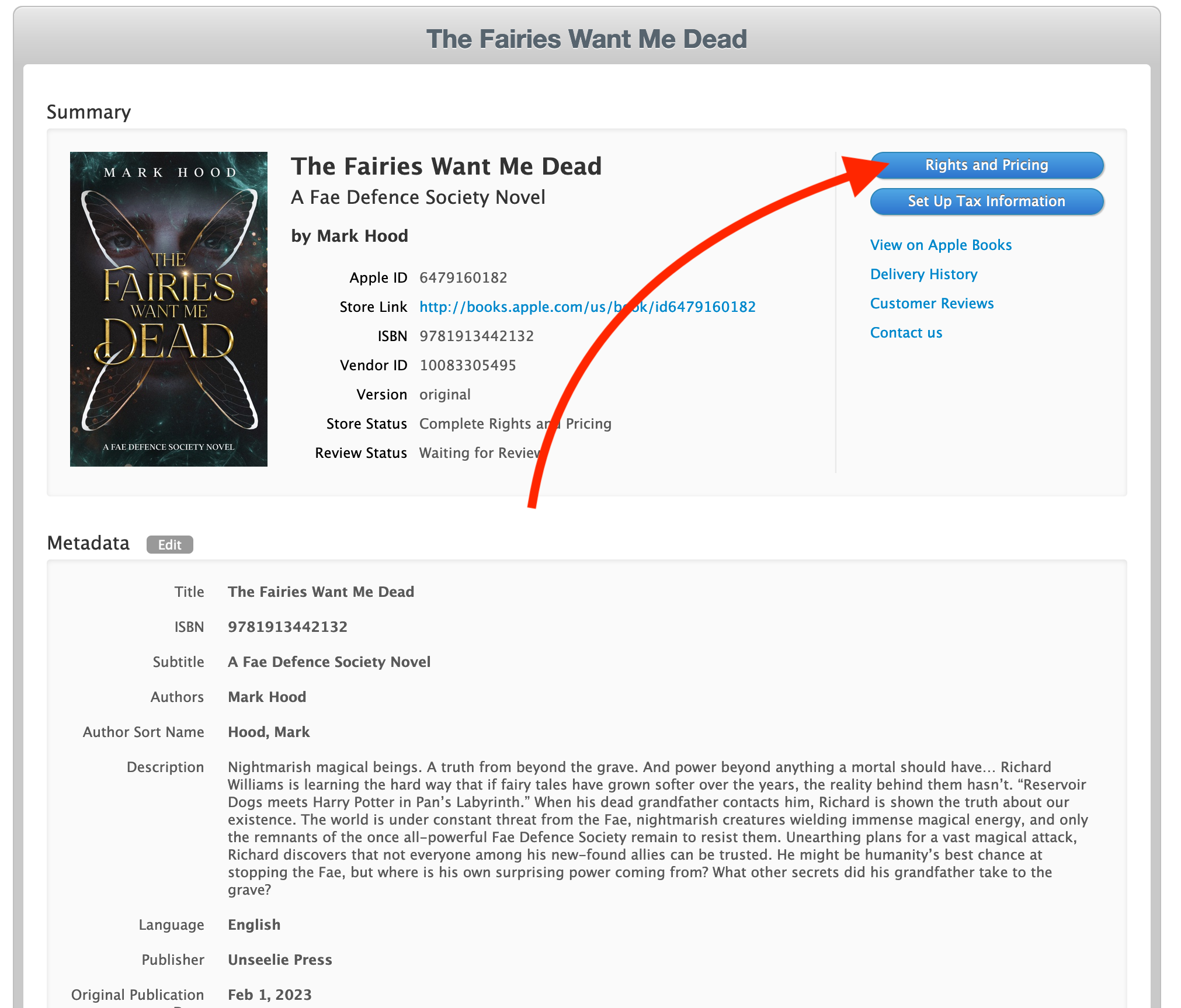
Once it does, you can click on it and enter the necessary information. Check the info you entered already is OK, and hit ‘Rights and Pricing’
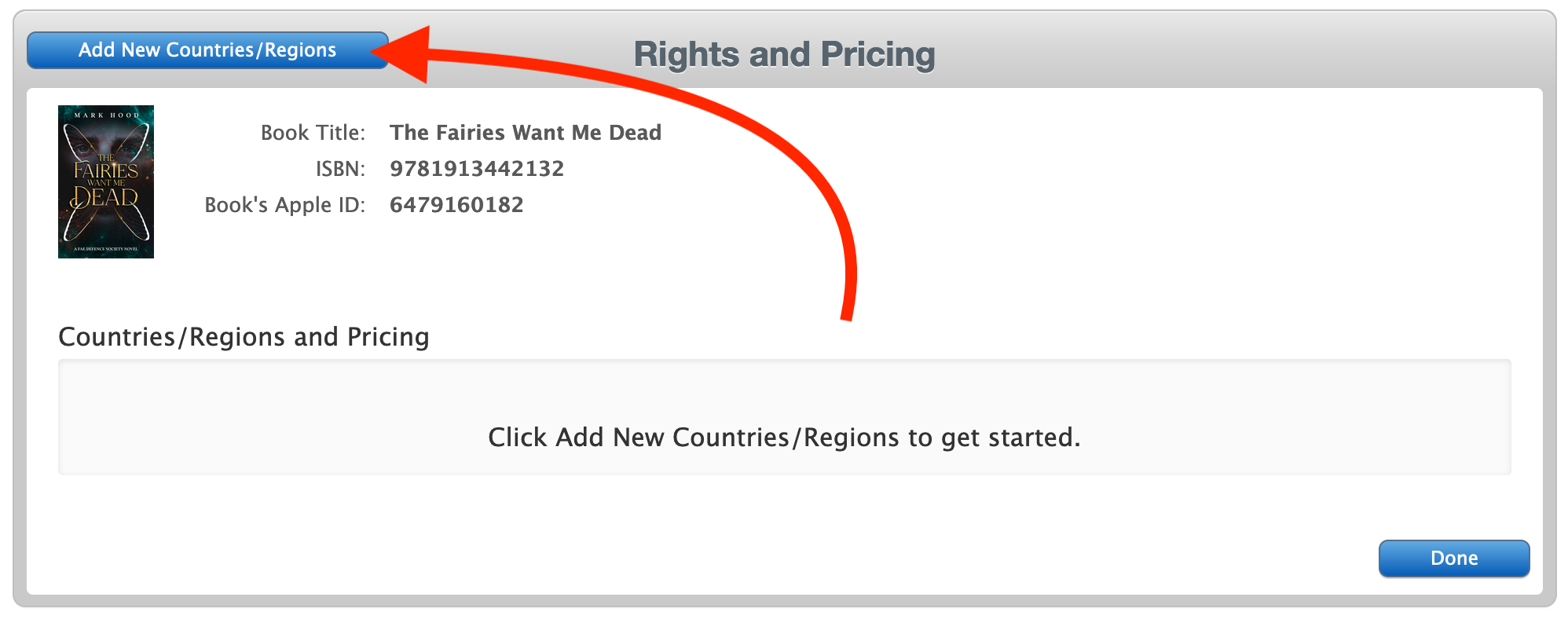
Add new countries / regions:
You can choose DRM or not (I chose not) and a release date. Note that you can’t set it in the past, so the best you can do is pick today’s date. If you want it in the future, do so here. Note that it’s best not to click in either box. I accidentally did and ended up having to pick tomorrow as my release date, since it complained the pre-order date had to be earlier.
You will pick a ‘base currency’ for your pricing - I tend to pick GBP since I’m in the UK, but if most of your audience will be elsewhere you might want to change it. I also pick every country (there’s a button to do that) since I sell worldwide.
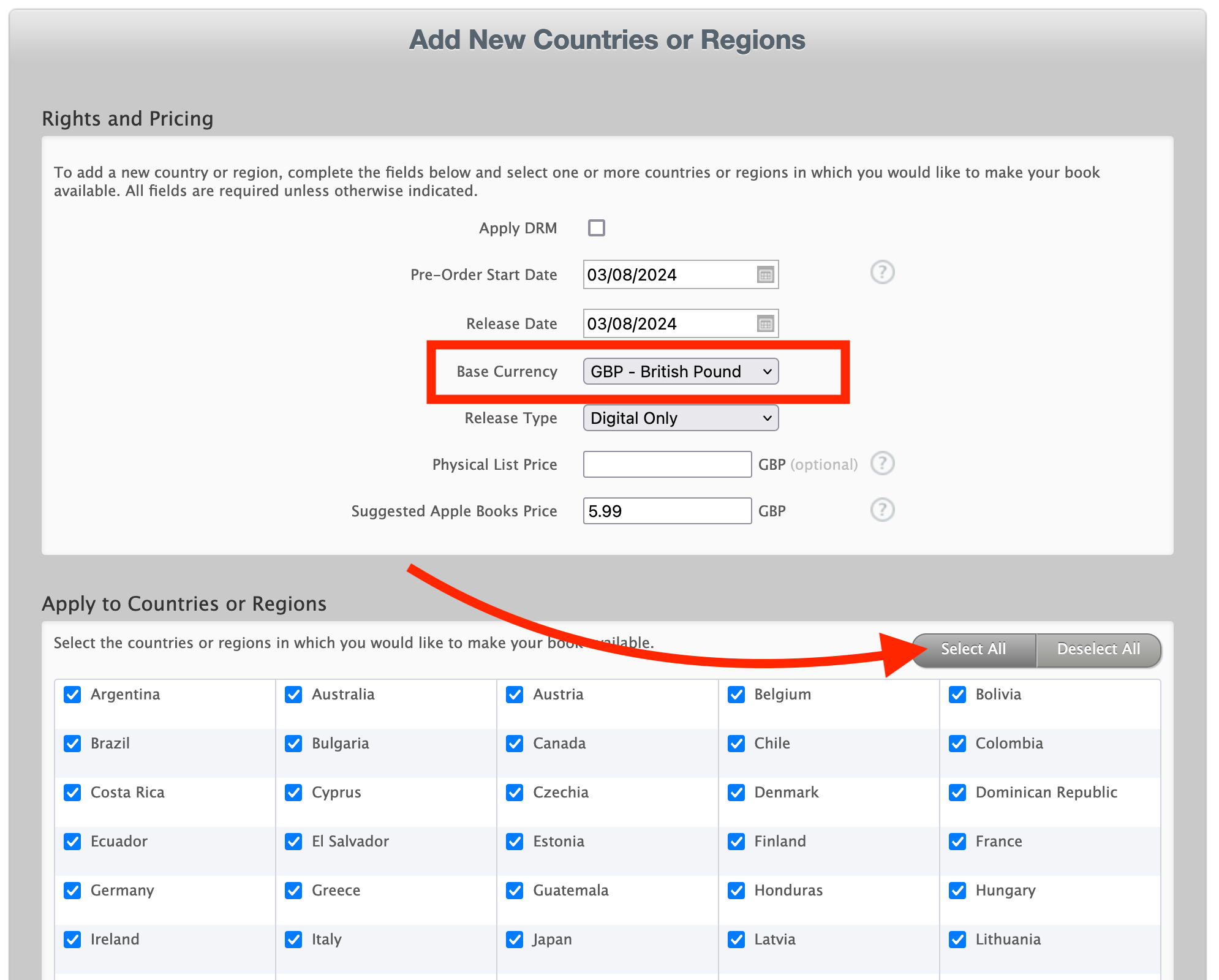
Scroll down and hit Continue. It’ll then give you the option to set the price in every country by hand. Fortunately it also pre-selects the most likely value in each country, so you don’t have to.
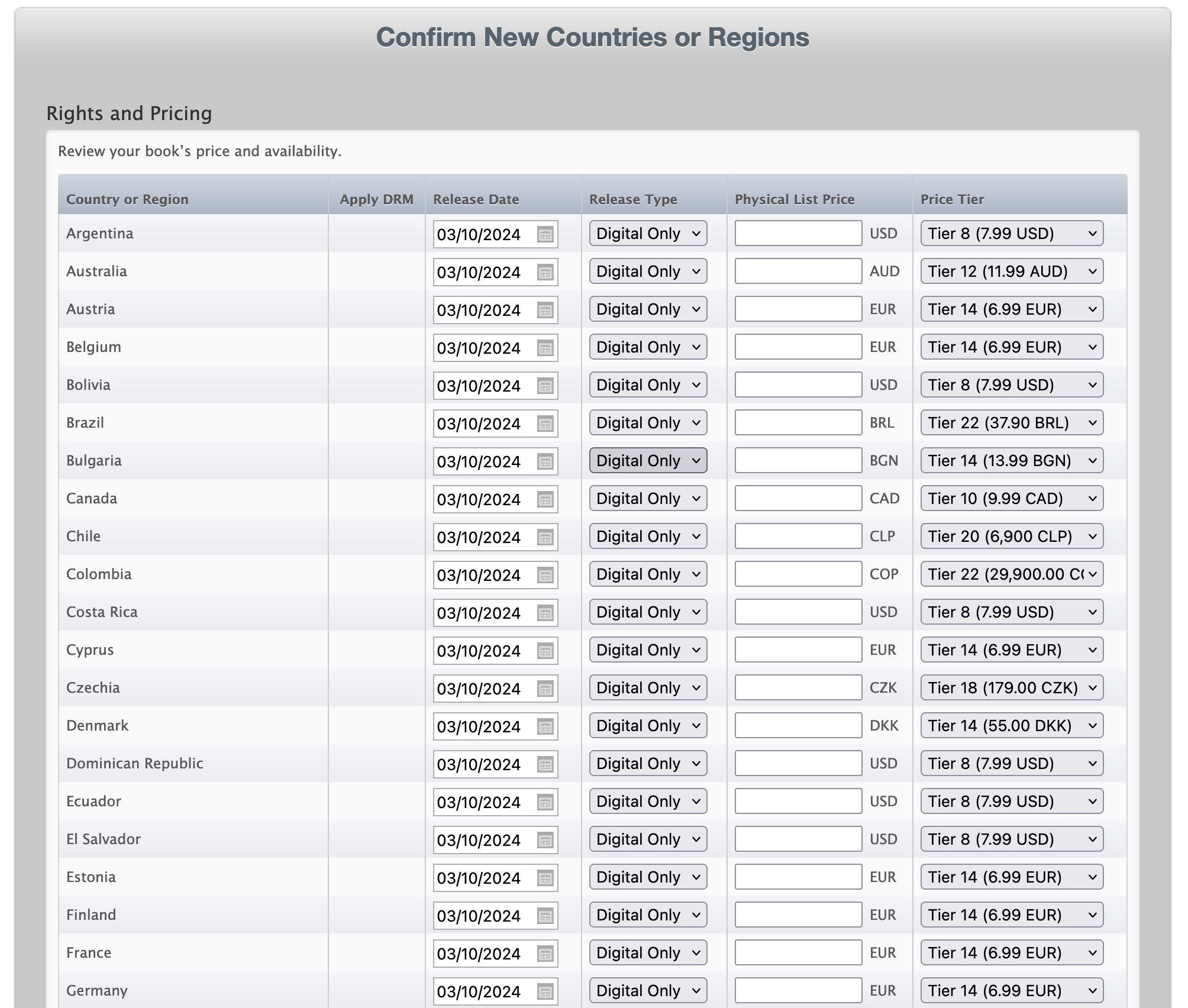
I tend to just set US and Europe anyway, and they look fine, so hit ‘Confirm’ and carry on.
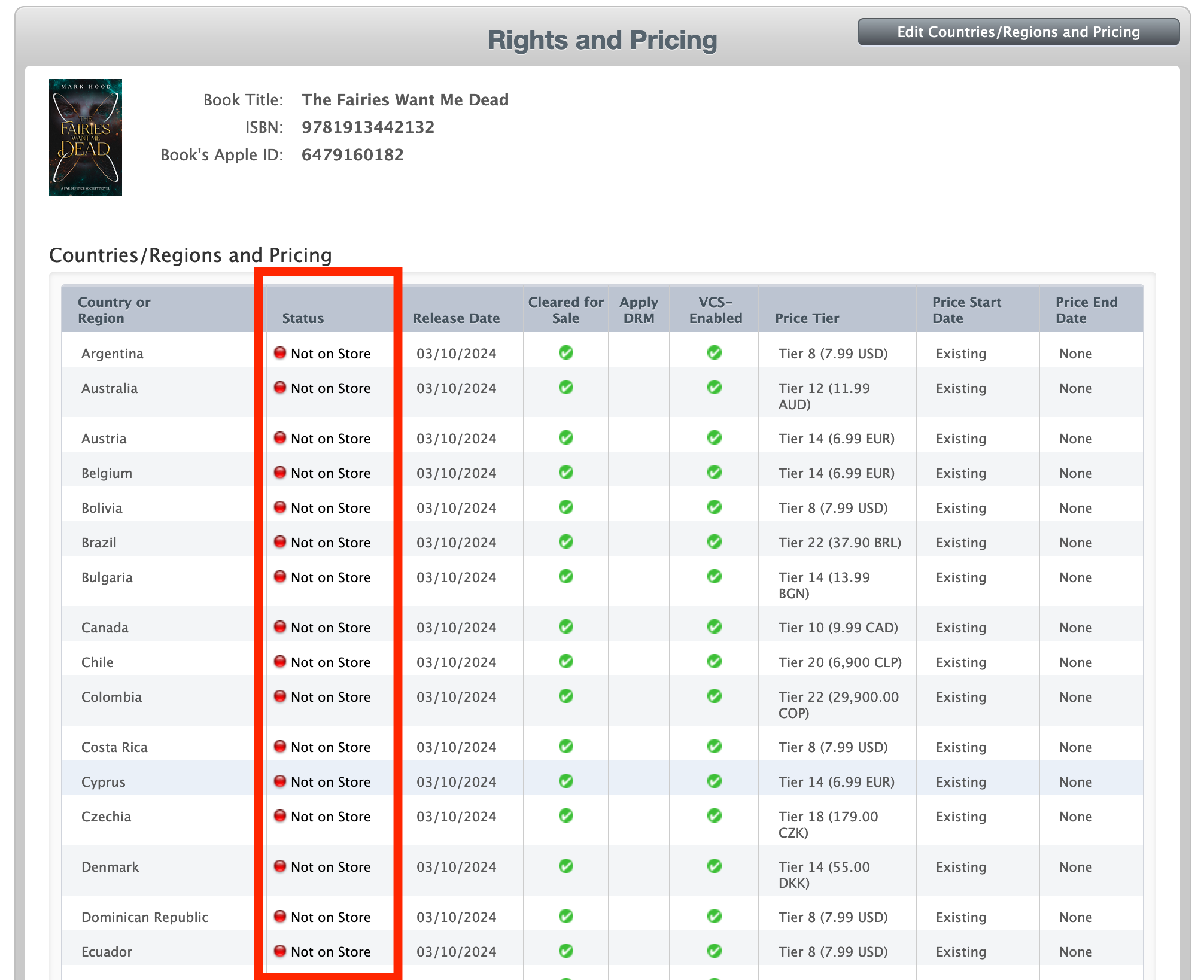
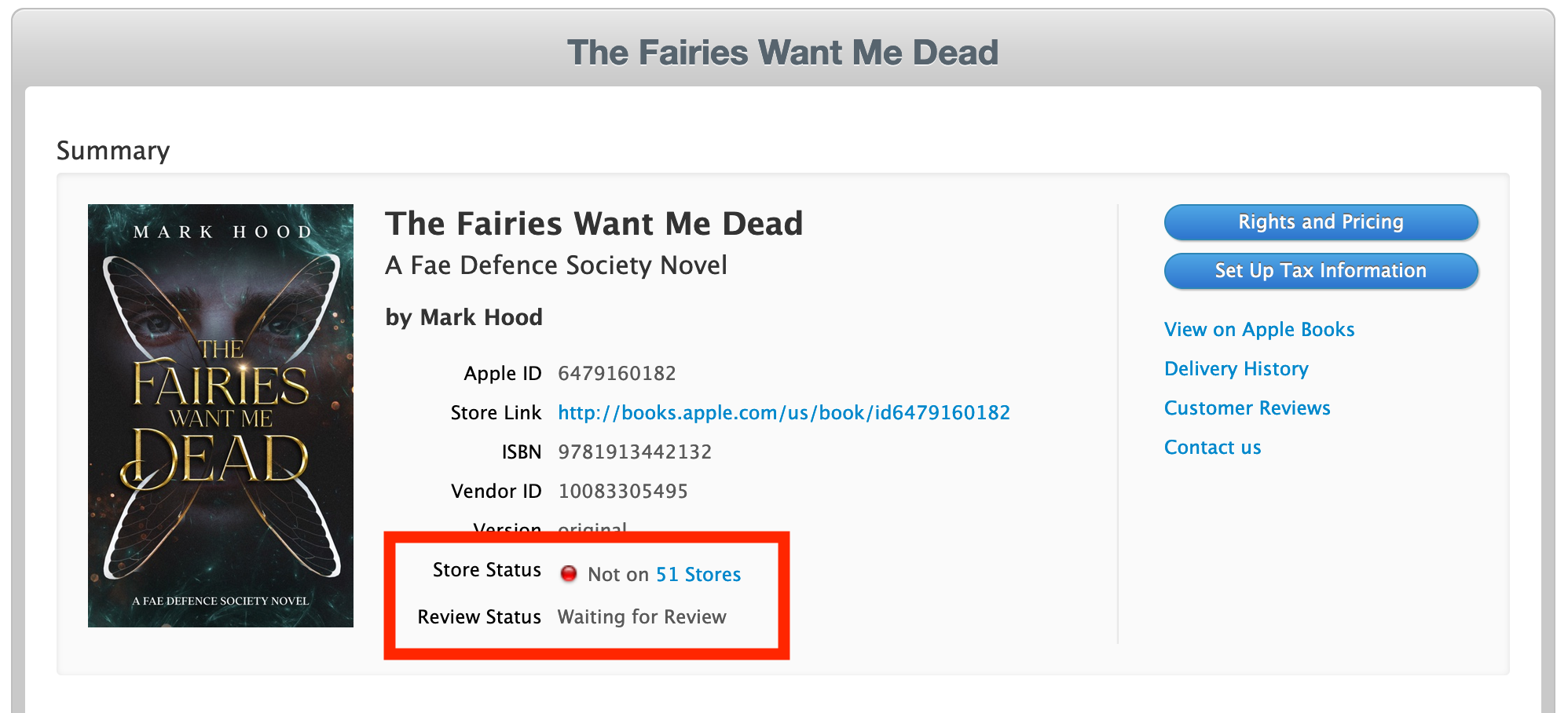
It’ll then push it out to all their stores, which might take a while. Don’t panic when it says ‘Not in store’ immediately.
While we’re here, though, scroll down the bottom and hit ‘Enable’ to automatically put it in any new stores they open.
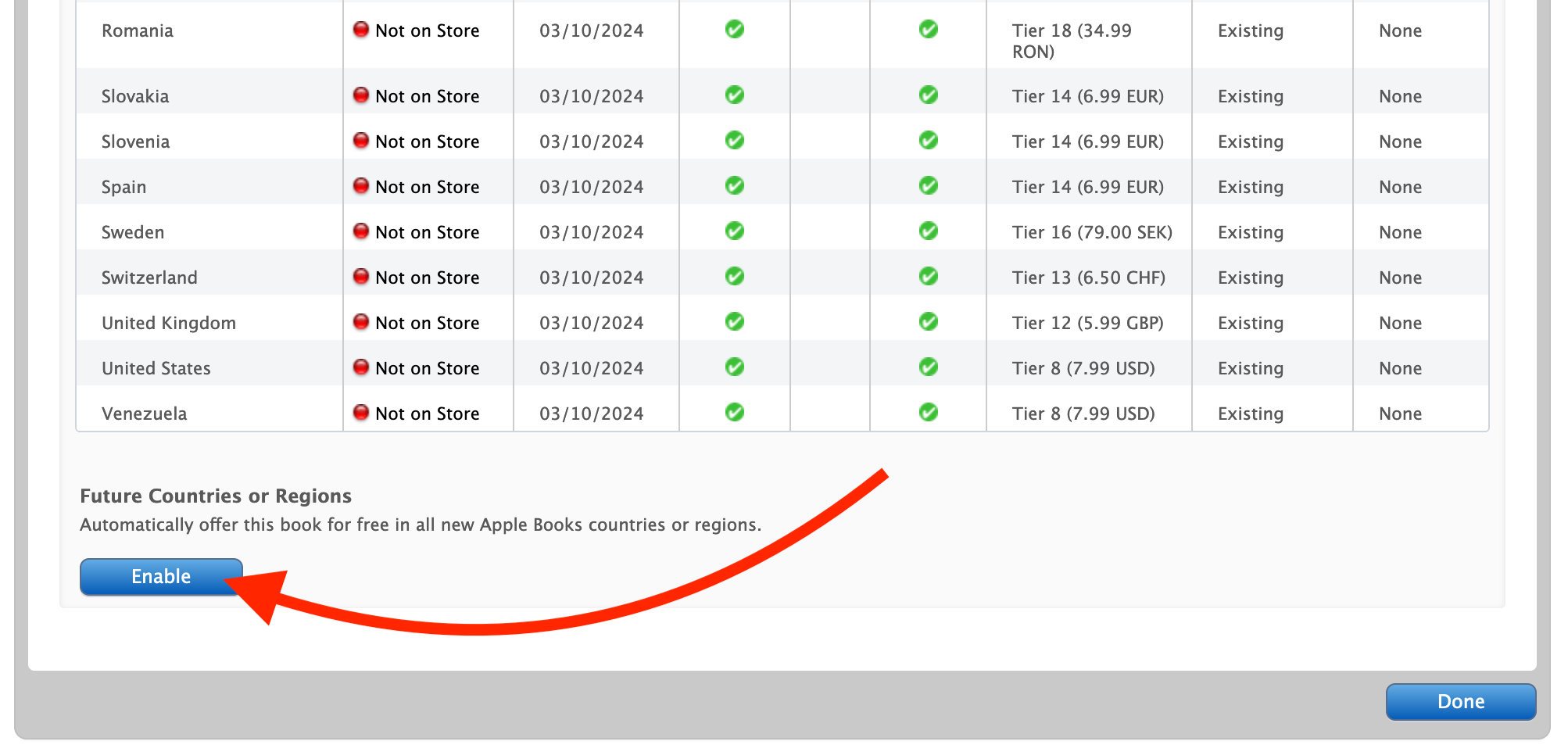
Then hit ‘Done’ and it’ll take you back to your book. It will then explain why it’s not in any stores yet, it’s still in review:
Time for another drink! It might take a day, so once again avoid hitting refresh like a lab rat dispensing food pellets, and come back later.