Confused by all the tech surrounding being a writer these days? Baffled as to why you need a website, a mailing list, an ad campaign, blog, social media presence, and who knows what else, when all you want to do is write?
You’ve come to the right place. I’ll de-mystify the jargon, guide you through what you do (and don’t) need, and hold your hand as we work out how to get you online and building your author profile.
And it’s free.
There’s a lot of advice out there, and it’s far too easy to fall down a rabbit-hole of confusing and overwhelming information. I take a different approach.
I will show you what you really need, right now, as you’re getting started. I’ll keep it simple, never asking you to do more than is absolutely necessary. I will reduce the number of decisions you need to make, often by making them for you. But I won’t lead you down a dead-end. Everything we do here will have the potential to grow with you - whether you have one book or a dozen under your belt, we can sort out your internet presence together.
So click on ‘Introduction’ on the left column there (if you’re on a mobile, press the little icon top-left to open the menu) and let’s get going!
Subsections of Home
Introduction
Difficulty:Easy
Relax.
This is going to be easy, and you might even have some fun.
First, let’s just get you used to this website. I recommend viewing it on your computer, rather than your phone, but it will work on both, so don’t worry.
See that column on the left? If you’re on a small device, you might have to open it up by pressing the icon at the top left of your screen, that looks like three horizontal lines.
That’s the navigation bar. You can see the top level of each category there, and can click about if you like. Right now you’re in ‘Introduction’, at the top. See how it’s tinted orange? You can always find it there, and if you get completely lost you can hit the ‘Home’ button to get back to the top level at any time.
Under there, in a slightly different colour, you can see the subsections we have under here. Let’s hop into the first one now, by clicking on ‘First Sub-Chapter’.
Subsections of Introduction
First Sub-Chapter
Difficulty:Easy
Nice one! Since you’re reading this, you found the link.
Look back over to the left again (mobile users, re-open the menu again). Now the orange highlight is over ‘First Sub-Chapter’ to tell you where you are right now, and the whole ‘Introduction’ chapter is in a darker colour, so you can see where it fits into the whole heirarchy.
Notice also that the things you’ve viewed so far are now ticked off. This should help you keep track of where you get to, since you almost certainly won’t want to do everything here in one sitting! If you’ve been exploring on your own, you might have some things ticked off that you’ve not actually done yet - you can remove all the ticks by clicking ‘Clear History’ at the bottom of the menu there.
And don’t worry, you can go back and re-read any section as many times as you like. Or just ignore the ticks altogether.
Now, one more way to navigate around is at the top of this window. See the left and right arrows at the top right? If you click the left one it’ll take you back one section (in this case, to the introduction page again). Whereas if you click on the right one…
Let’s do it now - it’ll move us on to sub-chapter two.
Second Sub-Chapter
Difficulty:Easy
That’s the ticket!
Note that this is separate from your browser history. It won’t necessarily take you to the last page you viewed, it’ll take you to the next page in the sequence. Think of it like turning the page in a novel.
I advise working through this site in order, since most things build on things that came before, and I’ll often refer back to previous examples. But if you already have (say) a website set up, and just need to know about mailing lists, you can always hop ahead.
Finally you might have seen the icon of a printer up there at the top. If you want a paper copy of a page to work through, hit that and it should give you a nice layout you can then print as normal (Cmd-P if you’re on a Mac, Control-P on a PC). If you hit that at the top level of a chapter, it’ll also include all the sub-chapters too!
You’ll need to use your browser’s back button to go back from there into the main site.
Well, that pretty much covers the site navigation - so let’s just wrap up the intro and get you going!
About this guide
Difficulty:Easy
I believe in the philosophy of ‘crawl, walk, run’ - start small and slow, and build up as you gain confidence. This site follows that idea.
I’ll get you a basic website up and running in no time, hook it up to a mailing list and show you how to get your books listed on the main stores as easily as possible.
All along the way, I’ll be explaining why we’re doing things, as much as how. Some of my decisions might contradict advice you’ve seen elsewhere, or might even seem more complicated on the surface, but I’ll always explain the logic behind my decisions.
And most sections will have a video showing you the steps as I go through them! We love reading – it’s why we became authors – but for some things, learning by watching can be more effective. In all cases I’ll guide you through the instructions step by step, and you can either work along with me, or watch and absorb before trying it on your own.
But why listen to me?
I had a career in tech before I became a writer. I have been playing with computers since I was a child (too many years ago to admit). Back when you had to write your own code since there weren’t tools to do things for you. Later, I set up websites back when you had to hand-code everything. I used email before the software remembered your contacts for you, and every form of ‘social media’ since bulletin boards were a thing.
So I know what I’m talking about, from a tech perspective. You’re in good hands.
Domain Name
Easy Peasy
You won’t need any specialist knowledge to do this, and it shouldn’t take more than about ten minutes.
Buying and registering a domain name.
Subsections of Domain Name
Why?
You can set up a website without a domain name. Most hosting companies have a free tier, so you can set up a web presence for nothing. But I don’t recommend that.
For much the same reason as I don’t recommend relying on a social media platform, if you have your author presence at ‘fancypants.blogspot.com’ what do you do if you don’t want to use Blogspot any more?
Buy a domain name. They’re not too expensive, easy enough to connect to your web host, and you can keep them for life. You can change whoever hosts your website at the push of a button, and your visitors never have to know.
I recommend buying your domain name separately to your hosting. Most hosting companies will offer you a free or cheap domain for the first year, which admittedly will often be cheaper. But after that first year, they can charge whatever they like for a renewal. You can technically move your domain to another registrar, of course, but that’s a hassle, and runs the risk of your site being down for a while during the transition.
Keep them separate, and you keep the control.
What?
A lot of folks (including me) go for the classic ‘firstnamelastnameauthor.com’.
If you can get just your firstname and lastname, you might also want to go for that - although if your name is particularly tricky to spell, it might be worth picking something else. Author Caimh McDonnell (pronounced Qweev) went for ‘whitehairedirishman.com’, for example.
Another option is to take something from one of your books, perhaps the setting or title of one - although be careful this doesn’t box you into a corner. As your career develops, people are more likely to want to follow you, than one book series.
If you write cross-genre, it might be worth considering a site for each genre. If you have more than one pen name, I’d say you definitely want a site for each.
Don’t agonise over this - you can always add more domains later, if you diversify your writing. Or you can ‘park’ an old domain and send it to your main one. All my writing is at ‘markhoodauthor.com’, but I have a couple of others that just redirect there, rather than having their own website set up.
And I would advise getting a .com, rather than any of the ‘new’ top-level domains. The others can be cheaper (though not always), but are mostly aimed at certain industries (.bar, .accountant, etc.) Maybe you’re a horror author, and want .boo as a top-level domain - by all means, go for it. But consider whether it gives the impression you want it to. Also check renewal rates, sometimes they hook you in with a cheap first year and then ramp it up.
And finally you might find some readers still want to add ‘.com’ to the end anyway, and you end up explaining it every time.
At the end of the day, though, most people click links or search for something, rather than typing in a whole URL. It doesn’t matter as much as you might have been told.
Who?
There are almost as many domain registrars as there are domains. Picking one can be tricky.
If you want to get your domain through your host, that’s fine. I advise doing it separately, though, for the reasons I already explained.
So who do you pick?
There are a few that usually come up when you ask for advice, and I’ve listed the most common below. Being on this list can’t be a guarantee of perfect support, any more than absence from the list meaning they’re not legit. These are some I either have personal experience of, or recommendations from people I trust.
NameCheap.com
My personal recommendation. I’ve used them for years, their prices are fair, and they’ve never given me any trouble.
Domain.com
I’ve used them in the past, they tend to do well in customer surveys.
GoDaddy.com
My first website had a domain from them, but they have a poor reputation. Anecdotally I’ve heard about poor customer service, domains become more expensive after you search for them, and they can even auction off domains sometimes.
Whoever you go with, ensure they’re offering ‘Domain Privacy’ - most do, at no extra cost. It means that your email and home address don’t get shared with the world when you register.
How?
I’m going with NameCheap.
There will be written instructions here shortly, but for now you can watch a video walking you through the process.
Website
“Do I really need a website?”
Yes. It’s 2025.
Subsections of Website
Introduction
But you might be thinking ‘website’ means a blog, a store, a calendar of all the events you’re attending… It can be all of those things, and more - but it absolutely does not have to be.
If you’re just starting out, it’s a billboard. A place to say ‘Here I am, and here’s what I do’.
Yes, you can do all of that with a Linktree page, or a Twitter/X profile, or Facebook… But a website is yours. Whatever your views on social media (or the people who own the platforms), there will come a day when you’re no longer using one or more of them any more. Remember all those bands saying ‘check out our MySpace page’? No? Then you’re probably a lot younger than me.
But imagine this - your books come out with links in the back to follow you on some wonderful new social media platform… which dies within the year. Now you’ve got people either looking for you on a dead site or unable to find you at all. Or you point people to Amazon to buy the next book in the series, but eventually prefer people to buy the books elsewhere.
Your website is yours. That address (assuming you keep renewing it) will always work, always be up to date, and can send people off to whatever other platform you frequent.
But we need to start small. Stake that claim, reserve your little corner, and make it start working for you.
Subsections of Introduction
What goes there?
What’s going to go on it?
Whatever you want. If you have a dozen books out already, you might want a page for each one, or a section for the series. Perhaps a store would make sense, since you’re clearly in this pretty deep already.
If you’ve not written anything yet, maybe just a bit of a biography about you, or a tease of the book you’re working on. A cover reveal, a countdown, a story about how you became a writer. Literally anything you like.
Or just a link to all your social media. Want more TikTok fans? Link them over there.
I’m going to assume you’re new to all this, and have nothing in particular in mind. Here’s what I think a brand new author needs:
A memorable (or at least easy to spell) domain name. Maybe your magnum opus is the ‘Glarxenwyrd Trilogy’, but consider how someone you meet is ever going to find that.
A professional looking layout that works on all devices (desktop, phone, tablet).
Something to catch the eye.
A mailing list signup.
Links to find you wherever you are.
I’ve got a separate section on why you need a mailing list, but the short version is very similar to why you need a website. Social media wants you to pay to advertise to your fans. Facebook will show your latest post to maybe 4% of the people who clicked to follow, and then nag you to cough up if you want to reach the rest. They’re your fans, and someone’s holding them hostage. Start a newsletter.
If you’re an established author, the list is basically the same - except I’d add one item:
Links to buy your books
That can be just a simple Amazon link, a list of links to every store, or (I’d recommend) a universal link that lets readers pick and choose where they go.
Some assumptions
In this guide I’m assuming you don’t already have a website set up. If you do, well done! You can skip this one.
I also assume you don’t have a domain name yet. That’s what we commonly call a ‘URL’ or ‘Website Address’. I’ve got markhoodauthor.com; you’re going to want to pick one of your own.
And all the good ones are taken.
My final assumption is that you want to do this cheap (or rather, as cheaply as possible while still looking professional).
Terminology
There’s a lot of technical terms that get bandied around, and they can be confusing for a new author. I’ll try and break them down here, but you’ll understand better as we go through the process.
Domain name: Your URL, web address or site name. Usually ends in ‘.com’, it’s what you’ll tell people to visit.
Top Level Domain: the last part of your domain name. Usually .com, it can be a country-coded one like .co.uk, or a ‘novelty’ one like .ninja.
Registrar: The company that, well, registers that name for you. You buy it from them, and they point it at your website. (In reality it’s a bit more complex, with resellers, country code administrators and a whole stack of turtles all the way down, but for our purposes you pay a registrar, and they give you the name).
Hosting: Looking after the files that make up your website. This is the job of a ‘hosting company’. Depending on who you pick, they might simply give you some buttons to press to set everything up, or provide a basic computer in ‘the cloud’ which you set up yourself. (I’m going to recommend the easy options).
SSL or Certificate: What gives you the little padlock in the browser. All browsers now are moving towards warning visitors when a site isn’t secure, rather than notifying them that it is. You don’t want them implying you’re not trustworthy, so you need one of these. You shouldn’t be paying extra for it, it really ought to be included in your package.
Why not just WordPress?
You’ll see a lot of authors using WordPress, and might think that’s the easiest, or best, or recommended way to set up a site.
It’s pretty good. You can buy a domain from them, let them host it and manage the upgrades for you, and it’s so widely used that it’s estimated 25% of all websites run on it. Not just blogs, all websites.
But it’s as complex as it is powerful. You can customise it in a million different ways, install a thousand themes and almost as many plugins, all of which can make it a nightmare to manage. The more you add to it, the slower it runs, and people don’t like slow websites.
Our goal today is to set you up something simple, zero maintenance, and fast.
Hosting
This is where we’ll talk about hosting services.
TL;DR - Use Carrd.
There will be written instructions here shortly, but for now you can watch a video walking you through the process.
Mailing List
A mailing list is the best investment you can make for your author career.
There will be written instructions here shortly, but for now you can watch a video walking you through the process.
If you prefer to watch this walkthrough instead, I’ve prepared a video for you. Scroll down for the written instructions, along with screenshots to help you through the process.
You almost certainly have a Google account - if you don’t use their email, YouTube, maps, document editor or one of their confusingly named chat apps, then I’ll be very surprised.
If not, set one up. Use your real name again, pen names come later.
You will most likely have to enter a lot of information about yourself, your address, banking details for payouts, tax information, etc. I can’t show you that since I already did it…
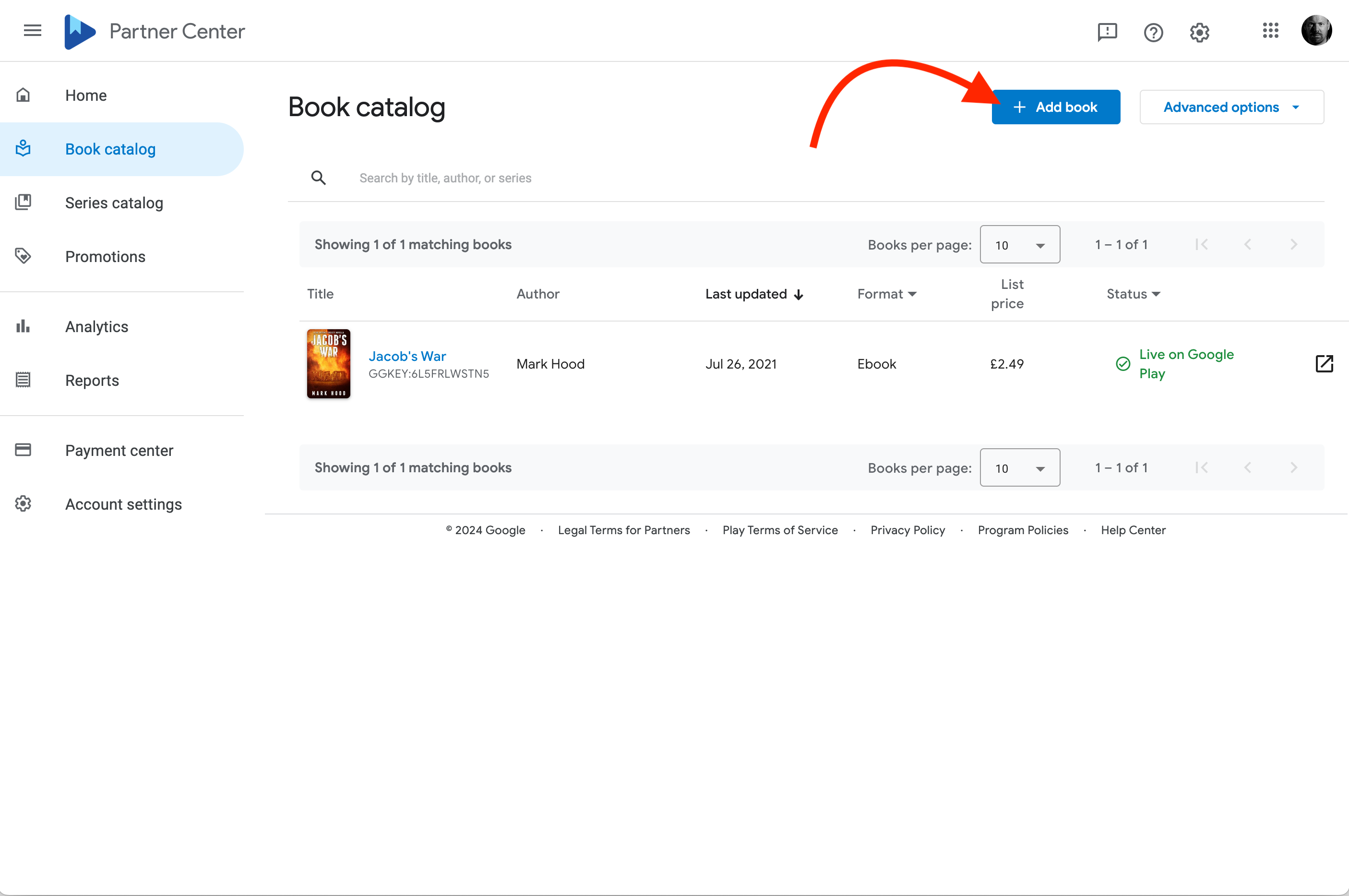
I get a ‘Book Catalog’ which shows me everything I’ve published so far. I can add a new book, with a button top right, or I can go to the series tab.
You can only add books to a series once they’re live in the store, so you want to get the books up first.
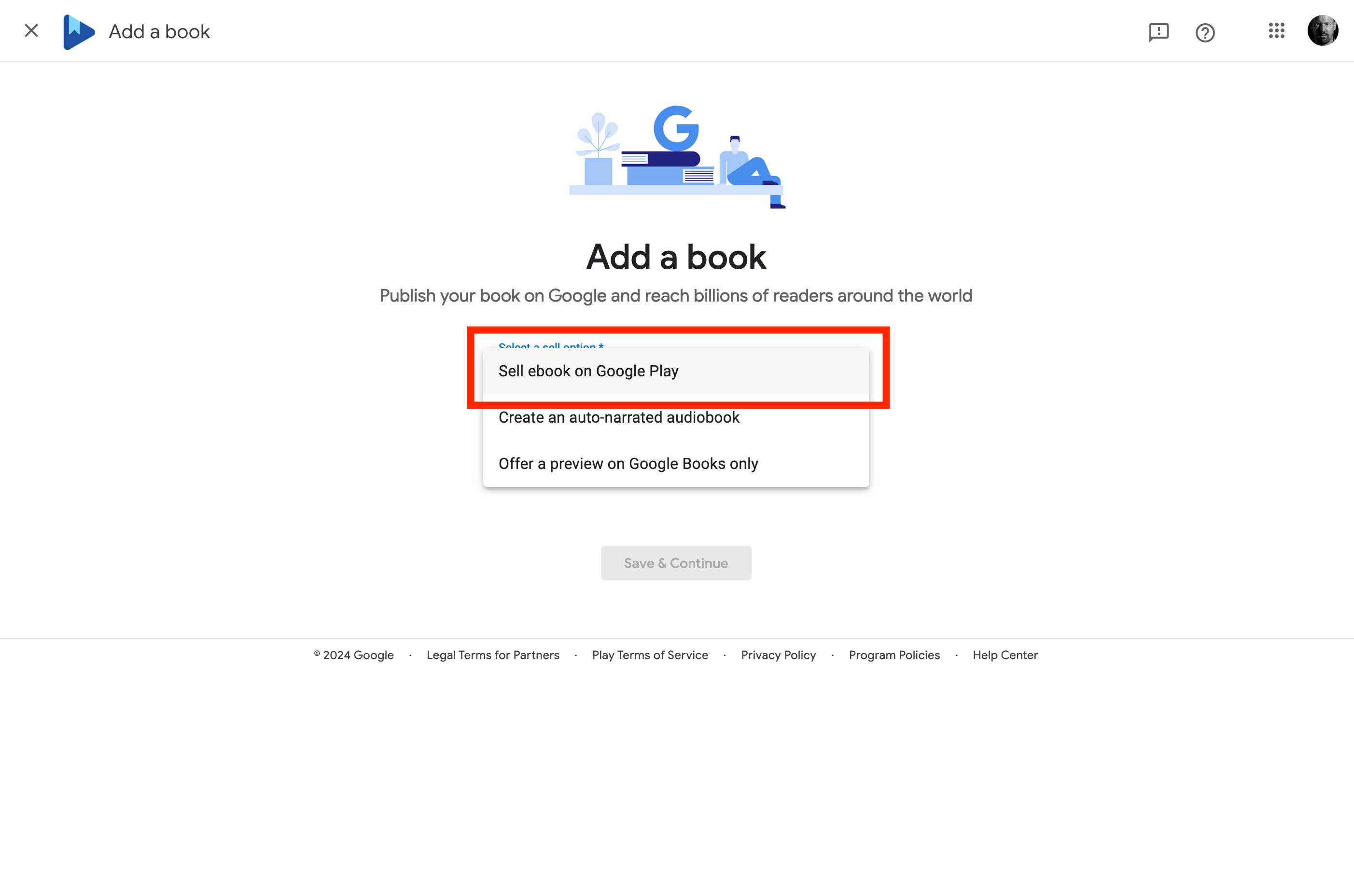
Hit ‘Add Book’ and then you almost certainly want to choose ‘Sell eBook on Google Play’:
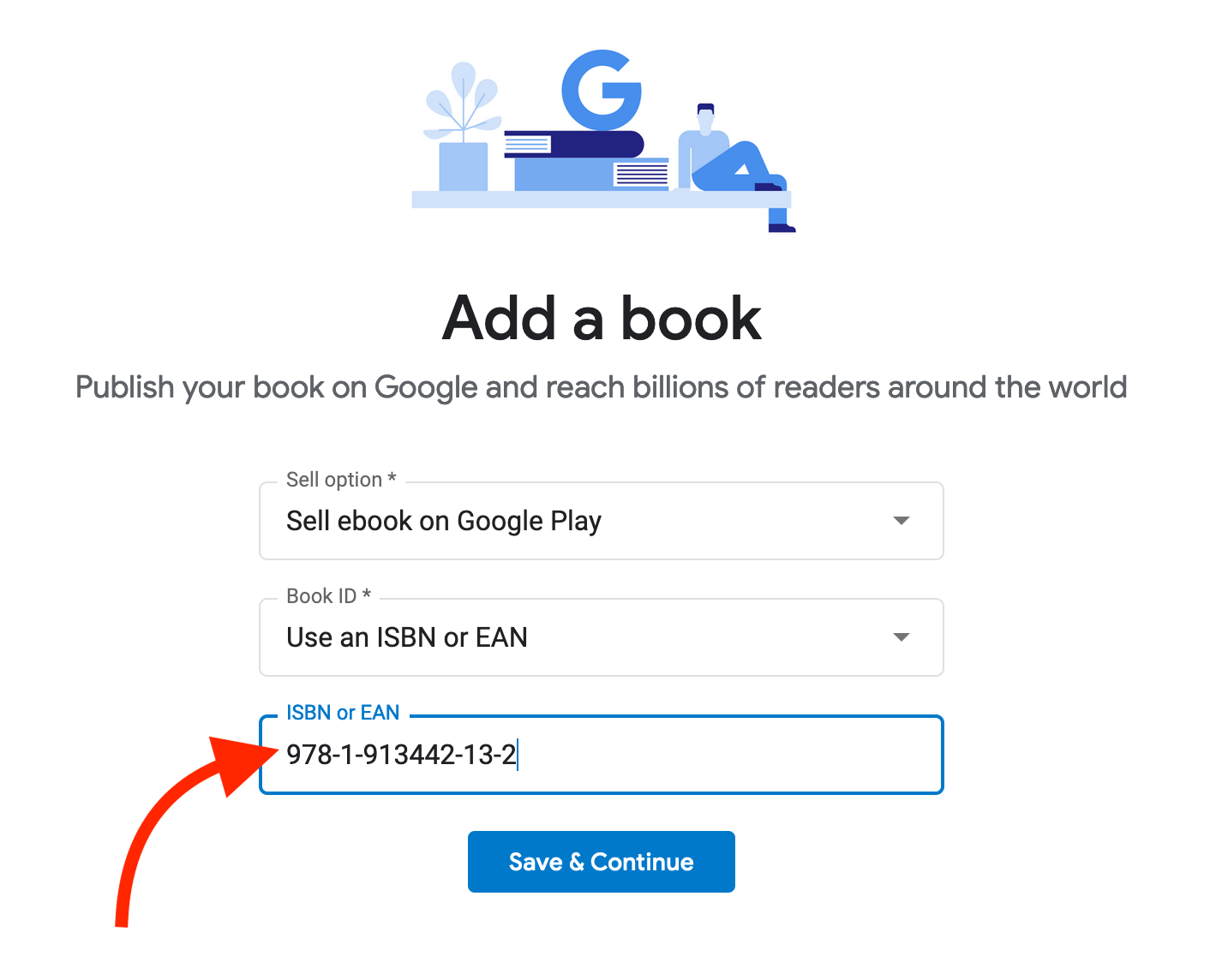
Here’s where you can choose to use your ISBN (or not) and allow Google to assign their own ID. I advise using your ISBN.
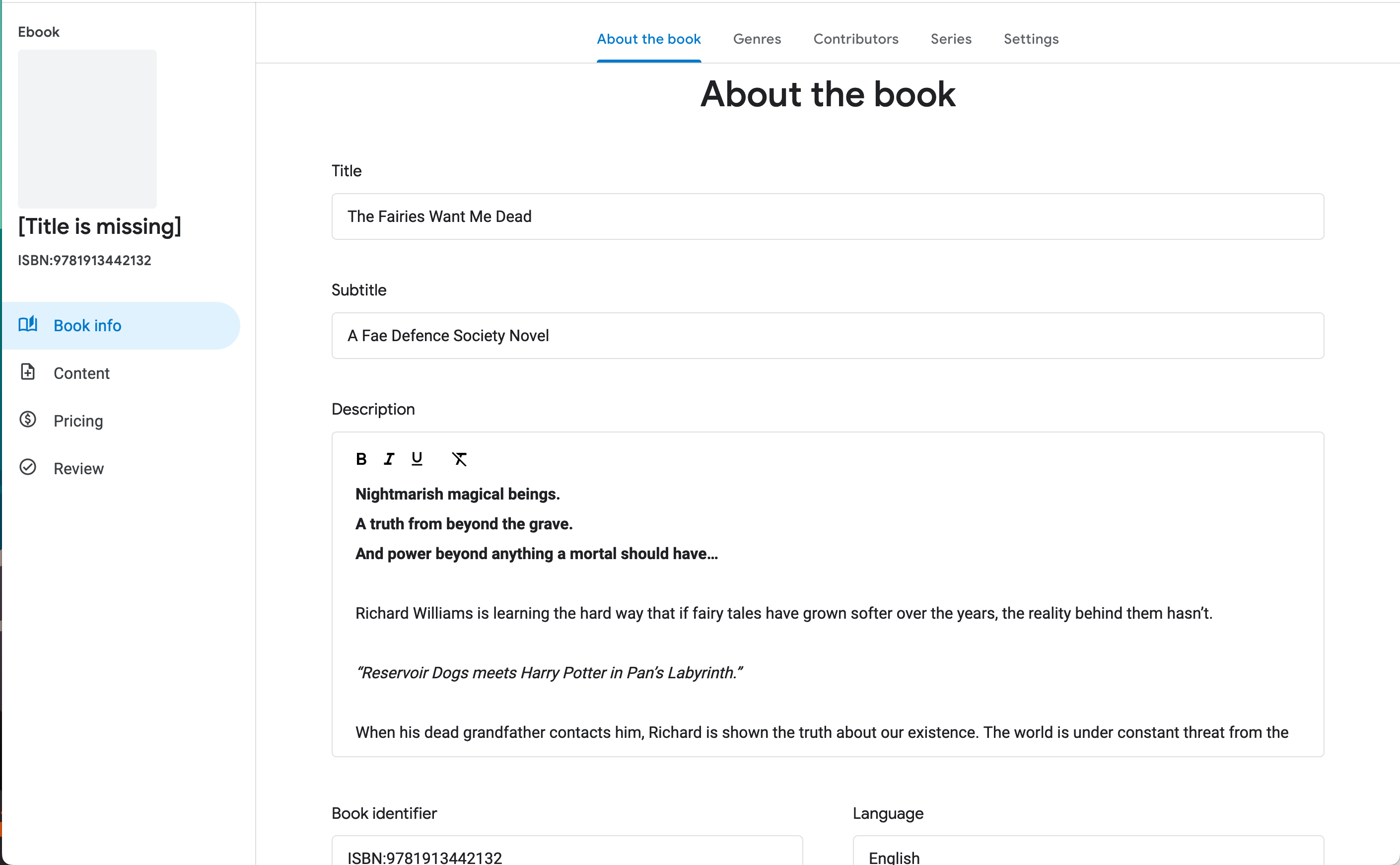
Now you’re going to add all that metadata. Title, blurb, language, etc:
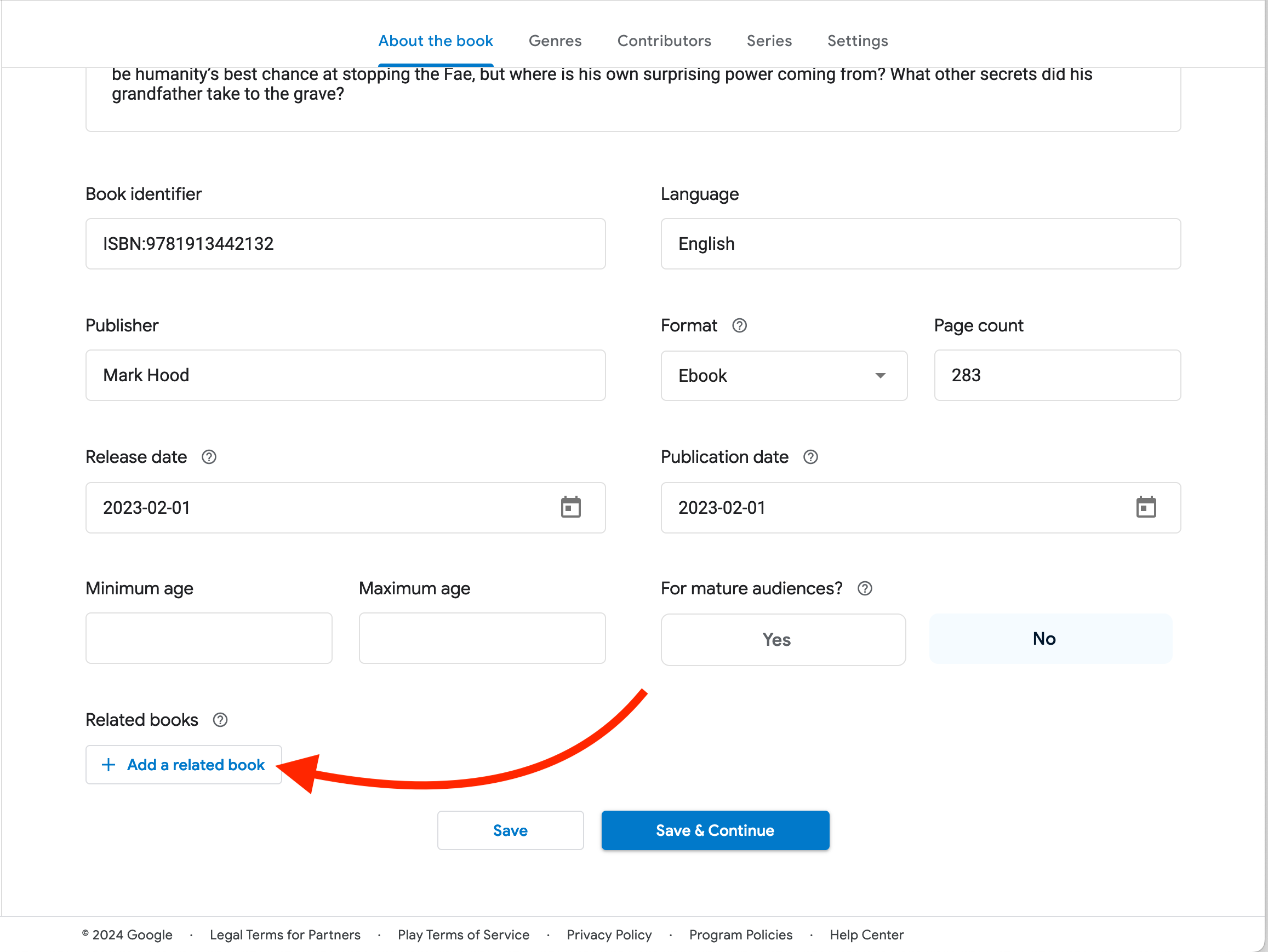
Scroll down and keep going:
Important: If you want it released ASAP, leave the ‘Release Date’ blank. If you want it delayed until a certain date (e.g. for pre-orders), put that date in here. If you have already published it elsewhere, as I have, put that date in here.
‘Publication Date’ does not control whether or not your book is available, so you can put whatever you like in there. Normally it’s the release date.
Note that ‘related book’ doesn’t mean part of a series. It’s for when you’re publishing a translation or derivative work.
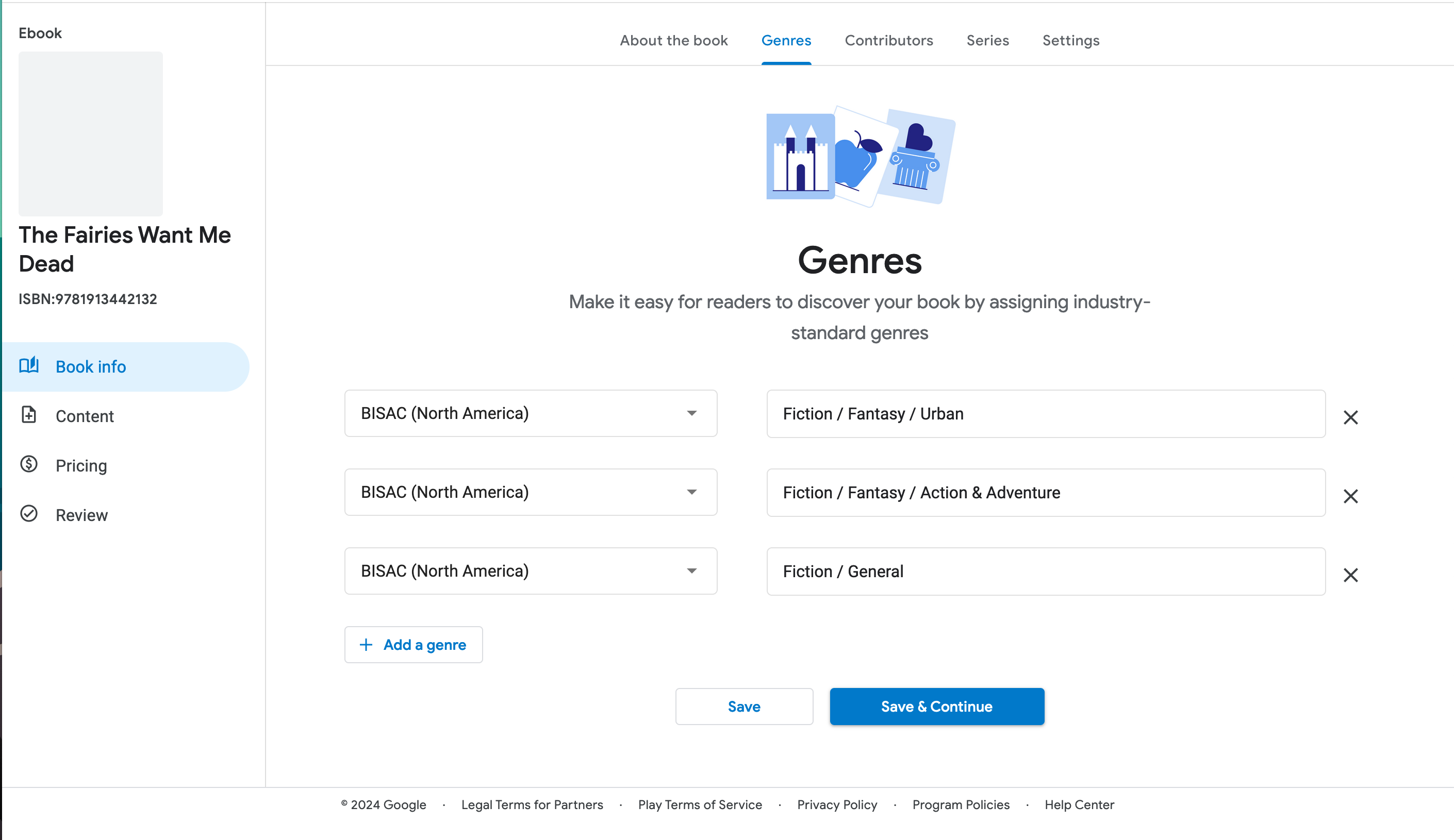
Save and continue, and we’ll do our BISAC codes. You can add as many as you like, but don’t add it to categories you’re not actually in.
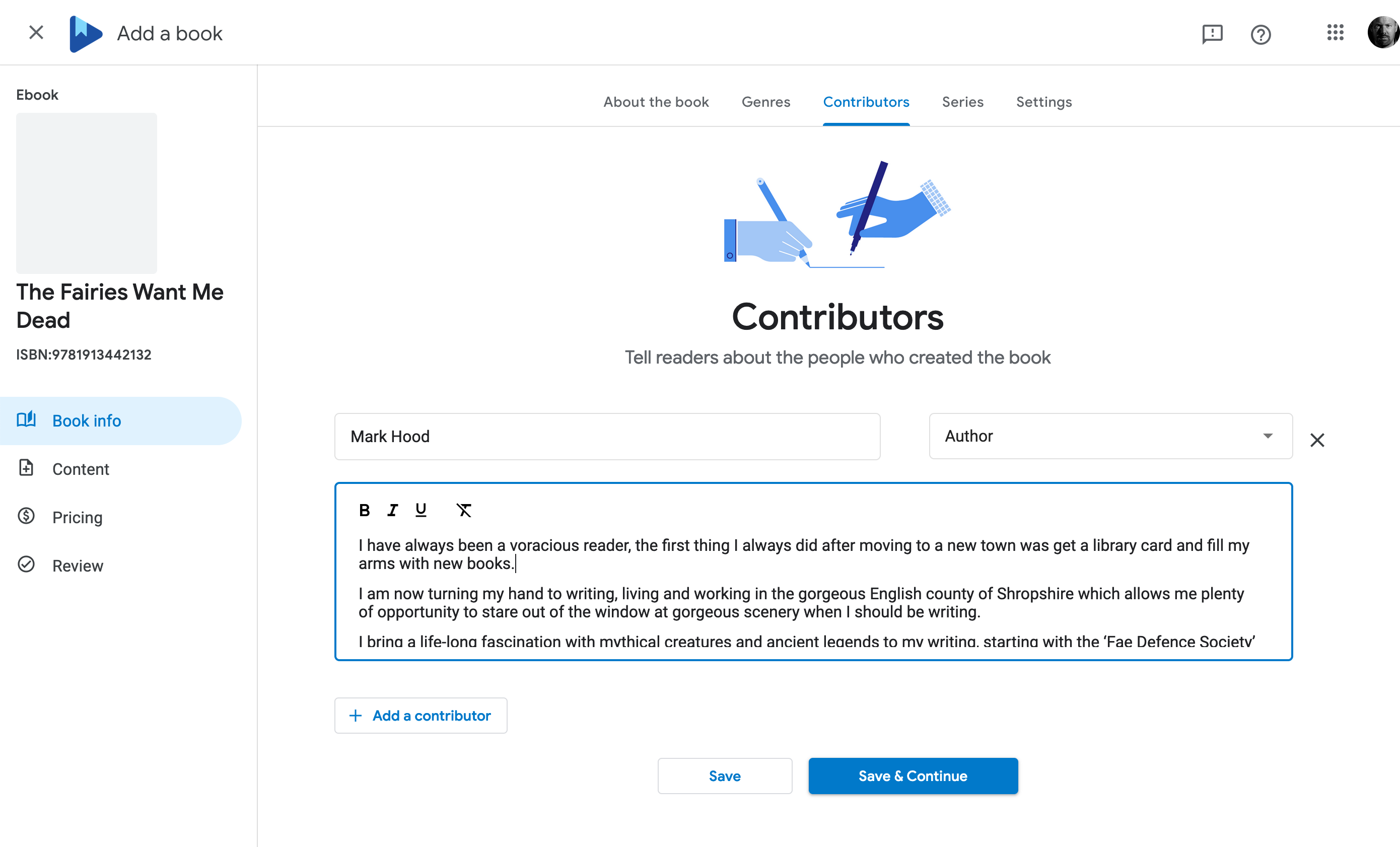
With that done, add the author(s) information:
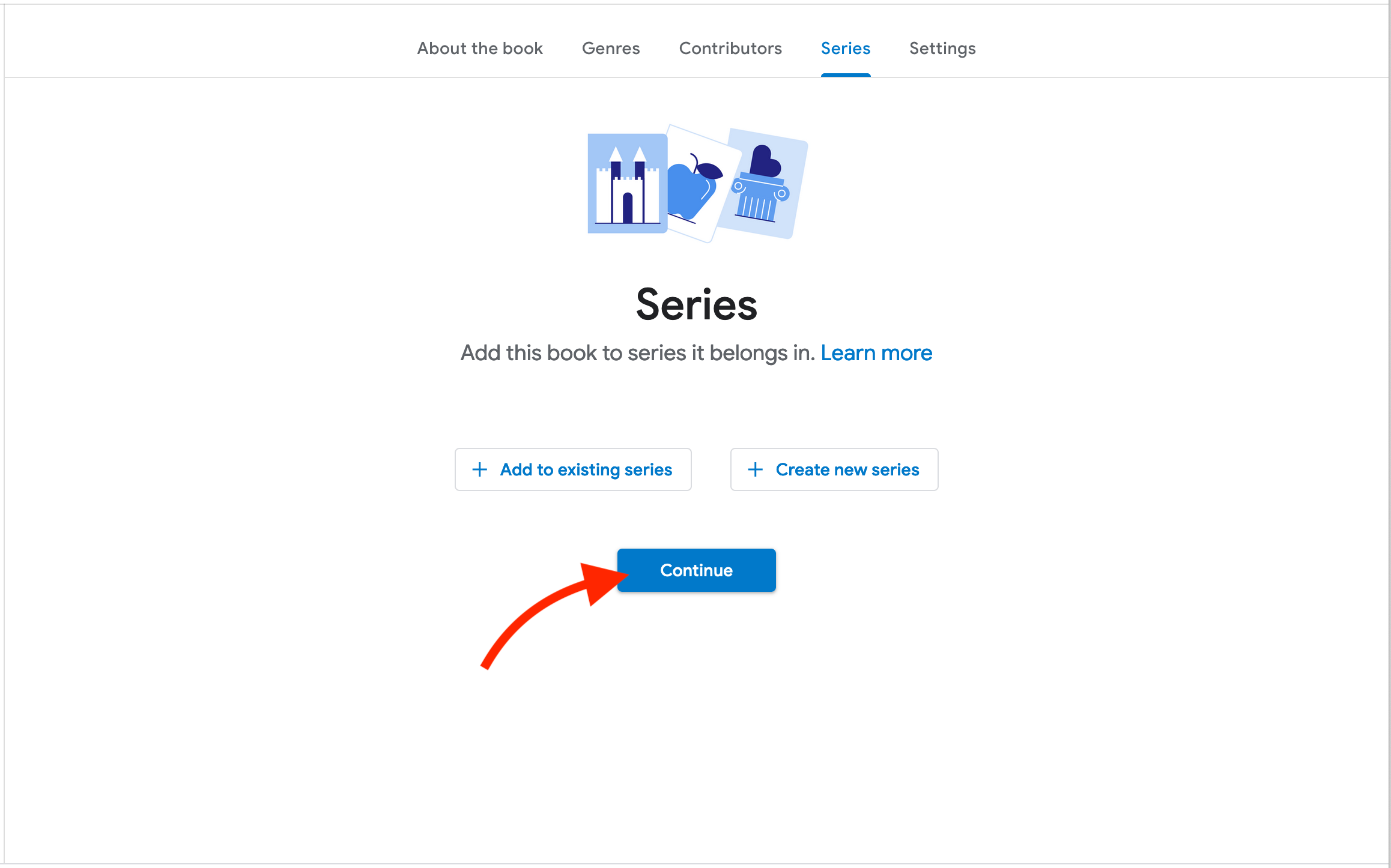
Now this is a part of a series, but I don’t want to get sidetracked. We’ll sort that out later. Continue on:
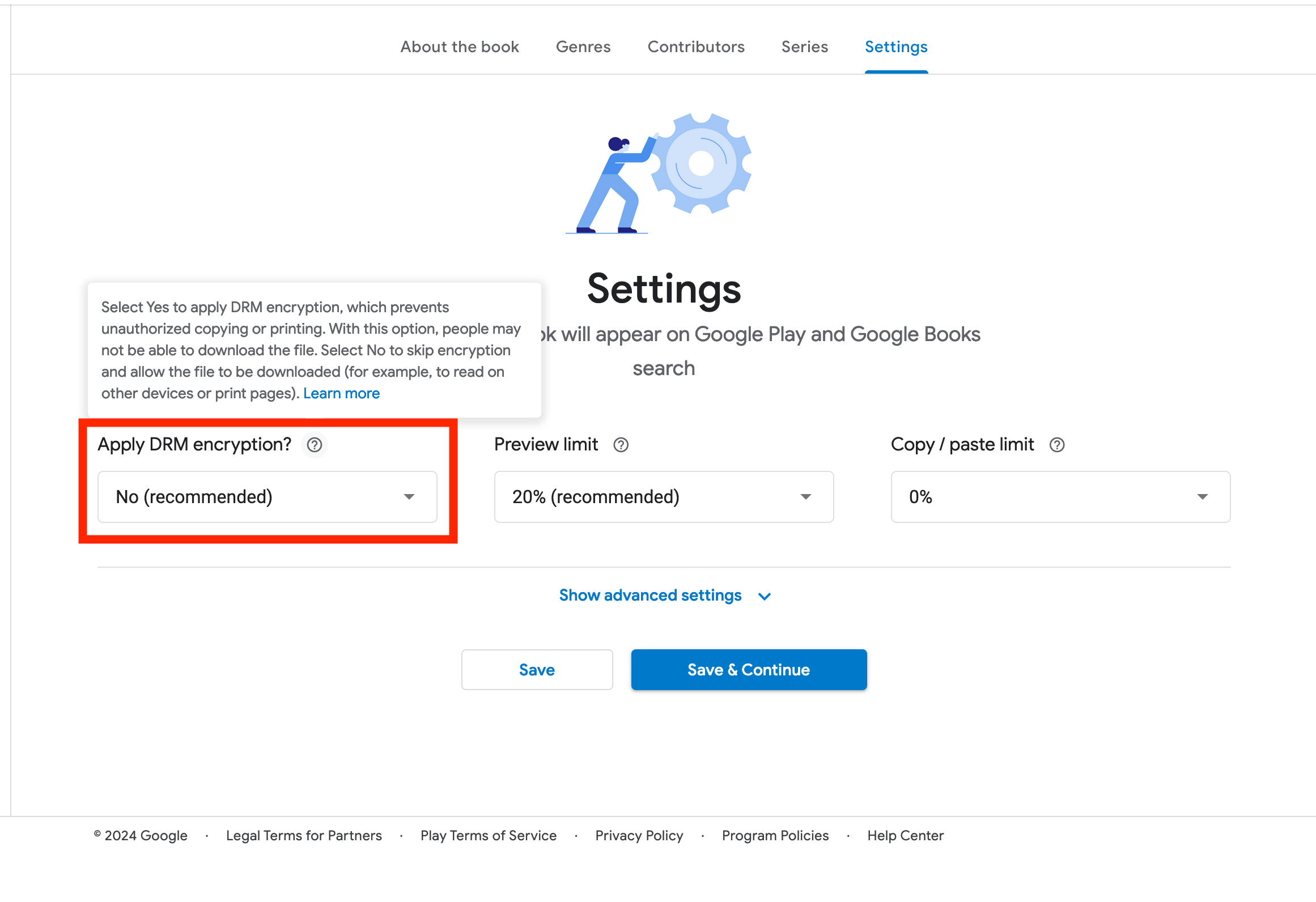
Settings. They recommend turning off DRM (as do I) but that’s up to you. It’s meant to prevent piracy, but in reality it doesn’t — and just makes life harder for your readers if they want to move the file to a new device in the future.
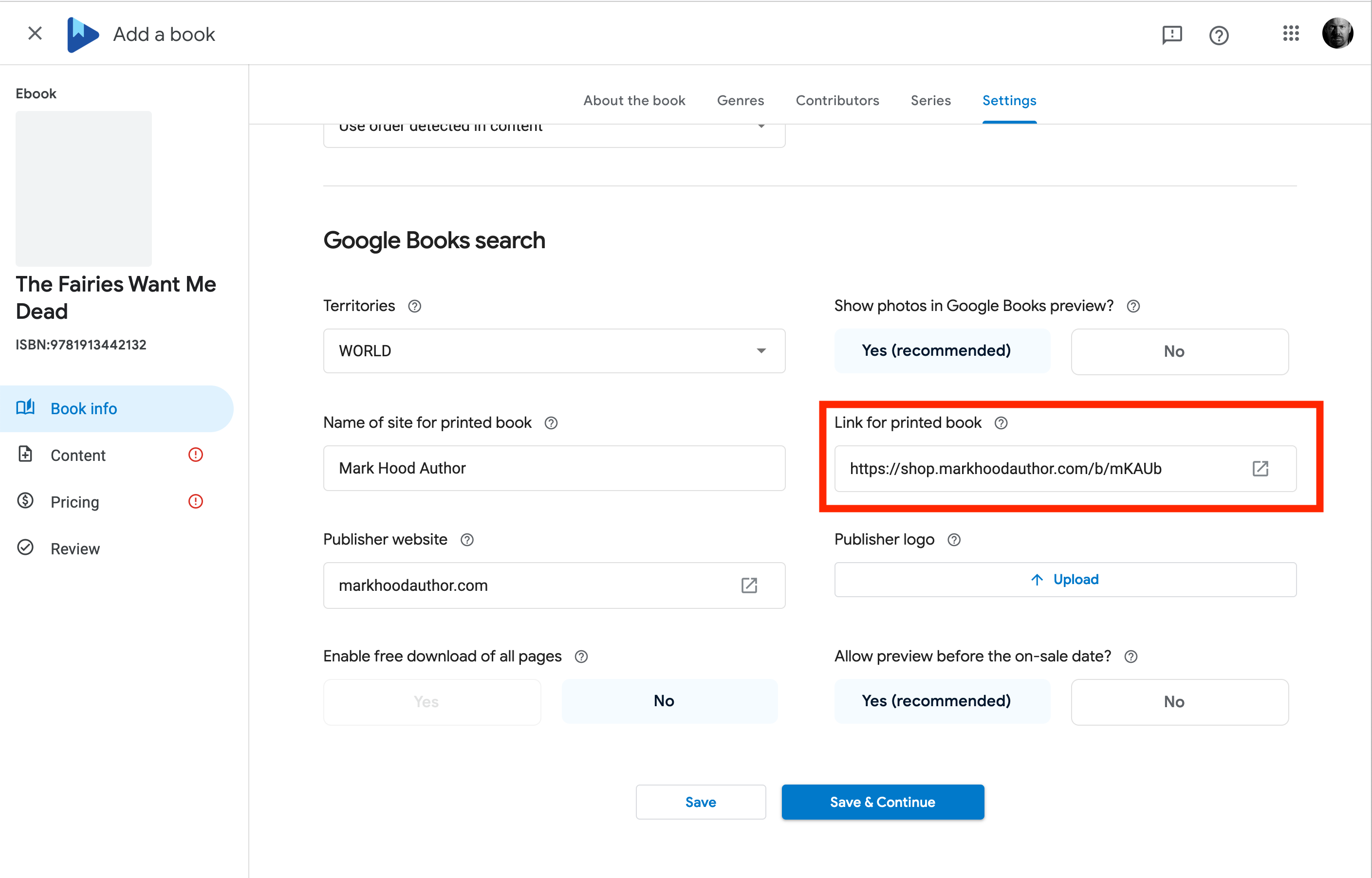
You can safely ignore ‘Advanced Settings’ for now, but you can take a look. If you have links to buy a paperback, you can add them here so Google Books will index it. I don’t believe they like Amazon links, though.
Save and Continue…
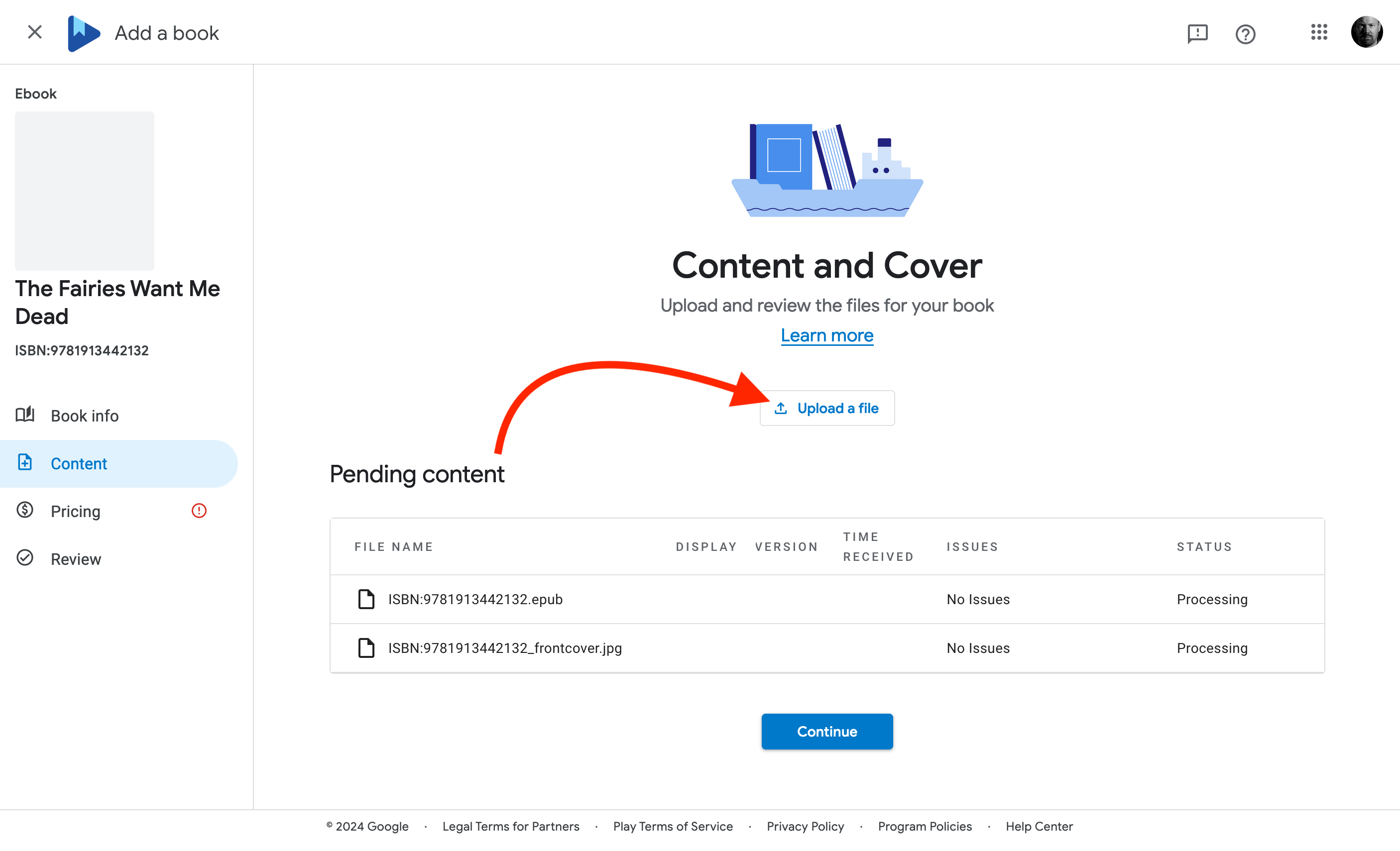
And finally we get to the actual book! Upload your ePub and your cover (yes, both in the same place, Google will figure out which is which):
It might take a while to process, just carry on and they’ll do it behind the scenes.
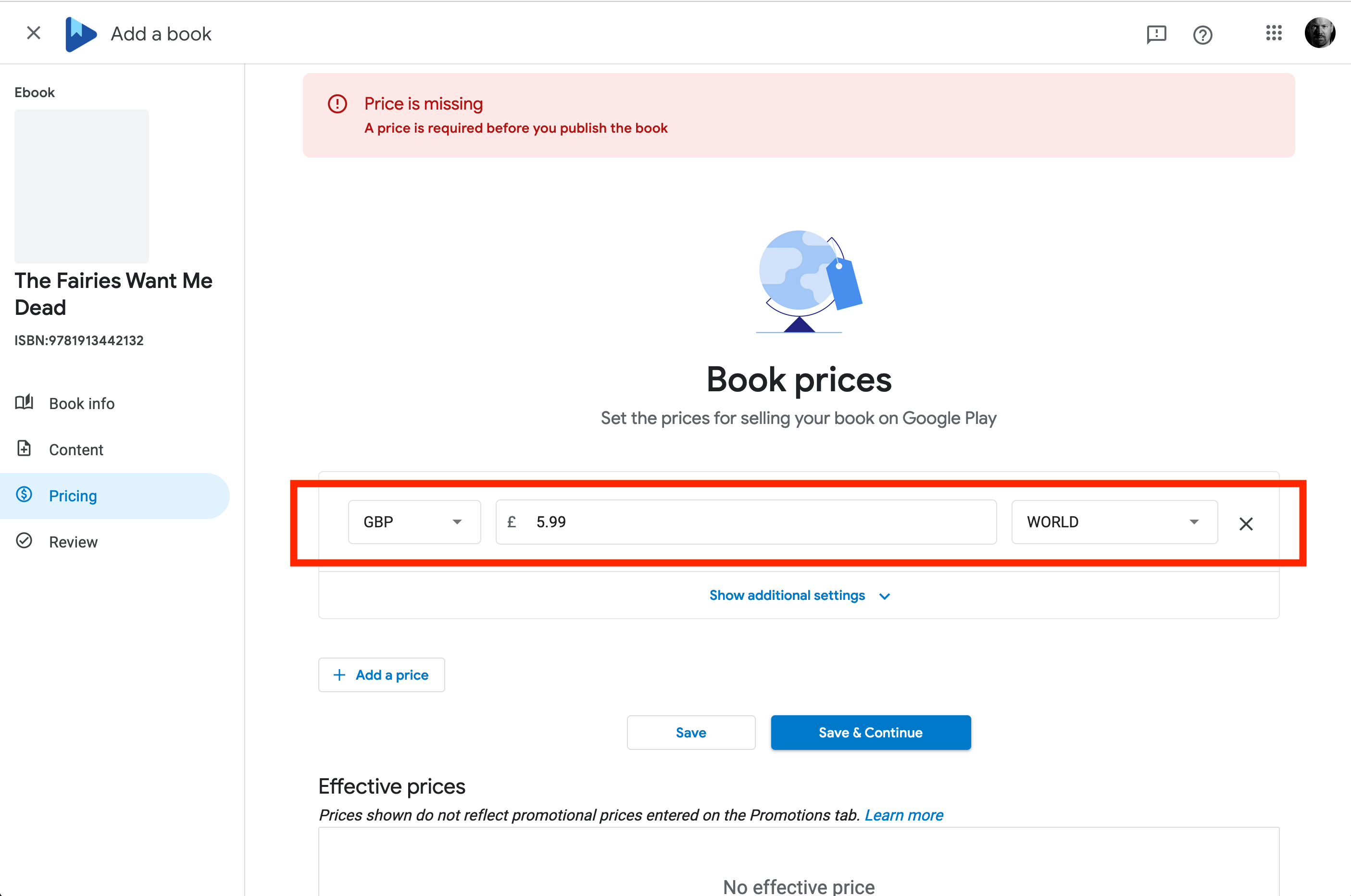
Now set a price. I’m in the UK so it’s asking me to select my UK price:
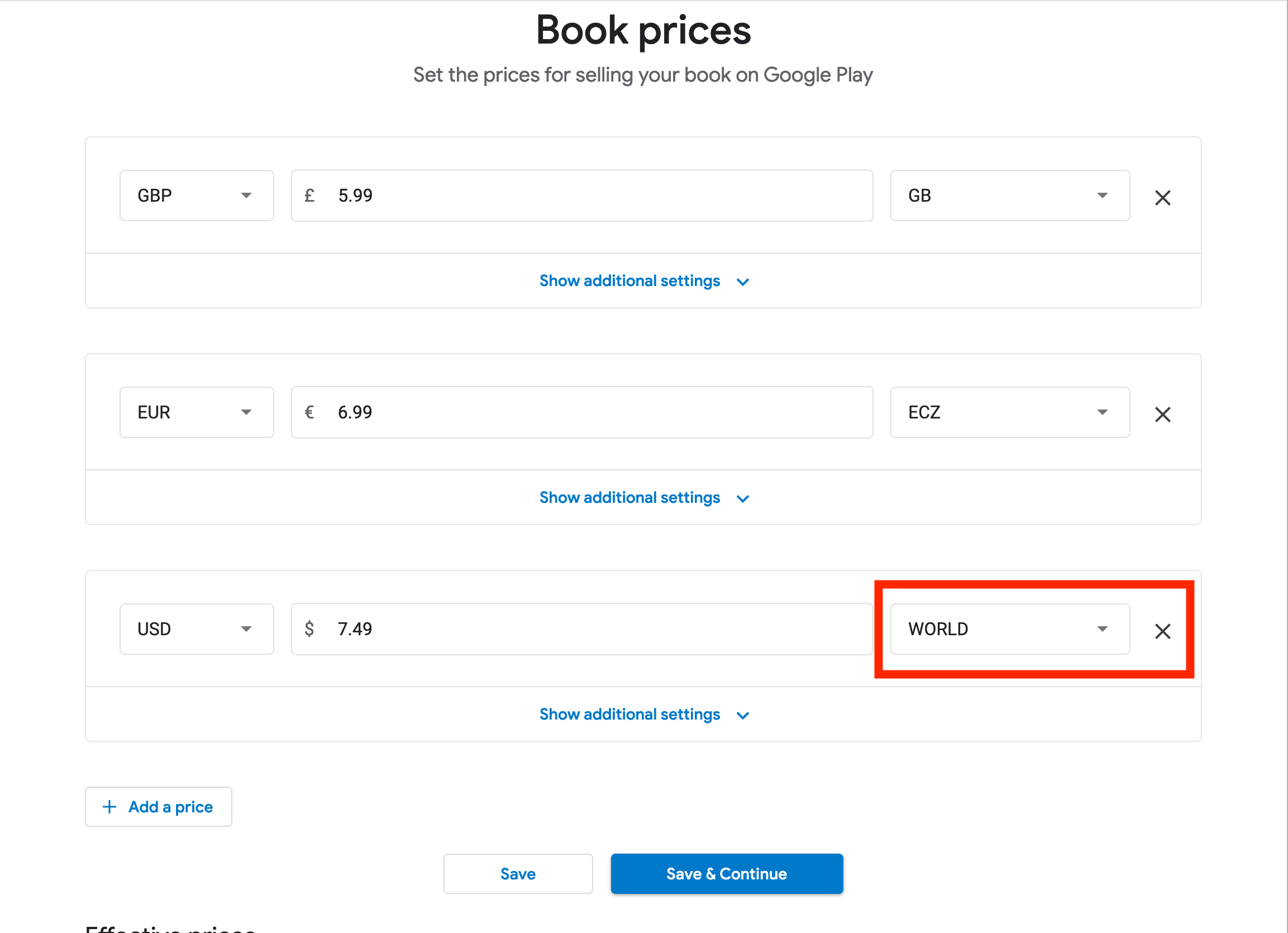
I can add one per country, but frankly that’s not necessary. I will do US and EU though, by selecting them in the right hand pull-down (selecting ‘Euro Area’ will change it to ‘ECZ’, don’t worry):
I’m using US as the ‘world’ price, so everyone I didn’t select individually will see that.
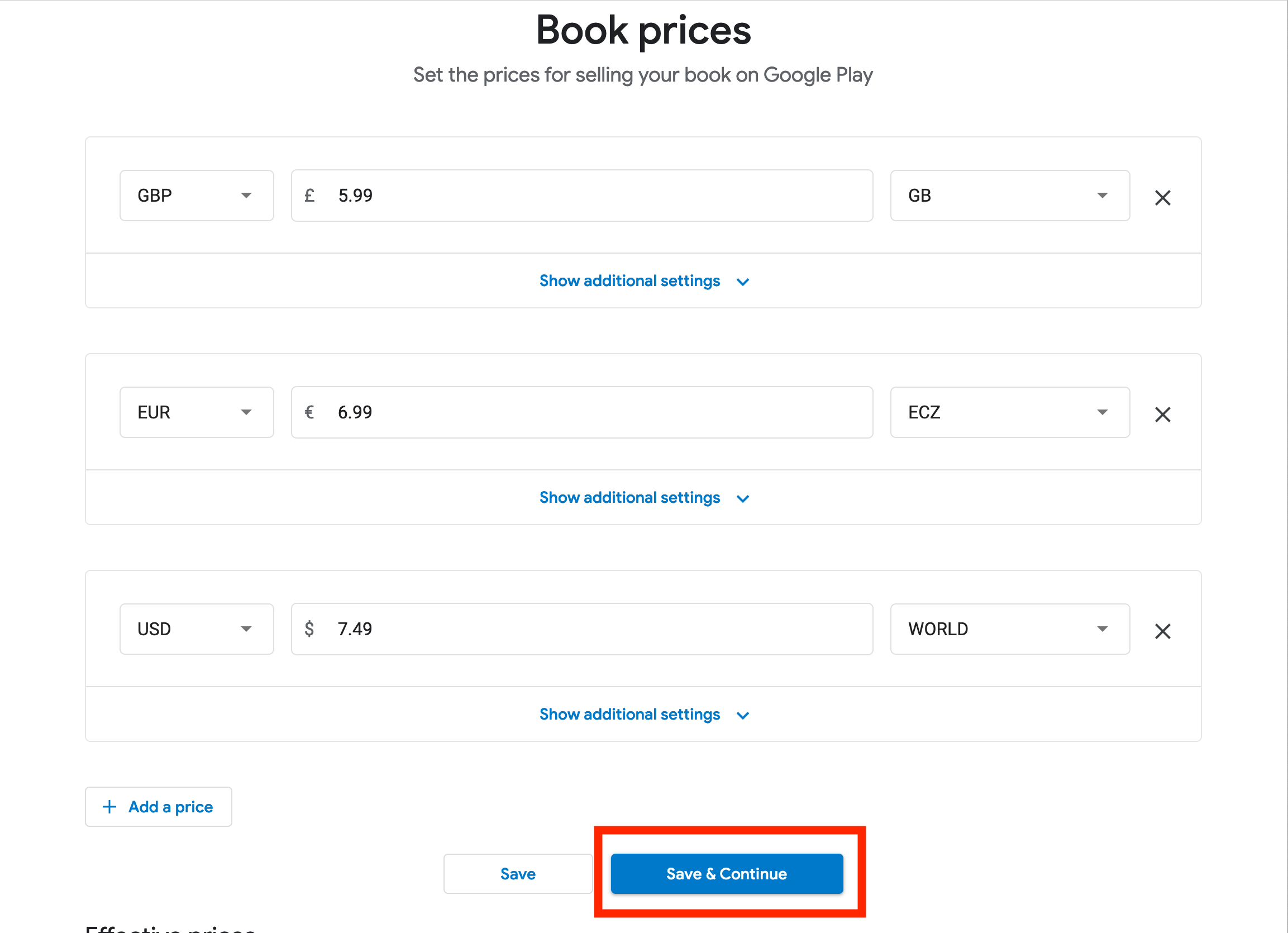
‘Effective Prices’ will be blank until you save. You can continue, or hit the ‘Save’ button (not ‘Save and Continue’) and wait for it to refresh. Then you have the option to check every price globally to see how much you make… Or trust that it’s OK and hit ‘Continue’.
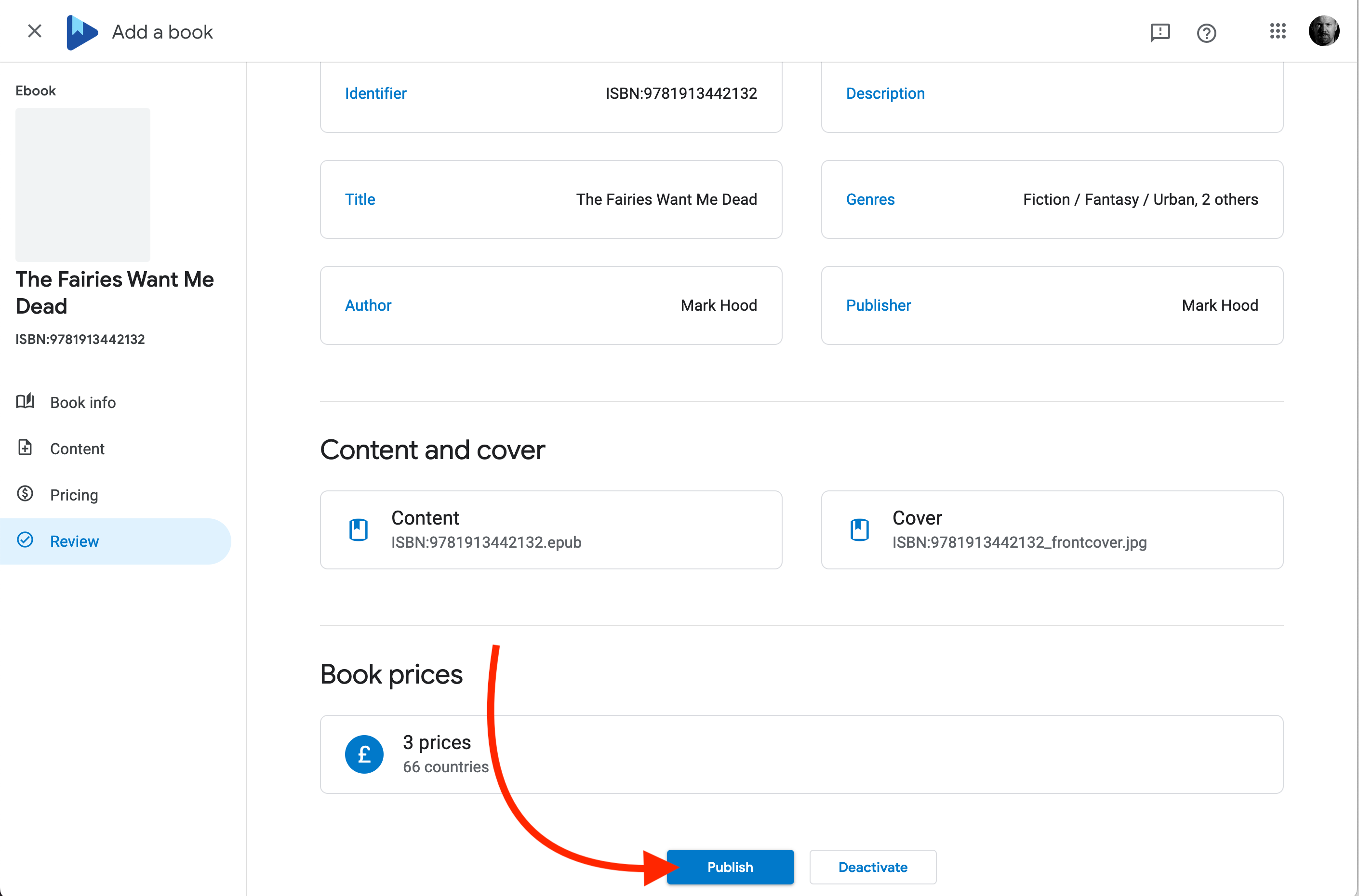
You’re done! Check and double-check the information on this screen, and if you’re happy, hit ‘Publish’.
Now have that drink, because…
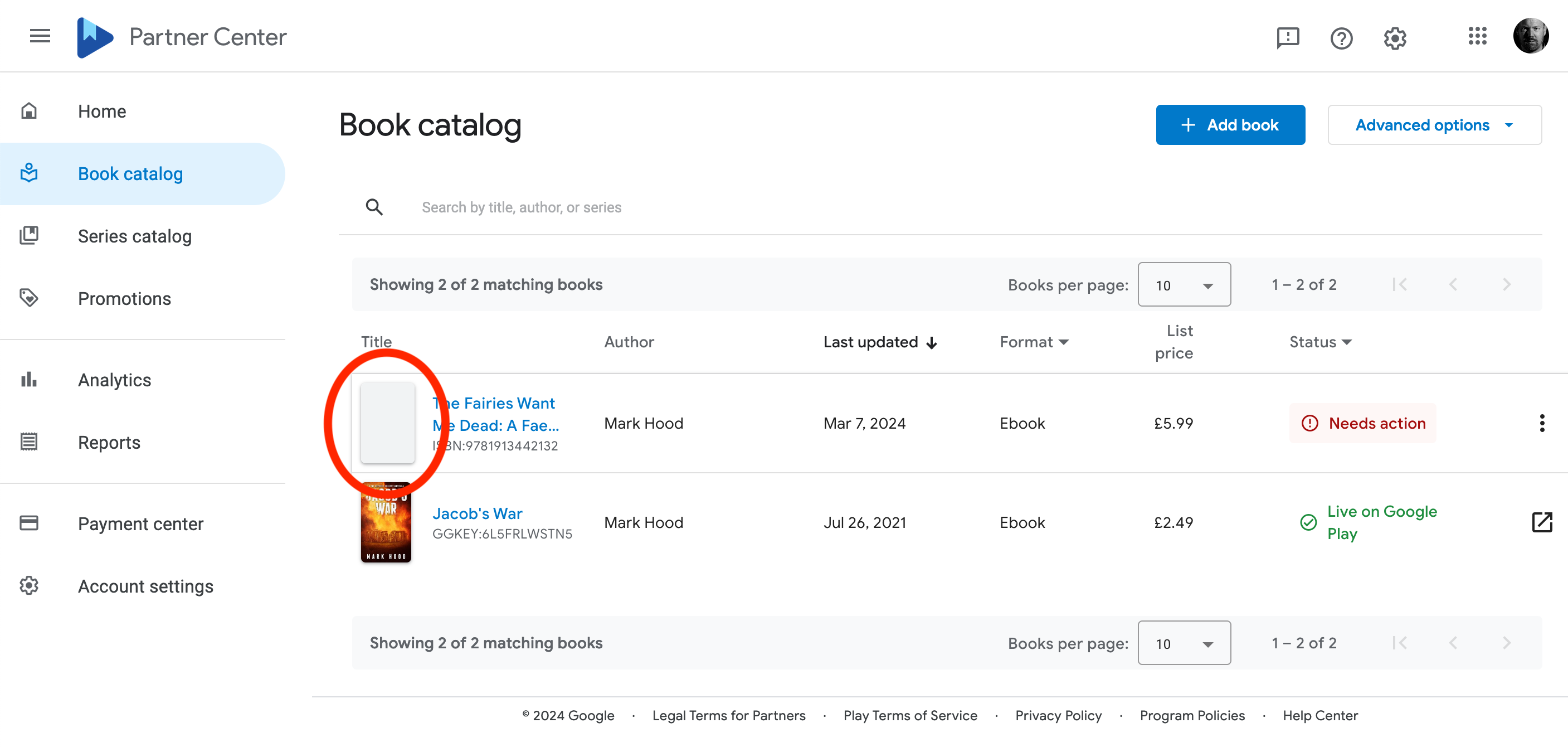
Although you might not be done:
Note I have no cover image, and it’s saying I need to do something.
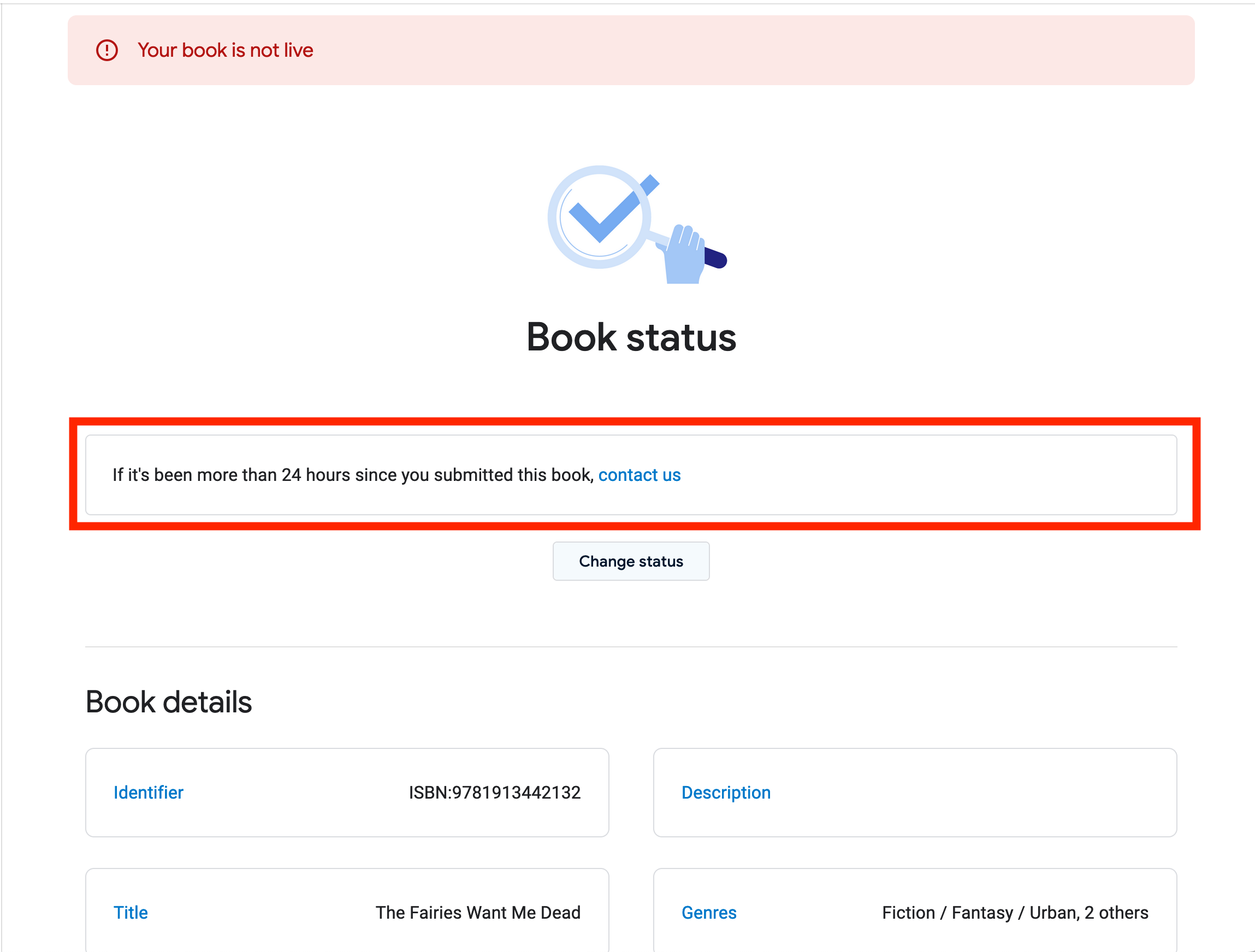
Hit ‘Needs Action’ and see if it really does. Mine’s just saying ‘not live’, but to only contact them after 24 hours. It takes a while, so don’t panic.
Let it be, try and avoid refreshing every two minutes, and come back later. I had problems with the ePub format not being precisely correct, and they helpfully didn’t email me at all. I came back after a while and saw the message, re-uploaded and all was well after another couple of hours.
They won’t email you when the book goes live, so you will have to keep checking.
You can upload another book, move to a new retailer, or just go and pet the dog until your blood pressure returns to normal.
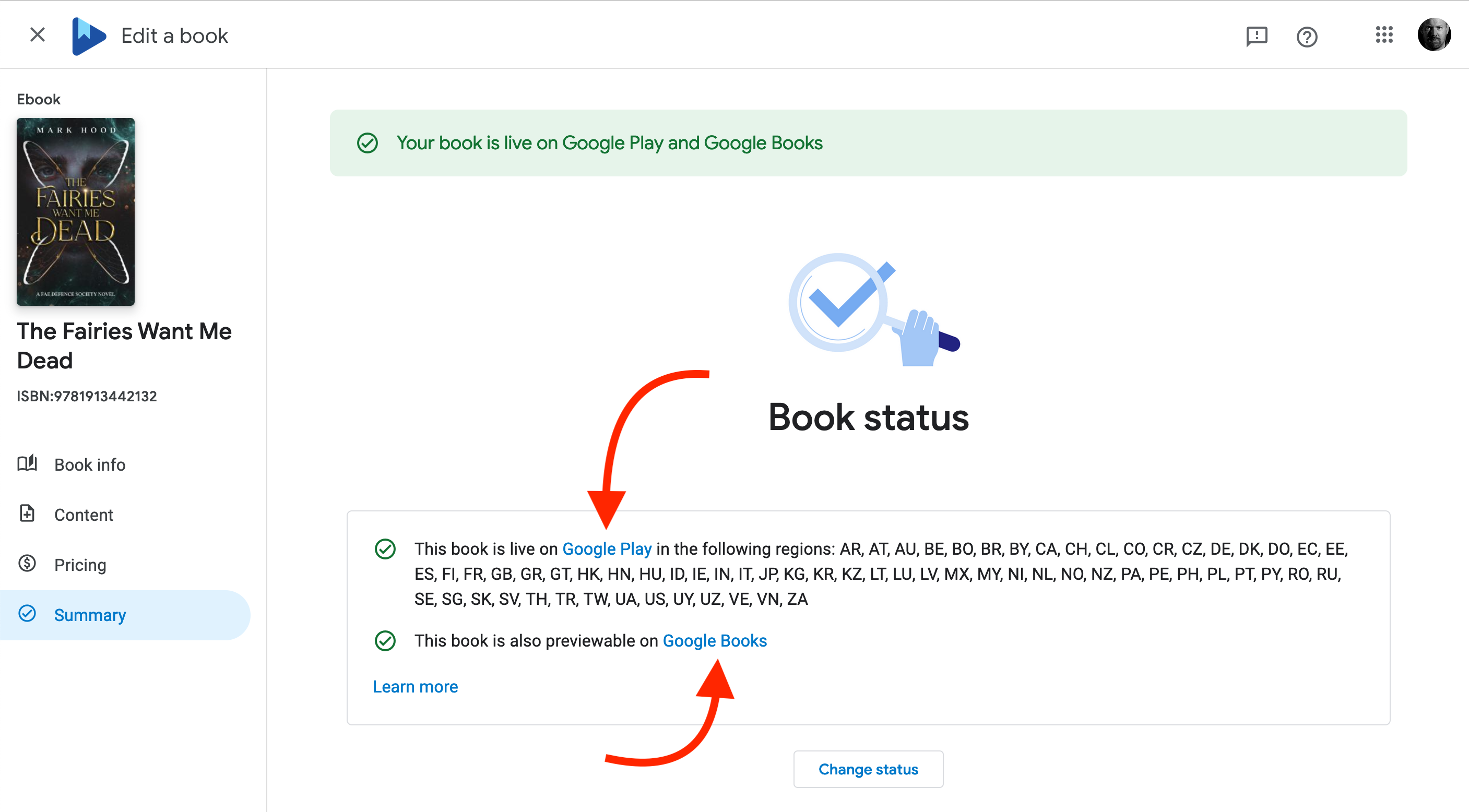
Once it’s ready, grab the links by clicking on the book, selecting ‘Summary’ and looking for the link to Google Play:
Note: I’ve heard reports that this is tricky on PCs, as Apple expect you to use a Mac. I certainly couldn’t get it to work on Firefox, even on a Mac, so I’d recommend using Safari.
If you prefer to watch this walkthrough instead, I’ve prepared a video for you. Scroll down for the written instructions, along with screenshots to help you through the process.
It doesn’t look as though you lose much (and might even gain) by going via another distributor, but if you’re into doing everything yourself, here’s how.
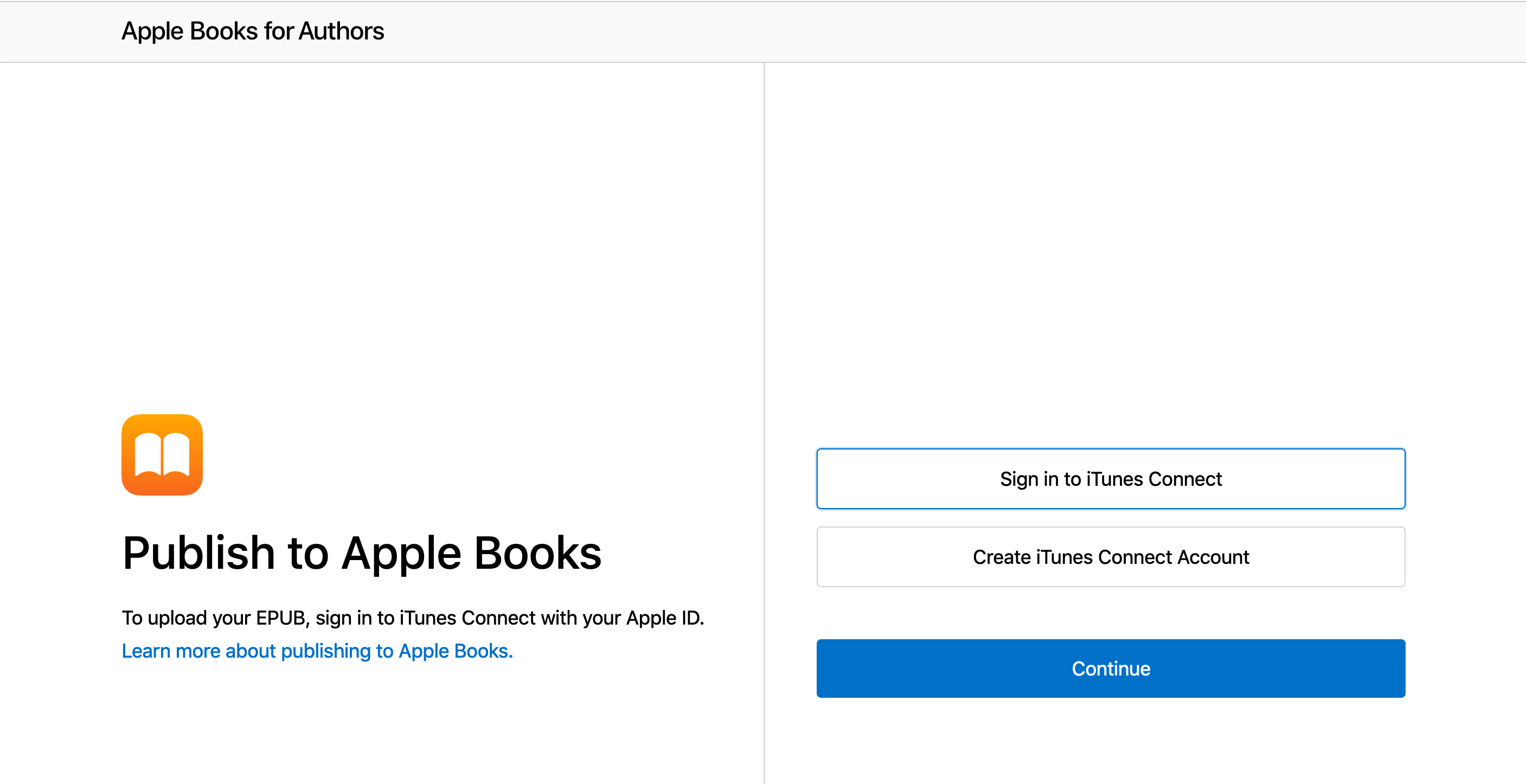
You will need an Apple ID, and you have to turn on two-factor authentication. If you don’t already have one, sign up here https://authors.apple.com/epub-upload by selecting ‘Create iTunes Connect Account’. Yes, iTunes. Even though it’s been called ‘Music’ since 2019, and even though you don’t buy books through it.
If you do, you can log in directly by choosing ‘Sign in to iTunes Connect’ instead.
Now set up your business information (if it’s just you, that’s fine also) and the usual tax and bank account information.
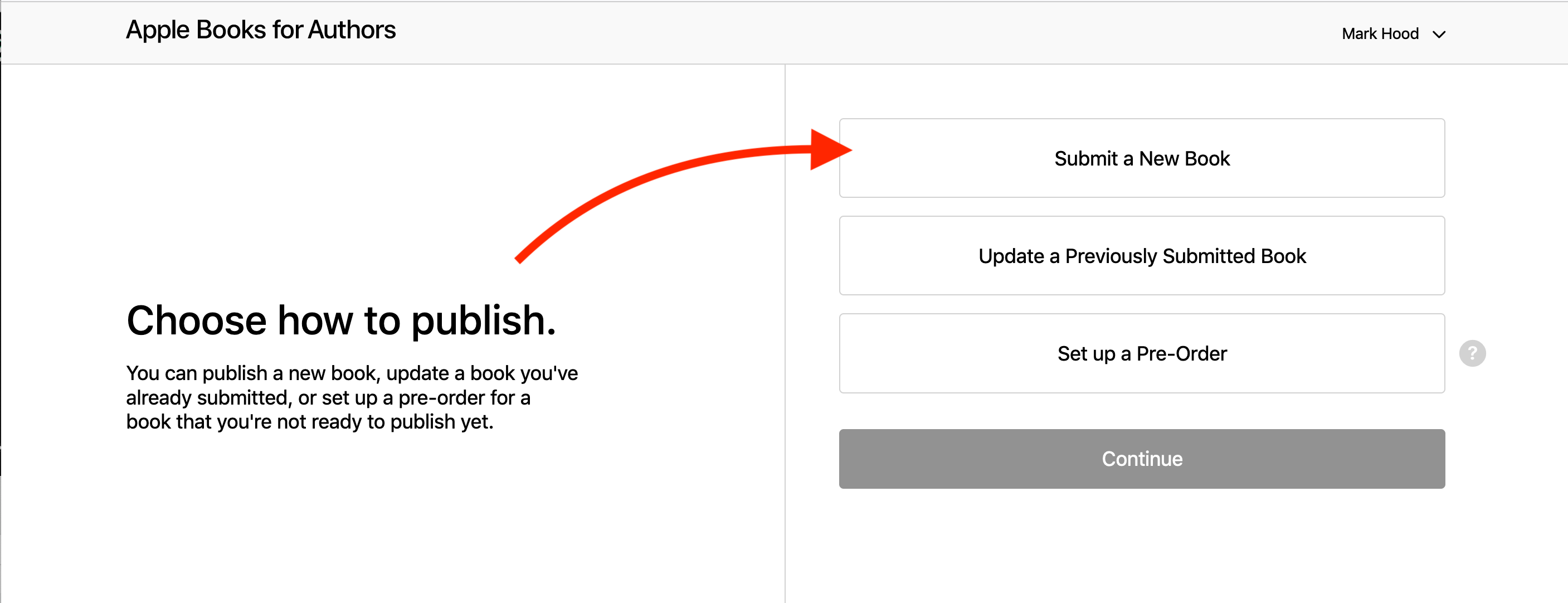
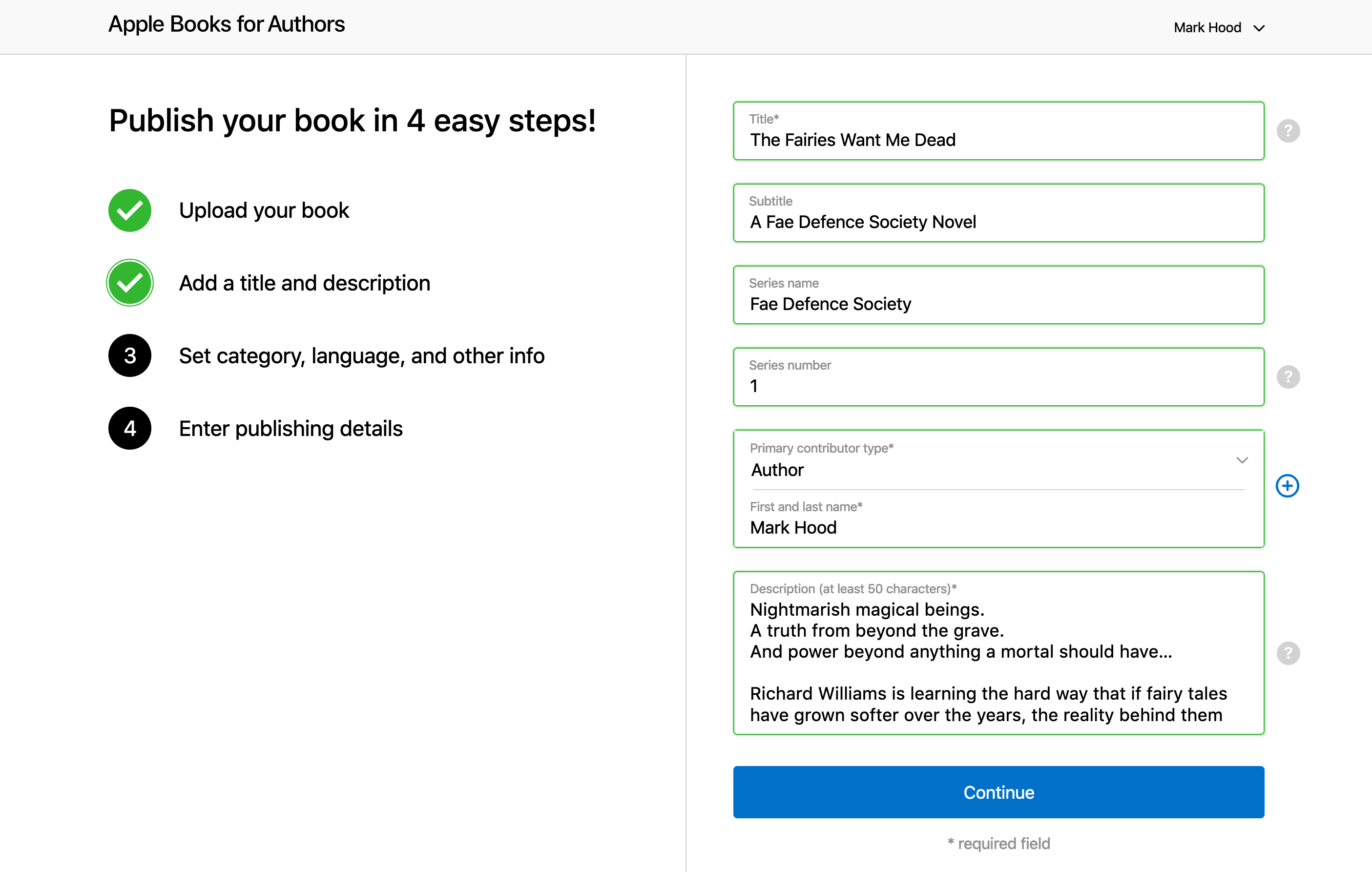
We can then select to ‘Submit a new book’, and hit continue.
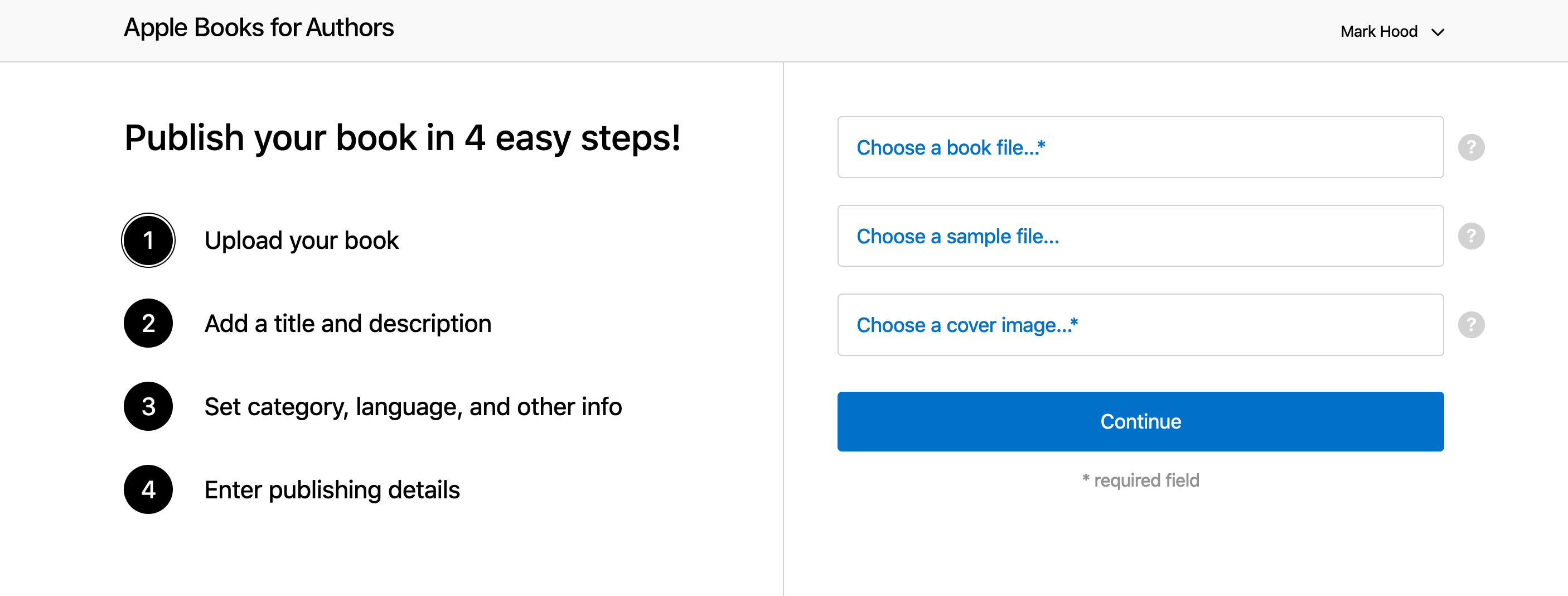
In contrast to Google which makes you do everything else first, Apple wants the files right away:
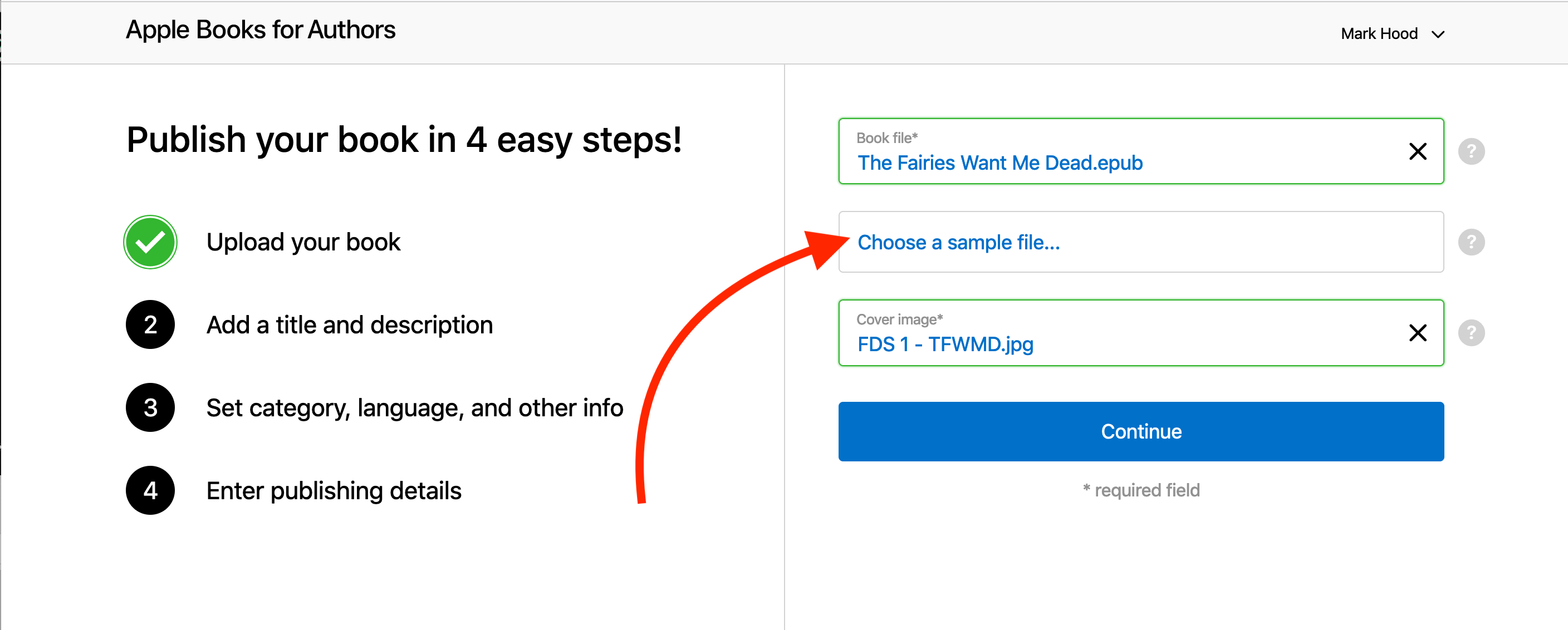
Even better, it validates them immediately, so you know if there’s a problem. If all is green, carry on.
I chose not to include a sample, since Apple will create one themselves, even though it doesn’t mention it. If you have a specific portion you wish to share, perhaps ending on a cliffhanger, then you can choose to do so here.
You can’t use formatting in the description, so bear that in mind.
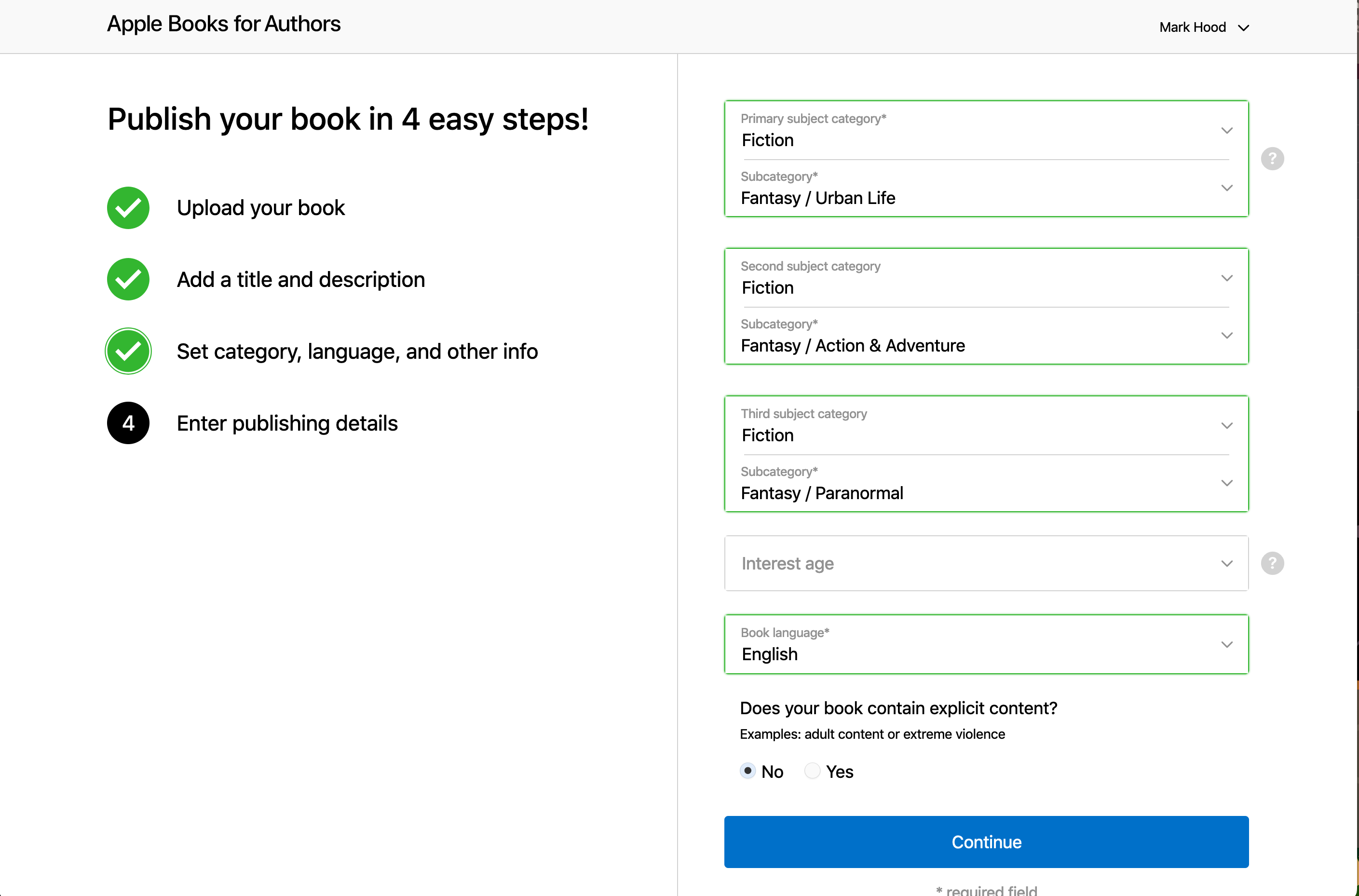
Now you pick your categories, language and whether it’s for children or not:
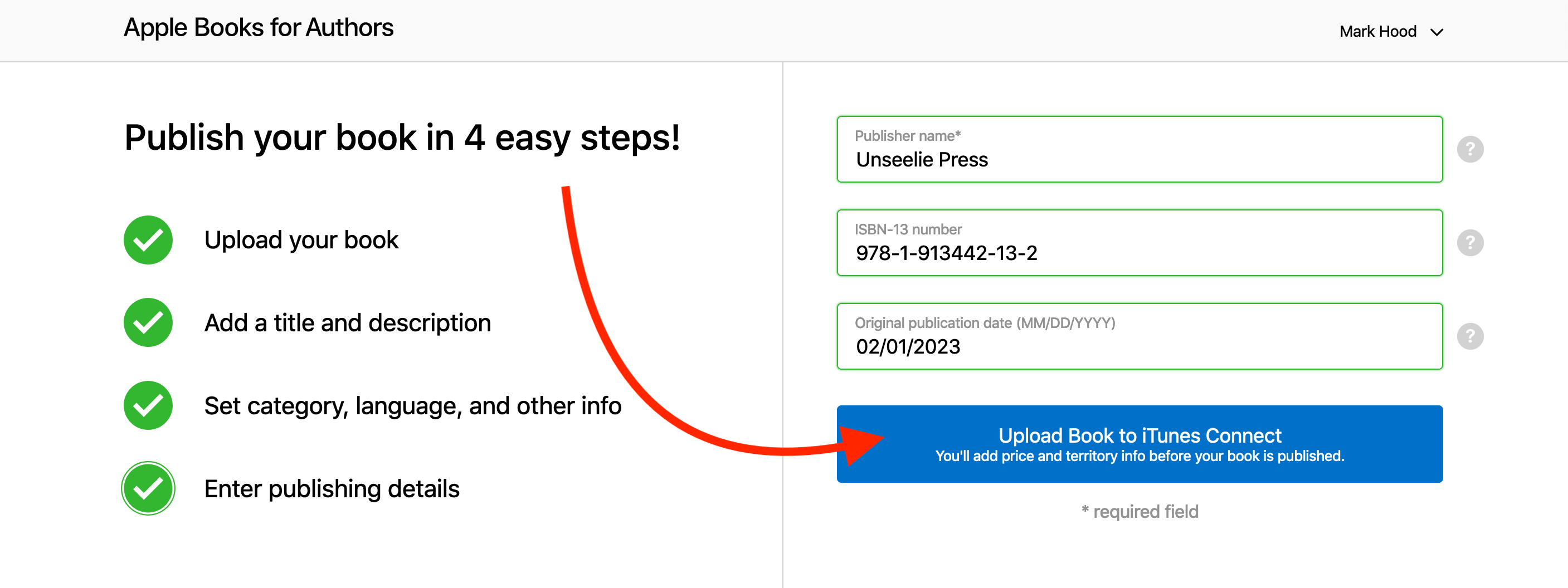
And then your publishing info. If you don’t have a publisher name, you can use your own name. Mine isn’t set up as a company, by the way - I just picked a name to use that wasn’t already taken.
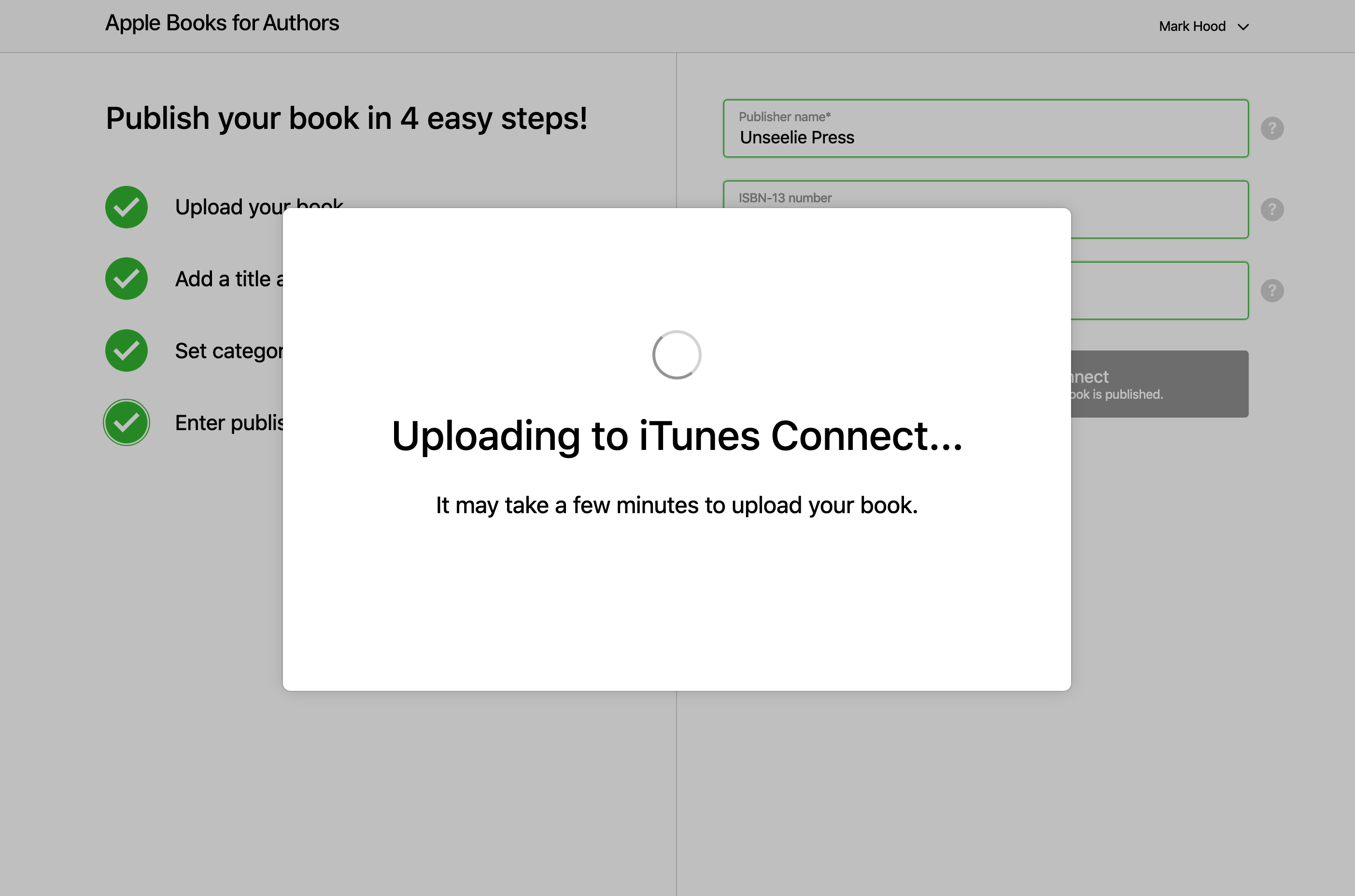
Hit upload, and wait a minute or seven for it to process.
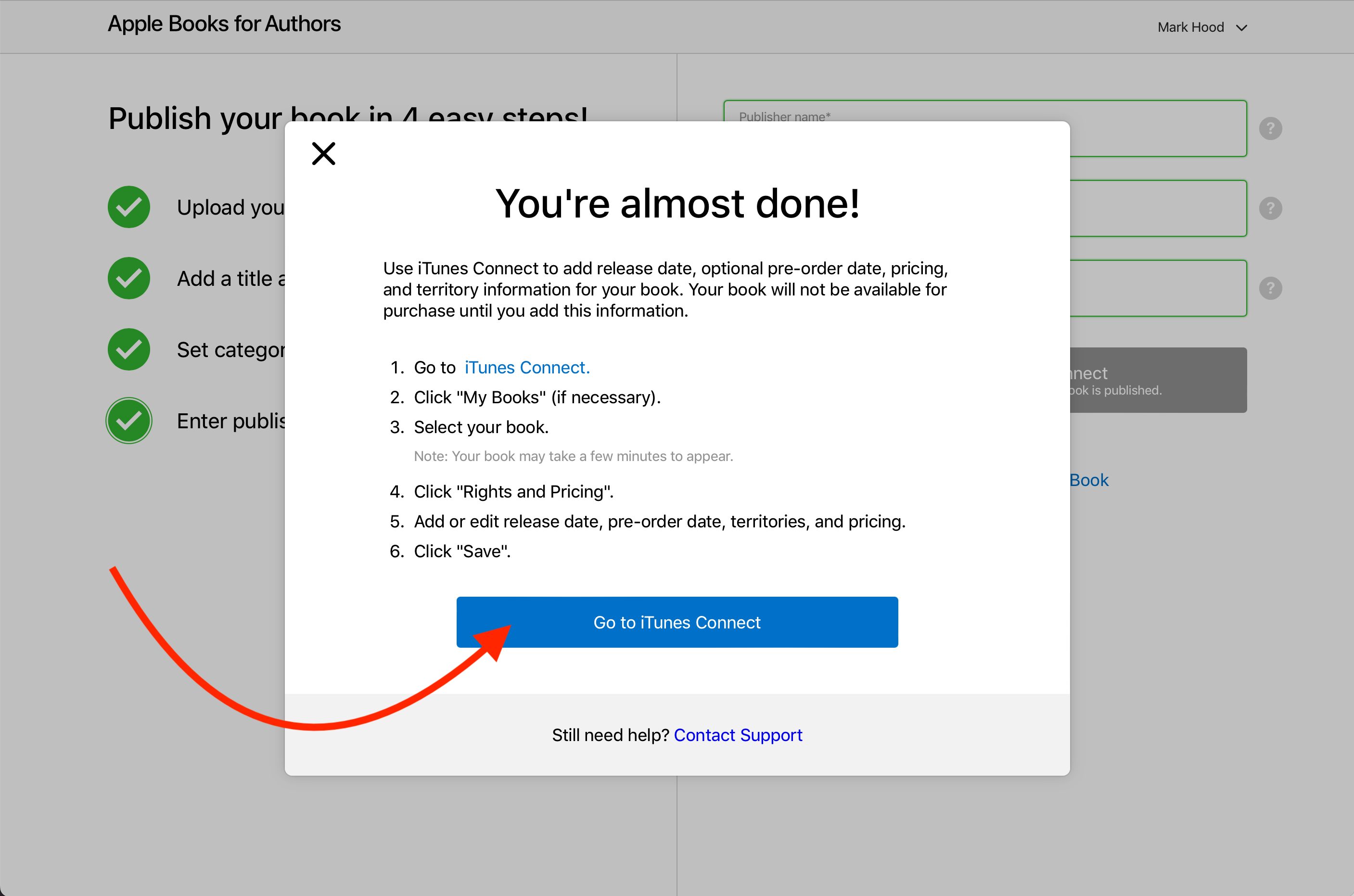
Then you need to go somewhere else entirely to finish the job, luckily it can send you straight there:
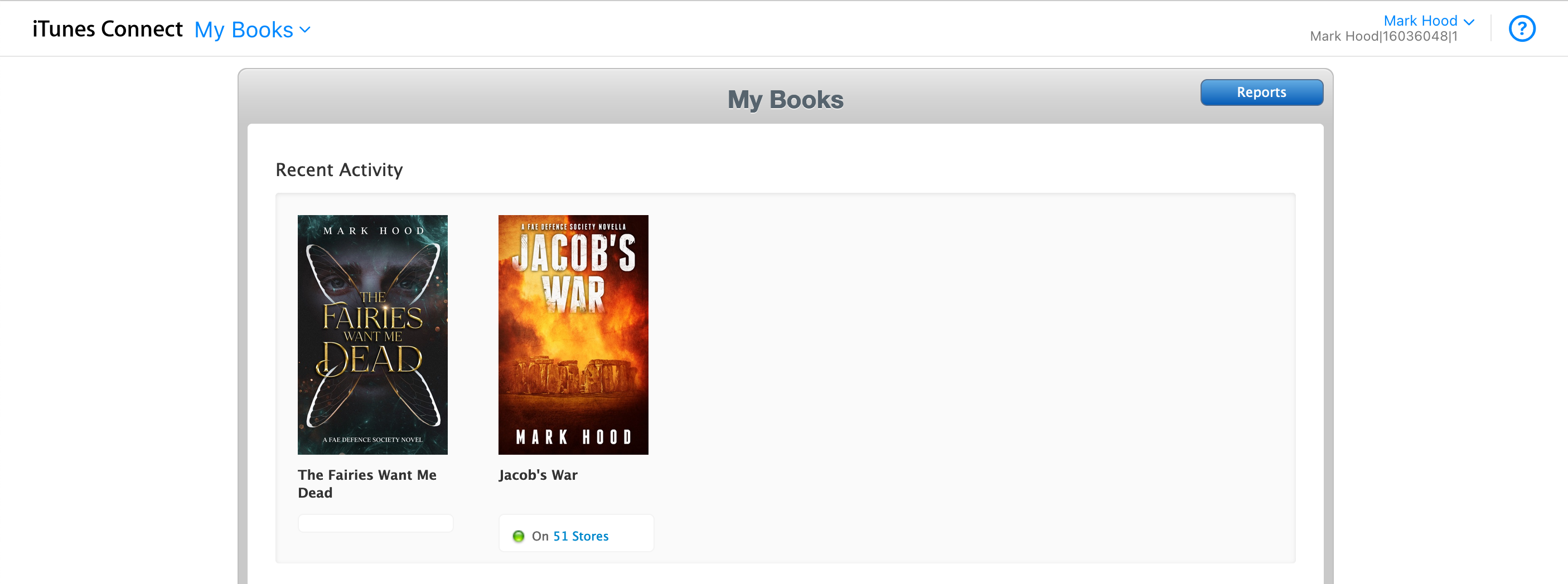
My new book didn’t show up right away, so you might need to wait (as it says) a few minutes.
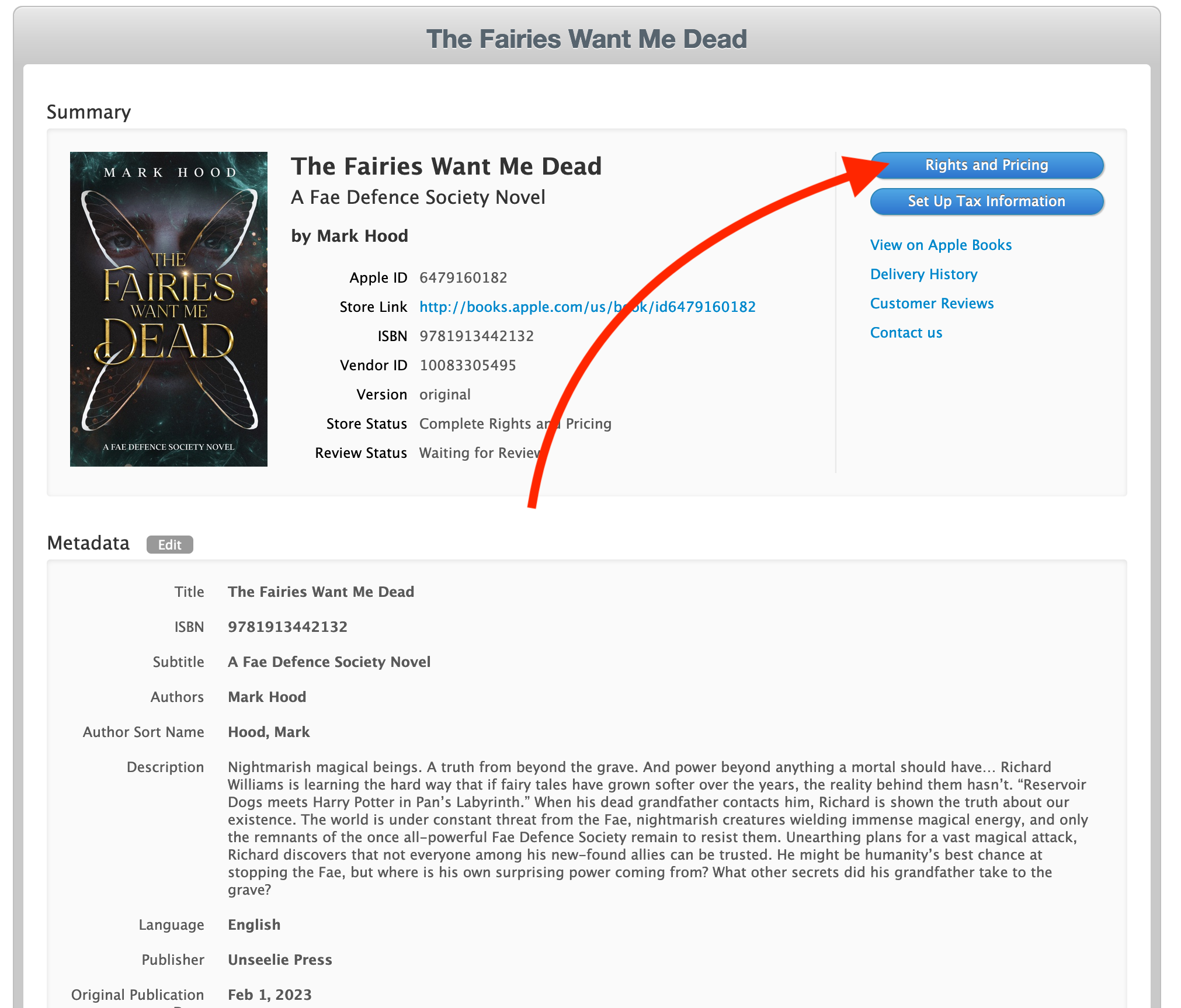
Once it does, you can click on it and enter the necessary information. Check the info you entered already is OK, and hit ‘Rights and Pricing’
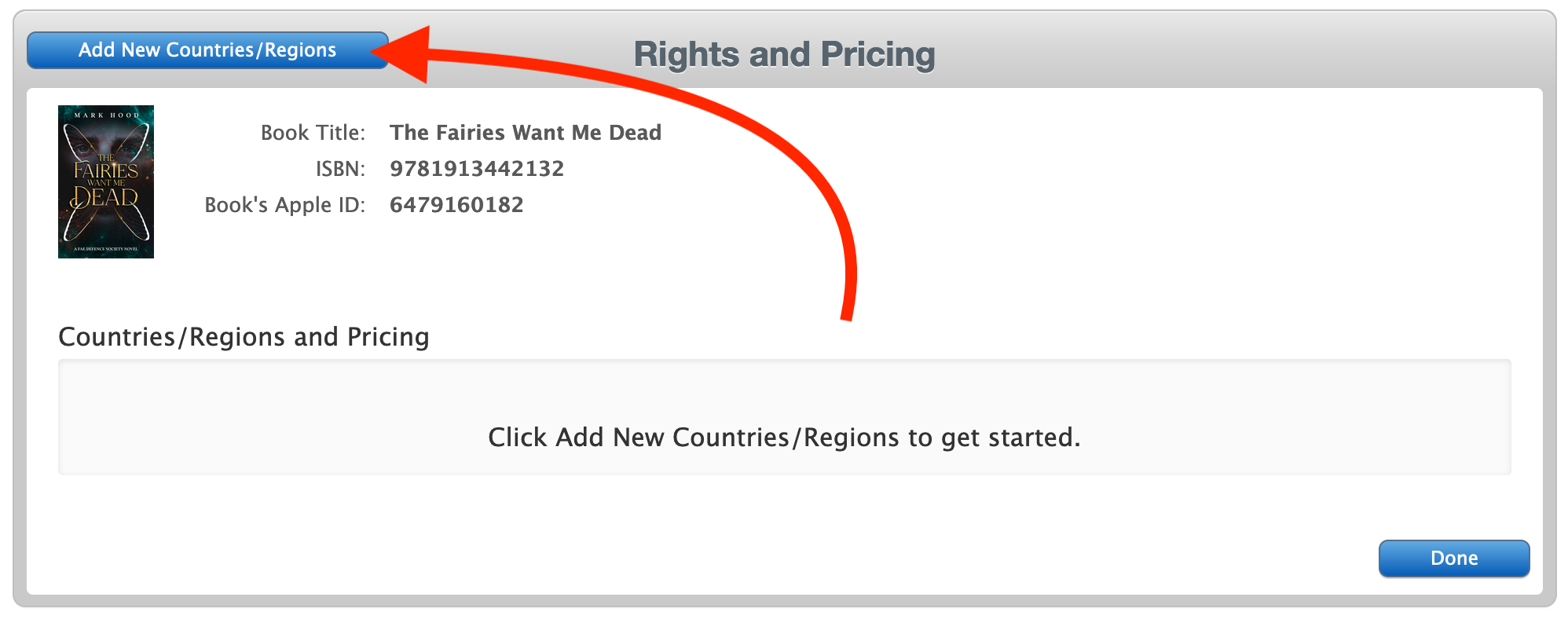
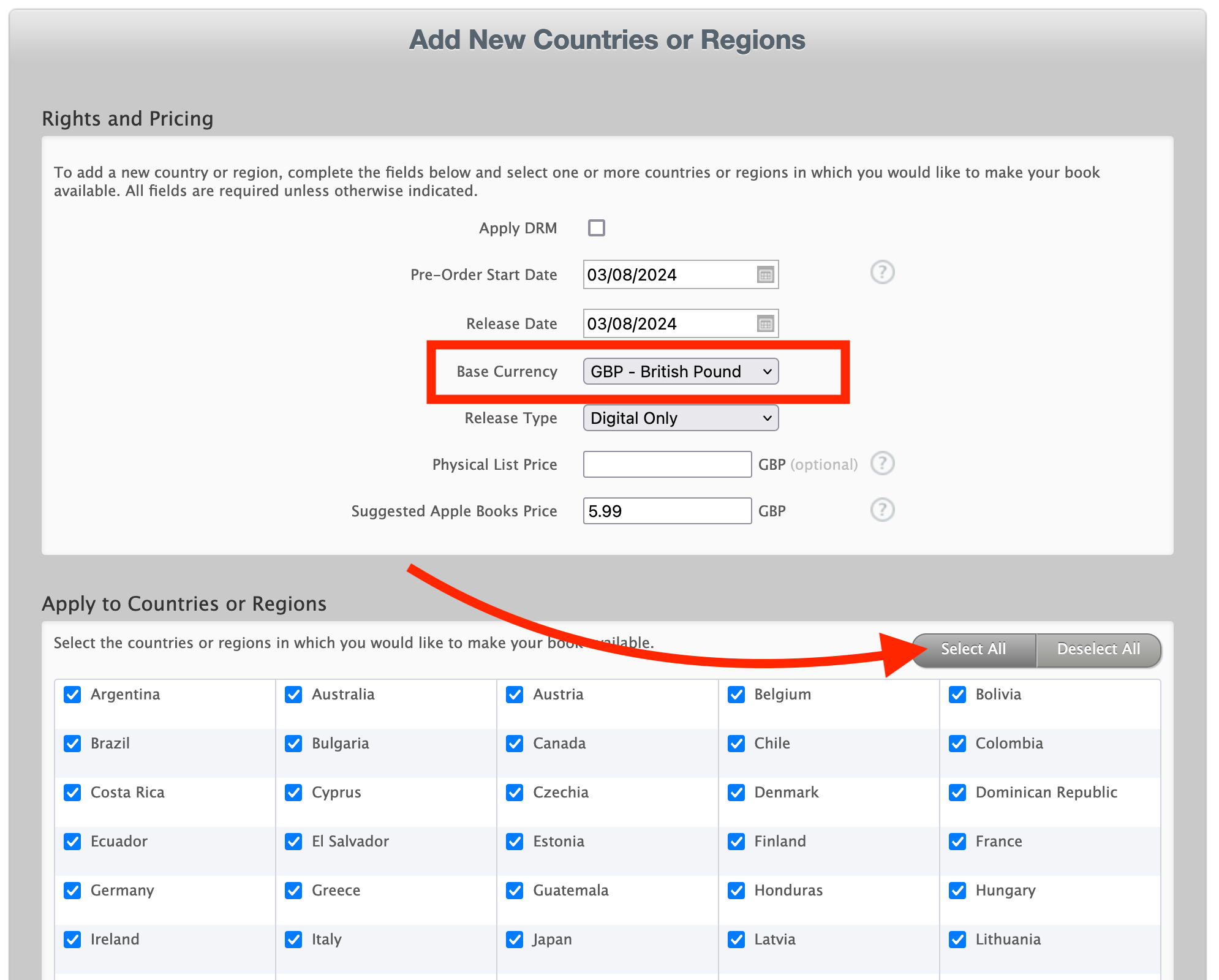
Add new countries / regions:
You can choose DRM or not (I chose not) and a release date. Note that you can’t set it in the past, so the best you can do is pick today’s date. If you want it in the future, do so here.
Note that it’s best not to click in either box. I accidentally did and ended up having to pick tomorrow as my release date, since it complained the pre-order date had to be earlier.
You will pick a ‘base currency’ for your pricing - I tend to pick GBP since I’m in the UK, but if most of your audience will be elsewhere you might want to change it. I also pick every country (there’s a button to do that) since I sell worldwide.
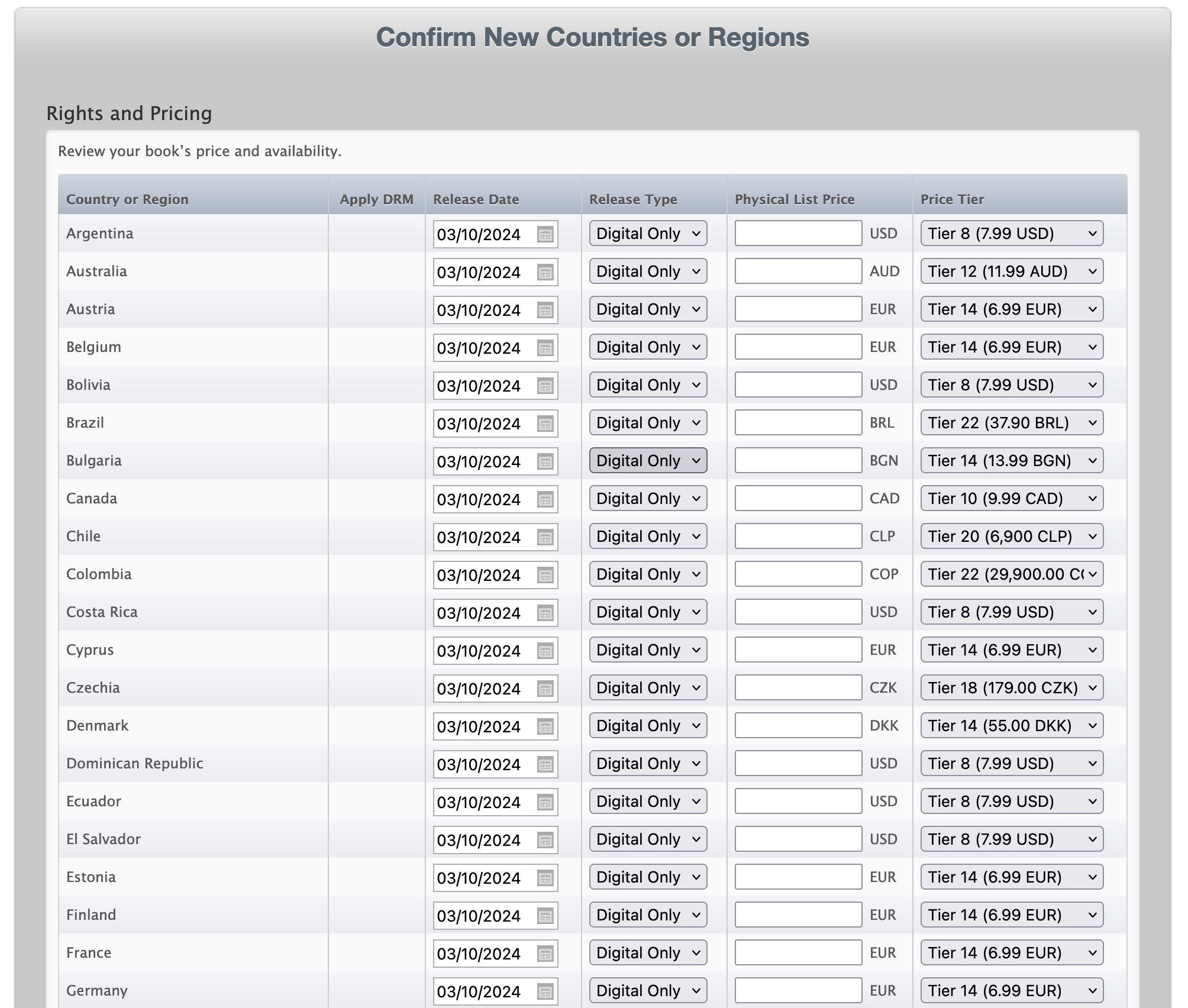
Scroll down and hit Continue. It’ll then give you the option to set the price in every country by hand. Fortunately it also pre-selects the most likely value in each country, so you don’t have to.
I tend to just set US and Europe anyway, and they look fine, so hit ‘Confirm’ and carry on.
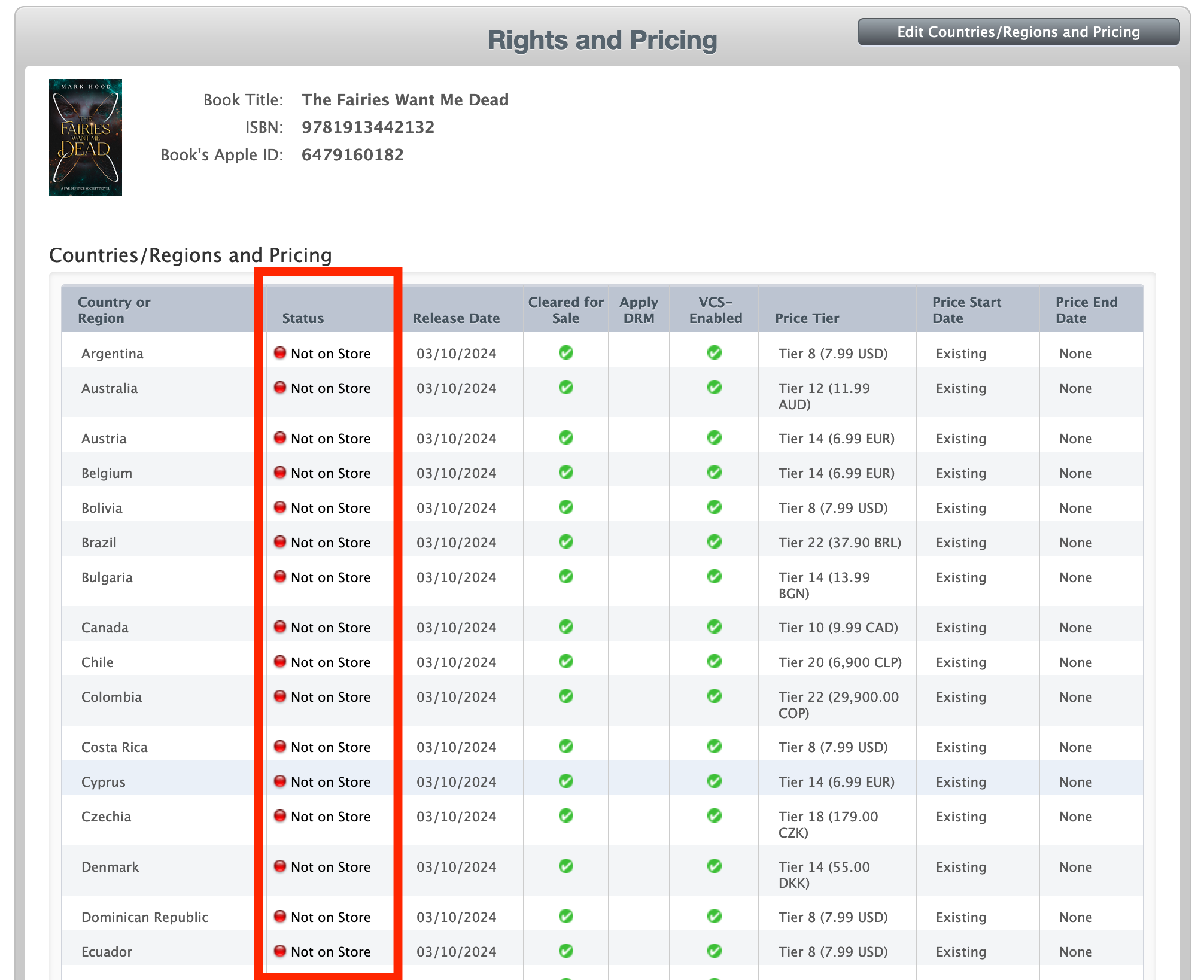
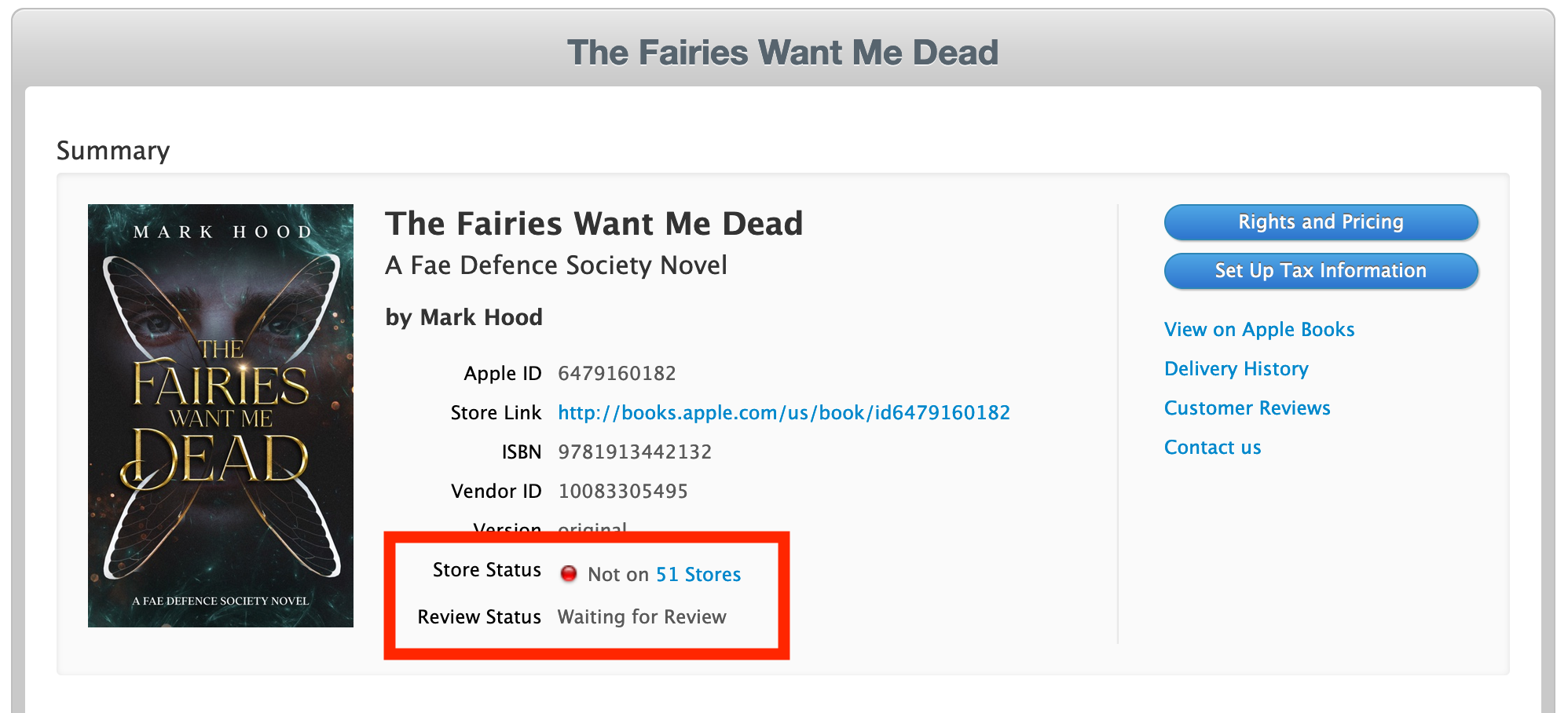
It’ll then push it out to all their stores, which might take a while. Don’t panic when it says ‘Not in store’ immediately.
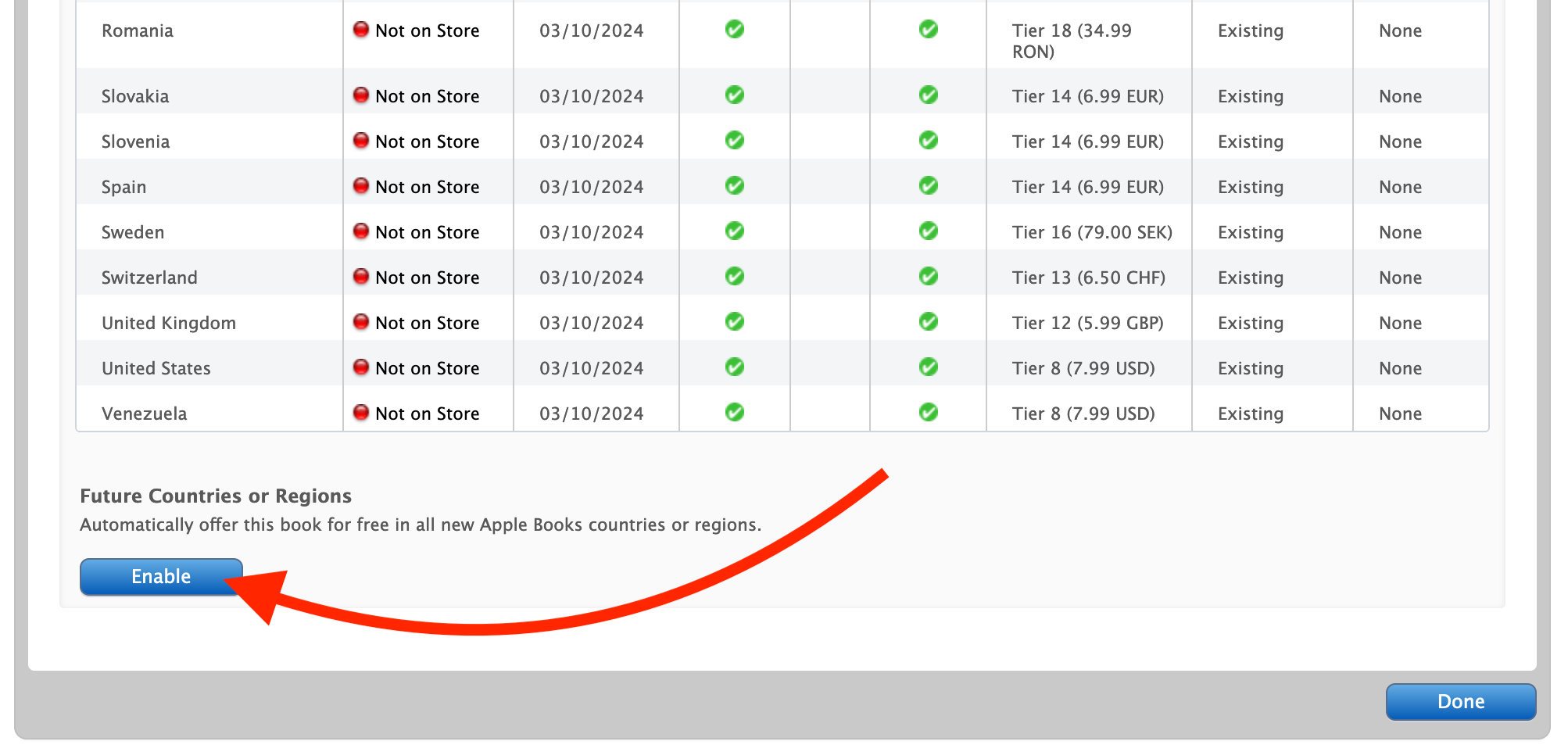
While we’re here, though, scroll down the bottom and hit ‘Enable’ to automatically put it in any new stores they open.
Then hit ‘Done’ and it’ll take you back to your book. It will then explain why it’s not in any stores yet, it’s still in review:
Time for another drink! It might take a day, so once again avoid hitting refresh like a lab rat dispensing food pellets, and come back later.
Posts
Thoughts and musings.
Tempor est exercitation ad qui pariatur quis adipisicing aliquip nisi ea consequat ipsum occaecat. Nostrud consequat ullamco laboris fugiat esse esse adipisicing velit laborum ipsum incididunt ut enim. Dolor pariatur nulla quis fugiat dolore excepteur. Aliquip ad quis aliqua enim do consequat.
Occaecat aliqua consequat laborum ut ex aute aliqua culpa quis irure esse magna dolore quis. Proident fugiat labore eu laboris officia Lorem enim. Ipsum occaecat cillum ut tempor id sint aliqua incididunt nisi incididunt reprehenderit. Voluptate ad minim sint est aute aliquip esse occaecat tempor officia qui sunt. Aute ex ipsum id ut in est velit est laborum incididunt. Aliqua qui id do esse sunt eiusmod id deserunt eu nostrud aute sit ipsum. Deserunt esse cillum Lorem non magna adipisicing mollit amet consequat.
Sit excepteur do velit veniam mollit in nostrud laboris incididunt ea. Amet eu cillum ut reprehenderit culpa aliquip labore laborum amet sit sit duis. Laborum id proident nostrud dolore laborum reprehenderit quis mollit nulla amet veniam officia id id. Aliquip in deserunt qui magna duis qui pariatur officia sunt deserunt.
Anim eiusmod irure incididunt sint cupidatat. Incididunt irure irure irure nisi ipsum do ut quis fugiat consectetur proident cupidatat incididunt cillum. Dolore voluptate occaecat qui mollit laborum ullamco et. Ipsum laboris officia anim laboris culpa eiusmod ex magna ex cupidatat anim ipsum aute. Mollit aliquip occaecat qui sunt velit ut cupidatat reprehenderit enim sunt laborum. Velit veniam in officia nulla adipisicing ut duis officia.
Exercitation voluptate irure in irure tempor mollit Lorem nostrud ad officia. Velit id fugiat occaecat do tempor. Sit officia Lorem aliquip eu deserunt consectetur. Aute proident deserunt in nulla aliquip dolore ipsum Lorem ut cupidatat consectetur sit sint laborum. Esse cupidatat sit sint sunt tempor exercitation deserunt. Labore dolor duis laborum est do nisi ut veniam dolor et nostrud nostrud.
Tempor proident minim aliquip reprehenderit dolor et ad anim Lorem duis sint eiusmod. Labore ut ea duis dolor. Incididunt consectetur proident qui occaecat incididunt do nisi Lorem. Tempor do laborum elit laboris excepteur eiusmod do. Eiusmod nisi excepteur ut amet pariatur adipisicing Lorem.
Occaecat nulla excepteur dolore excepteur duis eiusmod ullamco officia anim in voluptate ea occaecat officia. Cillum sint esse velit ea officia minim fugiat. Elit ea esse id aliquip pariatur cupidatat id duis minim incididunt ea ea. Anim ut duis sunt nisi. Culpa cillum sit voluptate voluptate eiusmod dolor. Enim nisi Lorem ipsum irure est excepteur voluptate eu in enim nisi. Nostrud ipsum Lorem anim sint labore consequat do.